使用智能体自动化认知任务
本课的计划如下:
-
从零构建双向匹配 AI 智能体。
- 智能体会把机器人输出的 PDF 作为输入,并返回验证结果。
- 如果发票有问题,智能体还会为人工验证任务准备好数据。
-
配置测试并构建评估数据集,保证智能体的质量(可选)。
-
在 Maestro 工作流中配置这个智能体。
-
基于智能体的输出配置决策网关(Gateway)。
-
模拟运行,看看决策是否走向正确的方向。
目标
创建带有两个工具的 2-Way Matching Agent:
-
一个 IXP 数据提取工具
-
一个查询采购订单数据库的 RPA 工作流工具。
智能体接收一份 PDF 发票,提取结构化数据(包括 PO 信息),查找对应的 PO,然后返回匹配决策和配套的输出。
为什么用 LLM 做匹配
我们流程中的一个步骤是比对采购订单和发票。
你可以写传统代码来比对和分析发票数据与行项目,但这可能相当有挑战性,因为“规则”通常是灵活的——例如,表格里可能有语义相近但并不完全相同的描述,或者存在其他可接受的差异。每一个这样的边缘情况都会增加代码复杂度和实现时间。
另外,一旦发现差异,通常的下一步是写信给发件方,请对方更新发票。
LLM 非常适合这项工作——它能分析任意格式的大量文本,识别差异和异常,然后按照提示词中的指令,用要求的格式和语言生成验证摘要或回复邮件。
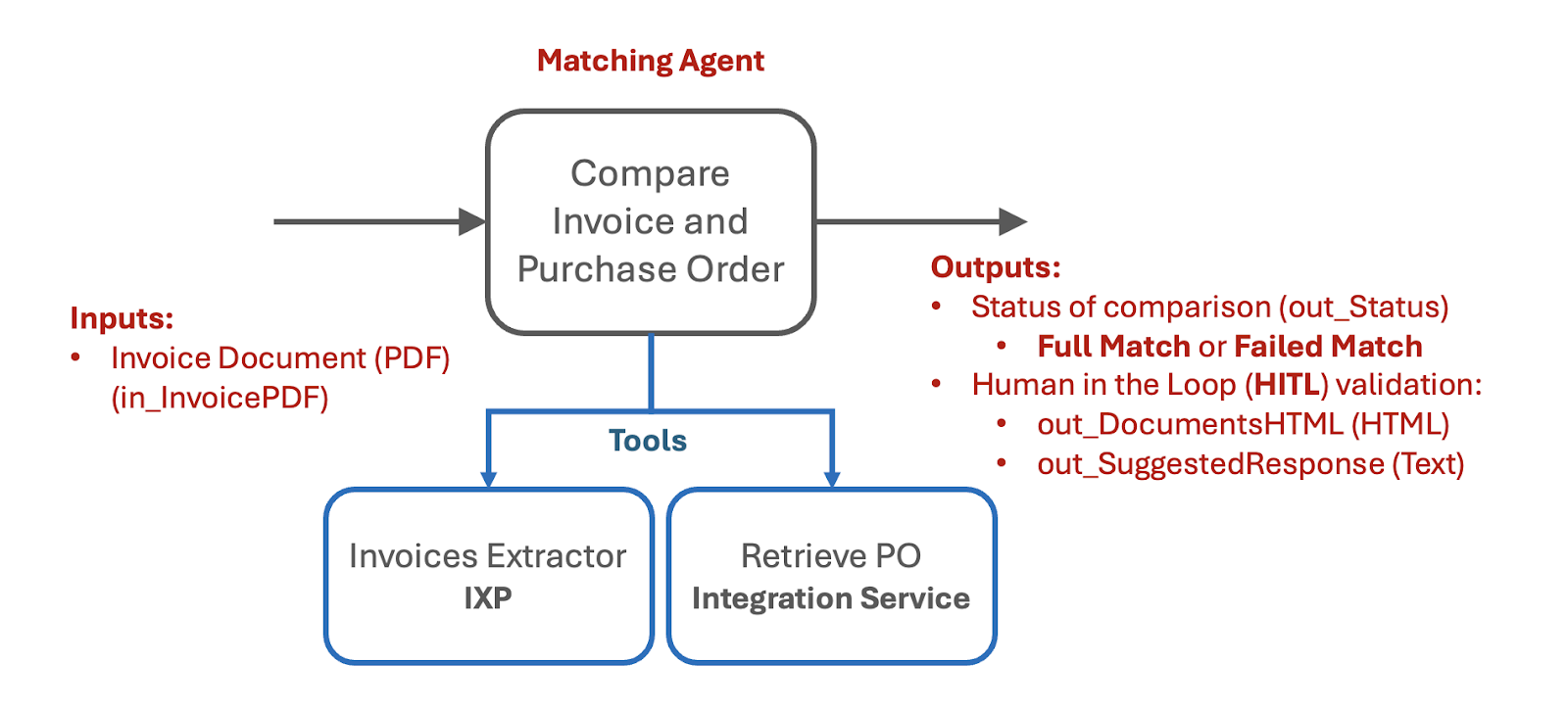
下面是智能体的输入和输出结构,以及它完成任务所需的工具(Tools):
步骤
1. 创建智能体并配置参数
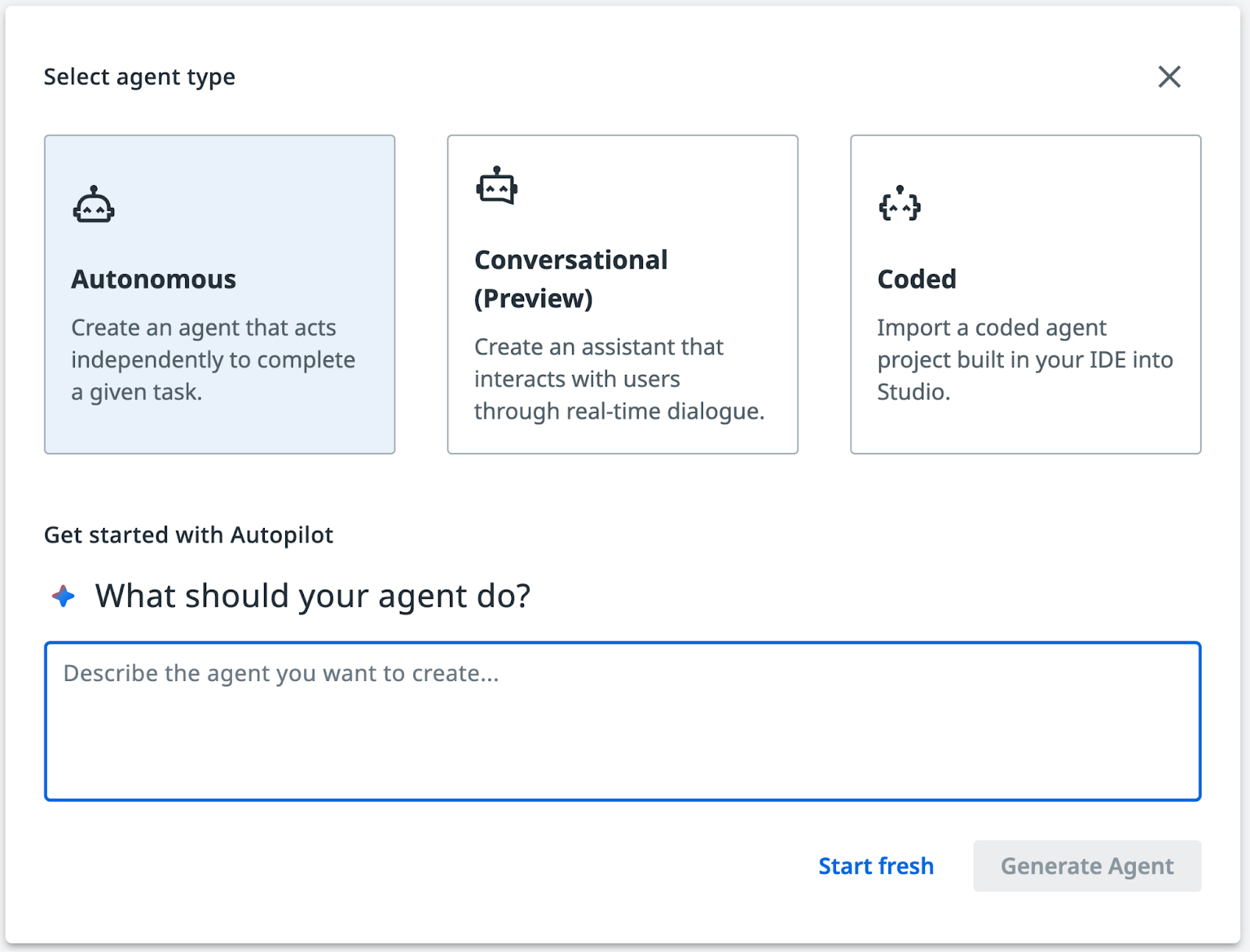
看到生成新智能体的提示时,关掉 Autopilot 界面。
你可以以后再探索 Autopilot。现在我们手动配置提示词和设置——点击 Start fresh(从头开始)。
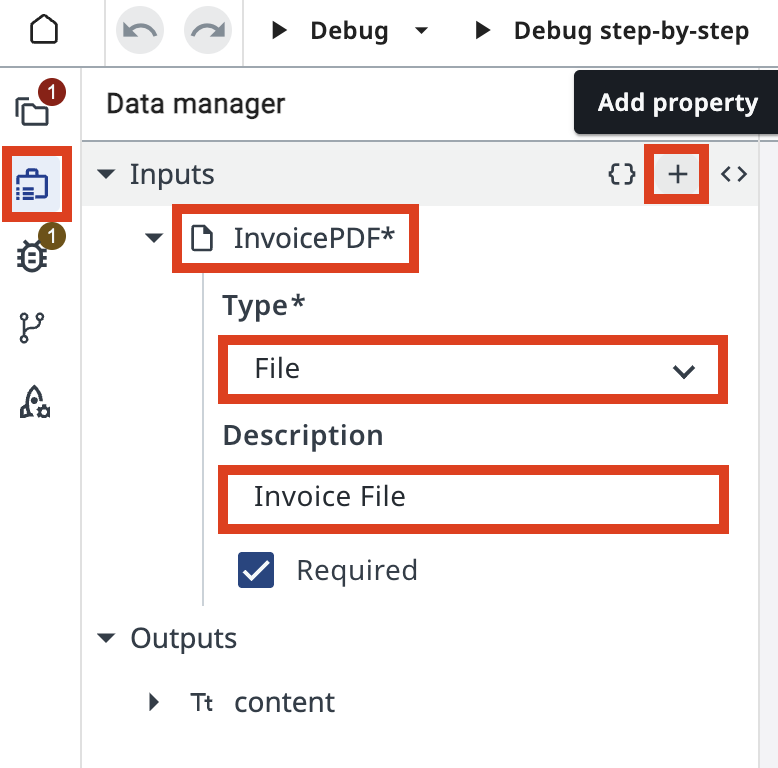
和机器人一样,智能体也有自己的输入和输出,叫做参数(Arguments)。点击左侧功能区的 Data Manager(数据管理器)图标,然后点击 + 添加一个新的输入参数:
| 字段 | 值 |
|---|---|
| Name | in_InvoicePDF |
| Type | File |
| Description | Invoice File |
对于输出参数,切换到 Editor mode(编辑器模式)后,把下面的 JSON 复制粘贴到编辑器里:
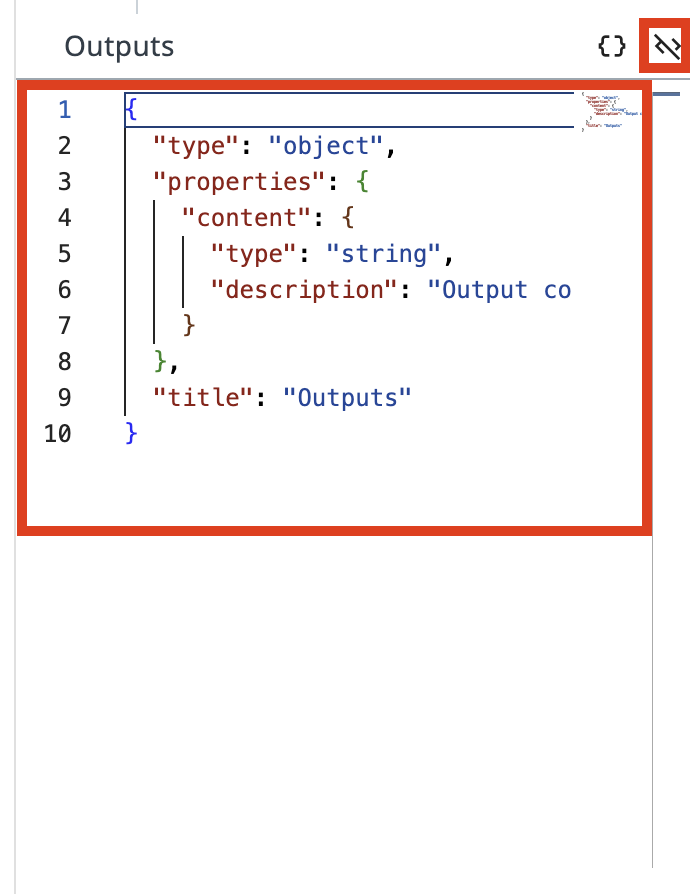
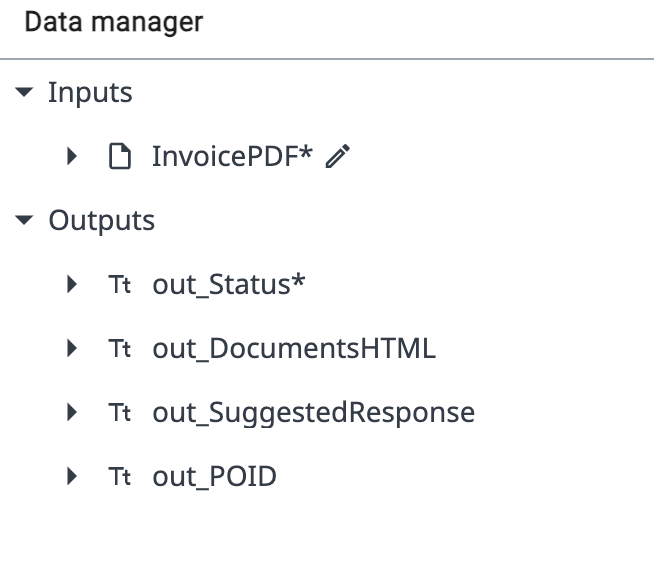
Output(输出)参数的 JSON schema:
{
  "type": "object",
  "required": [
    "out_Status"
  ],
  "properties": {
    "out_Status": {
      "type": "string",
      "description": "Status of matching - either 'Full Match' or 'Failed Match'"
    },
    "out_DocumentsHTML": {
      "type": "string",
      "description": "HTML code containing side by side comparison of Purchase Order and Invoice"
    },
    "out_SuggestedResponse": {
      "type": "string",
      "description": "Suggested response to Invoice Supplier with description and request to mitigate issues"
    },
    "out_POID": {
      "type": "string",
      "description": "Purchase Order ID extracted from Invoice PDF"
    },
    "out_InvoiceJSON": {
      "type": "string",
      "description": "JSON document containing Invoice data extracted by IXP"
    }
  },
  "title": "Outputs"
}
2. 配置提示词

“提示词和代码一样,精确才能带来强大且可预测的结果。提示词乱糟糟,输出也会乱糟糟。像对待代码一样对待它,让每个词都有它的使命!” —— 来自 gpt-4o 的又一条建议
提示词在智能体的设置里配置(点击扳手图标打开)。
正如你在上一个练习中所记得的:
-
System prompt(系统提示词)就像人类的工作守则,是“怎么做”。
-
User Prompt(用户提示词)是最终用户输入的具体请求或任务,是“做什么”。
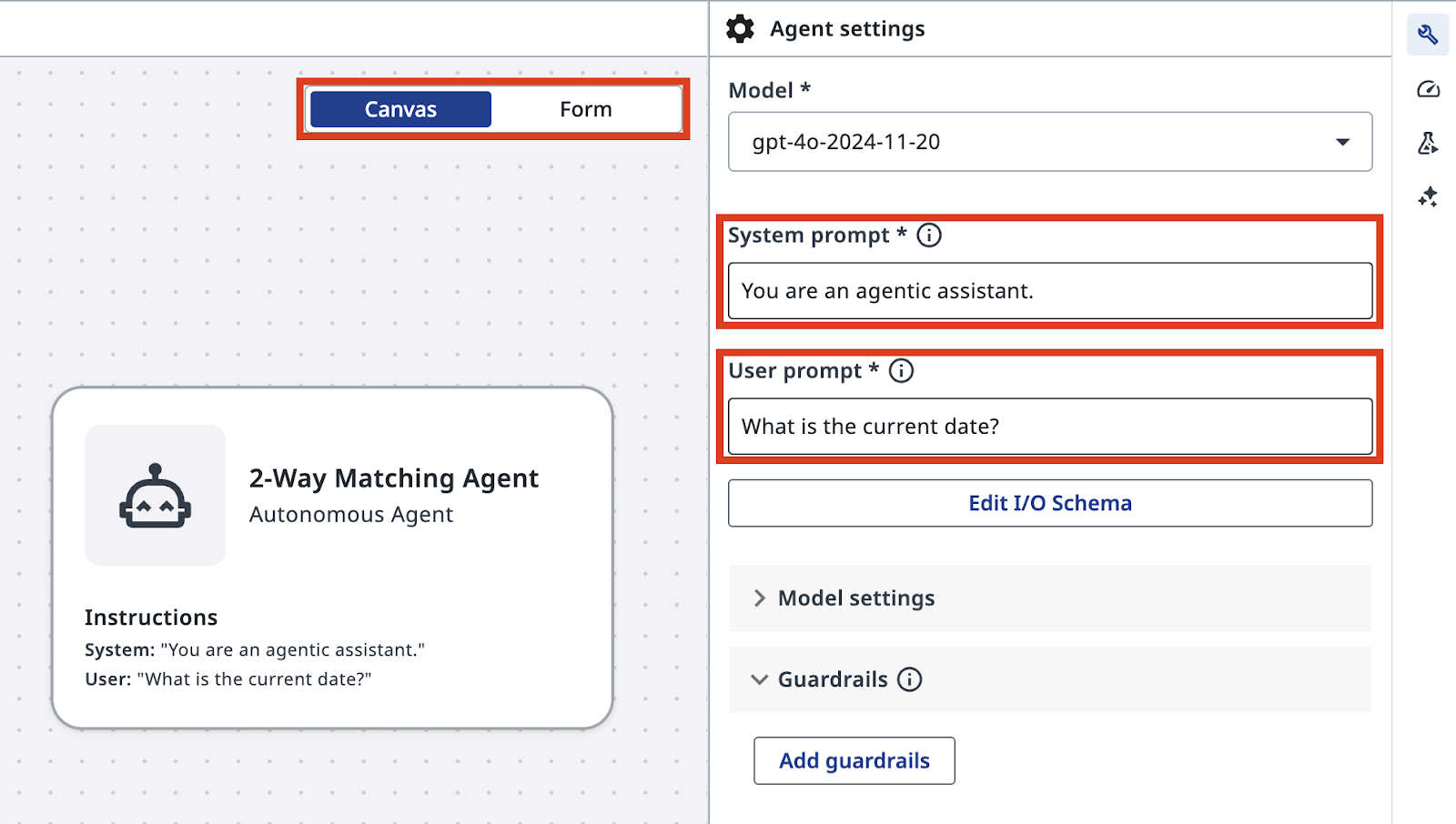
输入以下 System Prompt:
You are an AI agent specialized in comparing Invoice PDFs with Purchase Orders. Your primary responsibilities are:

1. Analyze the contents of an Invoice PDF file using the InvoicesIXP tool. Extract all relevant information including company details, line items, totals, and tax information. Trigger Escalation if confidence falls beyond 60%.

2. Use the Retrieve PO Data tool to fetch Purchase Order data from the Data Fabric. The Purchase Order ID should be extracted from the Invoice. If the PO data cannot be retrieved, use Escalation.

3. Compare the Invoice details with the Purchase Order information. Identify and list any mismatches or discrepancies between the two documents. Pay special attention to:
  - Company names and details
  - Line items (product names, quantities, prices)
  - Totals and subtotals
  - Tax information
  - Dates (order date, delivery date, payment due date)

4. Handle any unexpected data formats or missing information gracefully. If crucial information is missing from either document, note this in your analysis and use Escalation.

5. Provide a clear, concise report of your findings, highlighting any issues that require attention.

You should be thorough in your analysis, checking for discrepancies in items, quantities, prices, dates, and any other relevant fields. Always maintain a professional and objective tone in your reports.

out_Status: Status of comparison should be:
  - "Full Match" - if Invoice and Purchase order match fully. Every line item in PO matched to Invoice line items, company name and details match, total and tax information matches.
  - "Failed Match" - if there are items that cannot be matched or other details do not align.

out_DocumentsHTML: If match is not successful, generate HTML code containing side by side comparison of Purchase Order and Invoice, including Company details, document Line Items, Total and Tax information.
  - Use a table structure with three columns: Field, Purchase Order, Invoice.
  - Field titles should be placed in the leftmost column.
  - Tax value should include tax rate and tax name, if available.
  - Line items should be displayed as sub-tables inside the main table cell, aligned top.
  - Cells with discrepancies should have a light red background, both in the main table and in cells of line items sub-tables.
  - Set the table width property to 100%.
  - Use appropriate HTML tags for headers, rows, and data cells.

out_SuggestedResponse: If match is not successful, draft the invoice rejection email to the supplier.
  - The email should have HTML formatting.
  - Start with "Dear Supplier" and do not include a Subject line or placeholders. Sign the email as "Payments Team".
  - Display product names, prices, and other data from documents in bold text.
  - Include a bullet list with reasons for rejection, i.e., discrepancies that can't be matched, and a request to adjust the invoice and resend.
  - In the bullet list, do not include items if that individual item is considered a match. Only list items that do not follow the rules.
  - Maintain a professional and courteous tone throughout the email.

out_InvoiceJSON: JSON document containing Invoice data extracted by IXP. Exclude confidence score, only include datapoints as they appear on the invoice. This will be uploaded to finance system for processing.

Always double-check your analysis and outputs for accuracy before finalizing your response.
3. 添加 IXP 和 PO 检索工具
接下来,我们的智能体需要系统提示词里提到的那些工具:
- InvoicesIXP 工具——使用现有的 Invoice IXP 项目做数据提取
- Retrieve PO Data 工具——用提取出的 PO ID 查询采购订单详情
在画布模式下,选中你的智能体,点击 + 添加一个新工具。
你可以在 UiPath Cloud 的 IXP 区域看到 IXP 的配置。本练习就不深入研究 IXP 配置了。
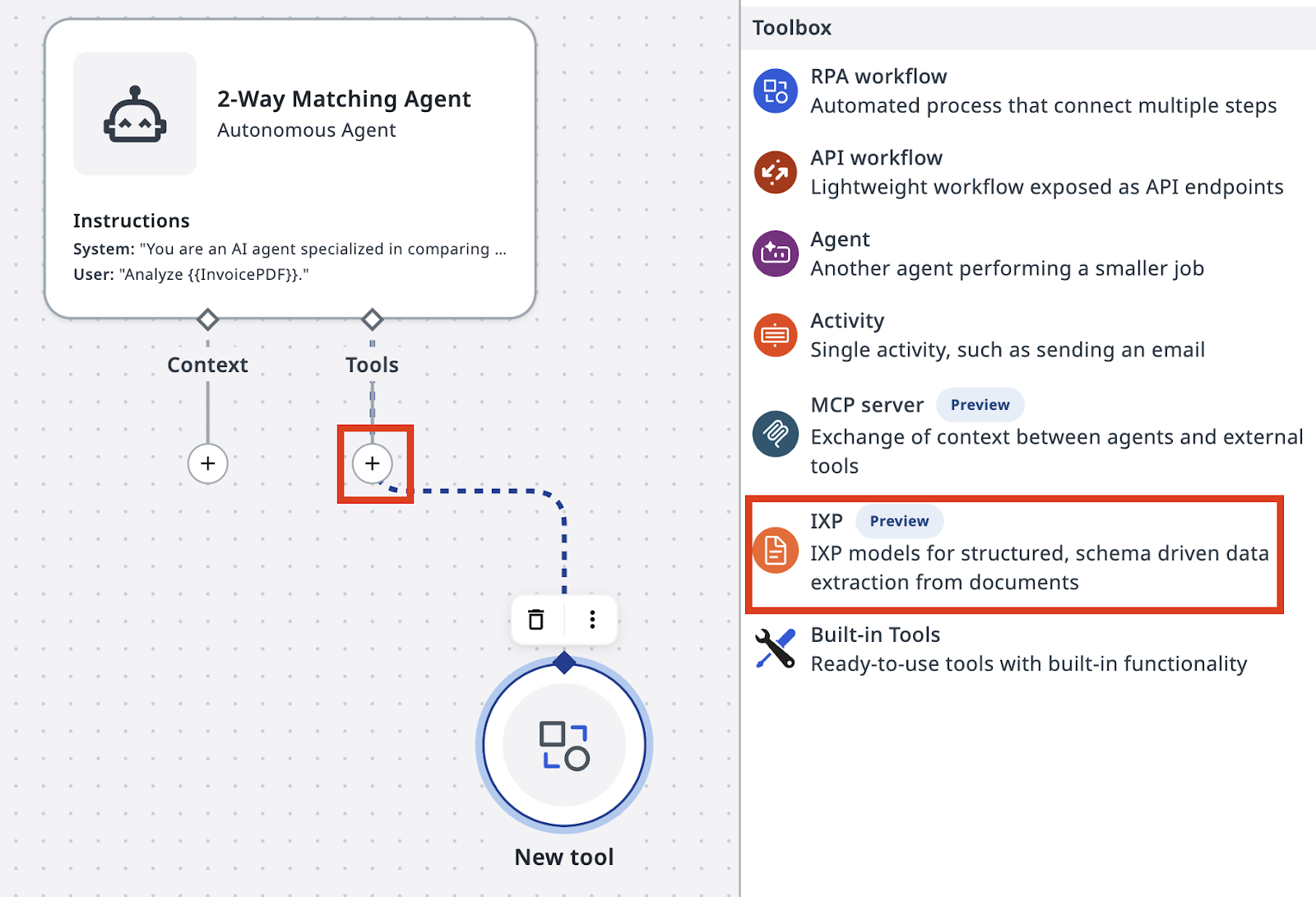
从工具箱中选择 IXP,并选中 InvoicesIXP 项目。
加一段有意义的描述,例如:
InvoicesIXP 是一个开箱即用的提取模型,内置标准的发票分类体系(taxonomy)。它会返回一个包含提取数据的 JSON object(JSON 对象)。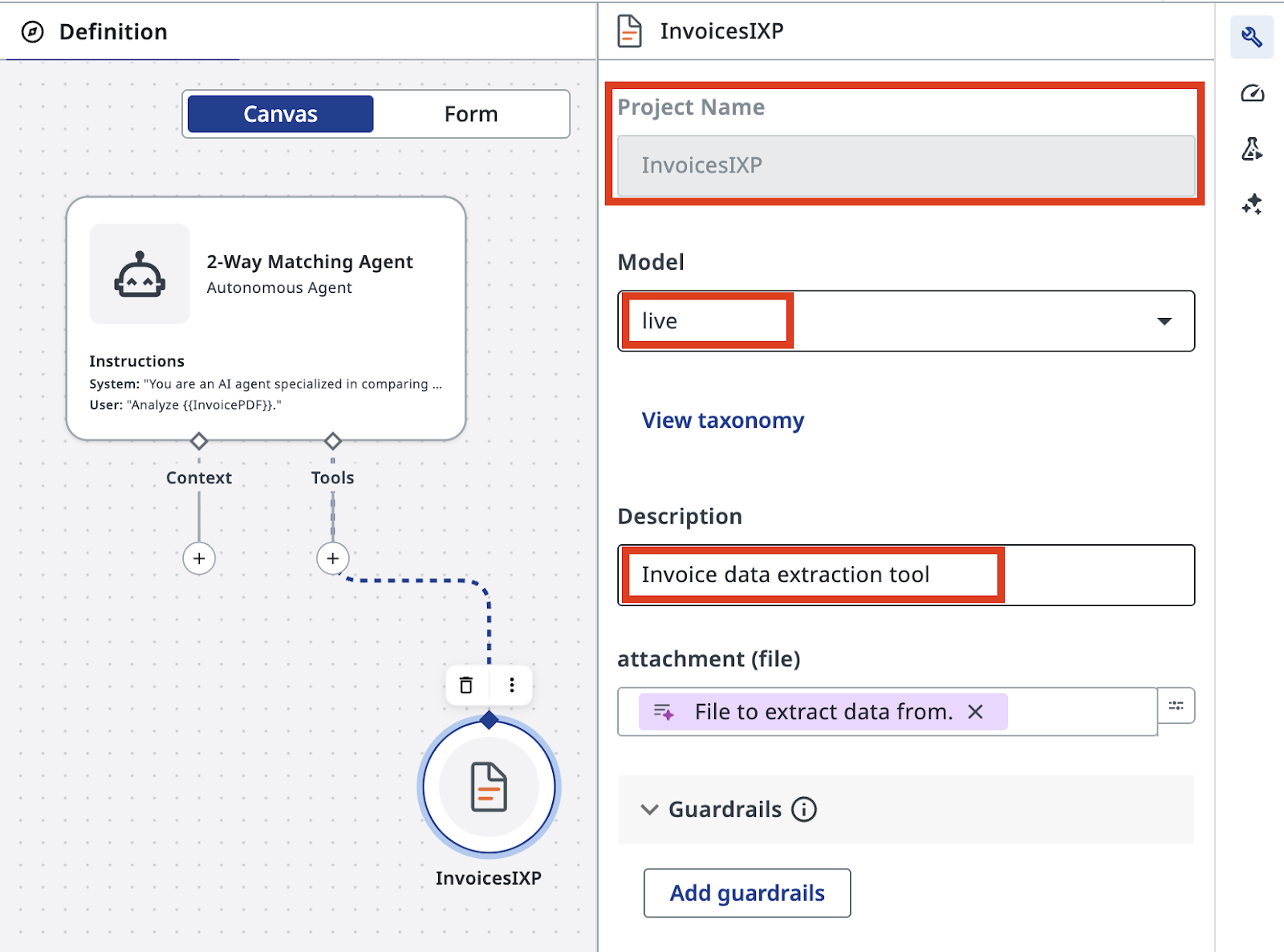
启用发票提取只需要这些操作,就是这么简单!
4. 构建并添加 PO 查询工具
接下来,我们把 Retrieve PO Data 工具构建成一个新的 RPA 工作流。PO 数据存放在 Data Fabric 中,我们可以用 POID 查找记录。
往你的解决方案里添加一个新的 RPA 工作流。一如既往,给它起个有意义的名字:
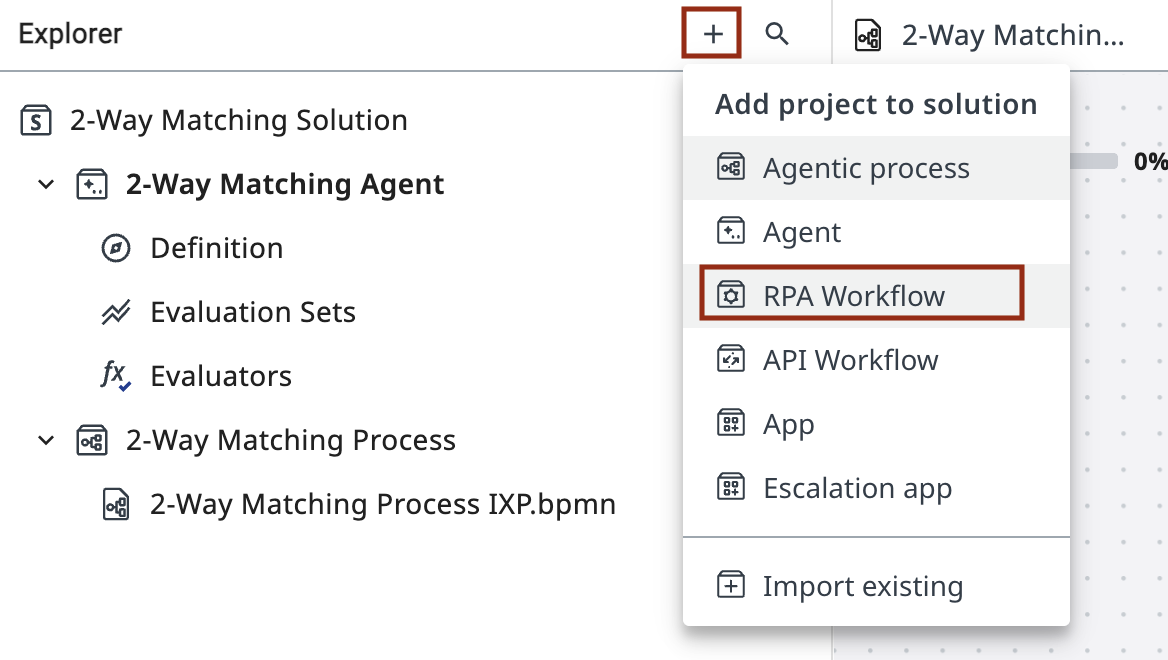
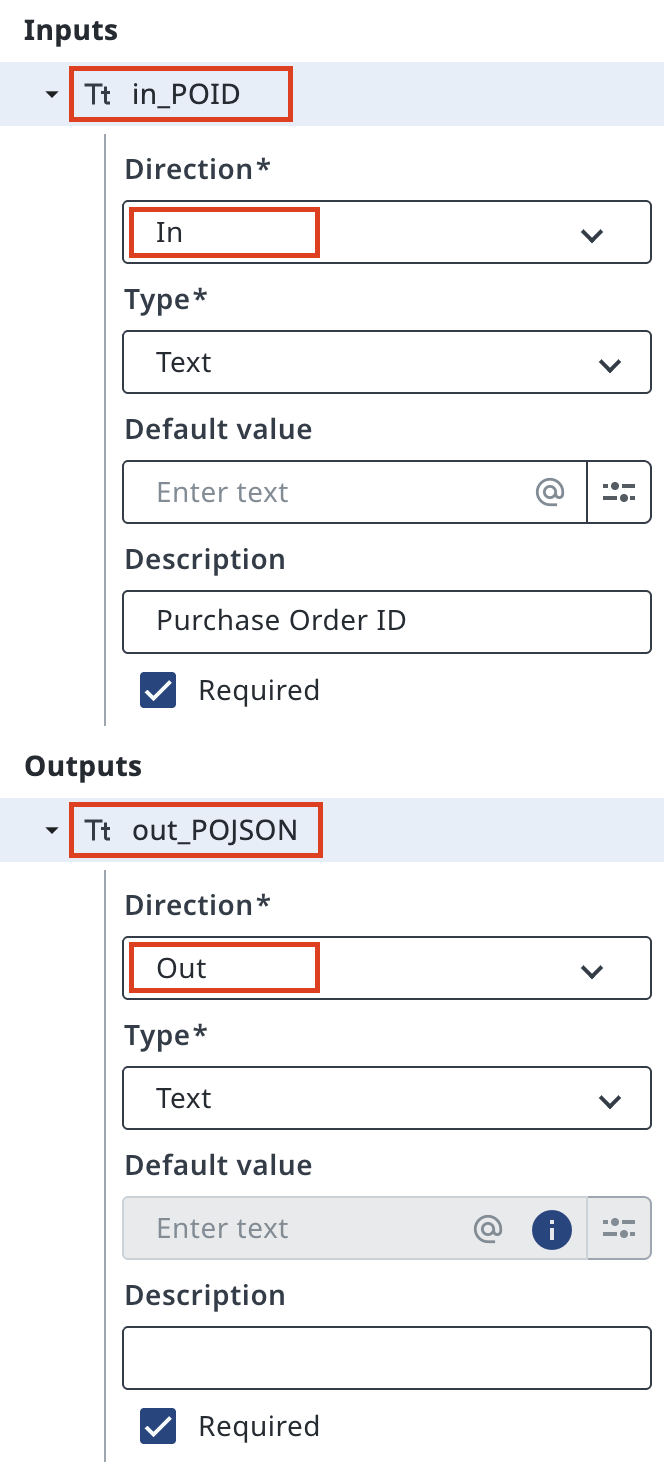
然后,为这个工作流配置输入和输出参数:
- 通过 in_POID 接收采购订单 ID。
- 把实体中的 PODATA 字段作为 out_POJSON 返回。
要从 Data Fabric 中检索数据,把活动配置为对 PurchaseOrdersDatabase 执行 Query Entity Records。
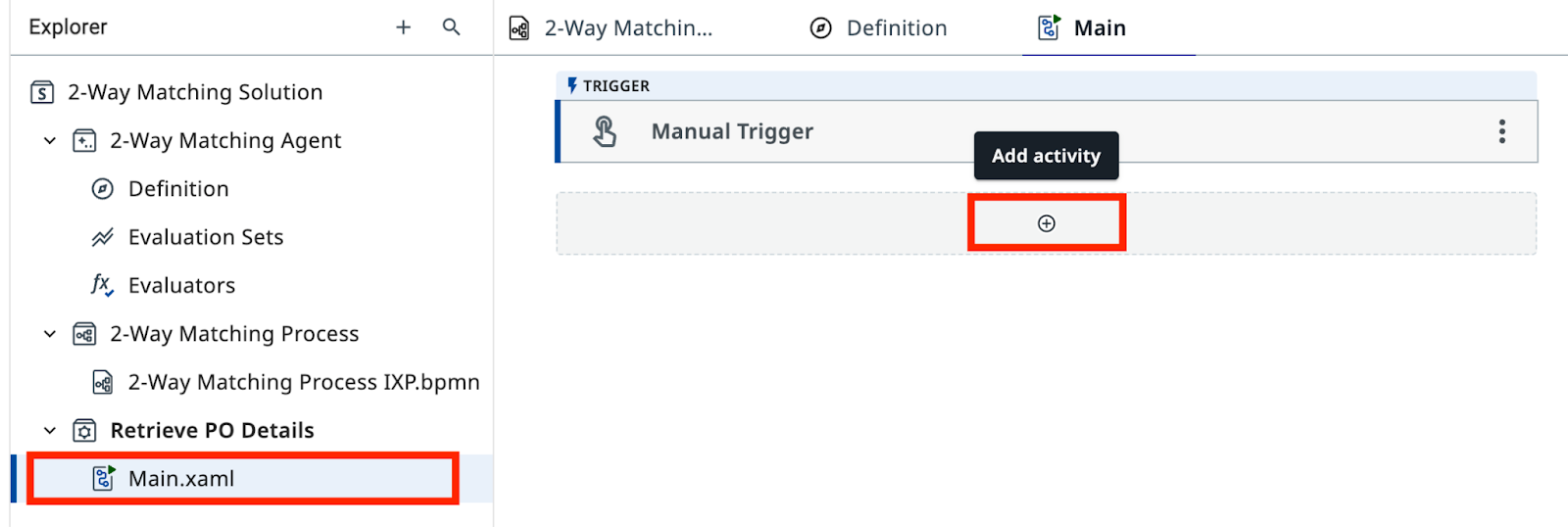
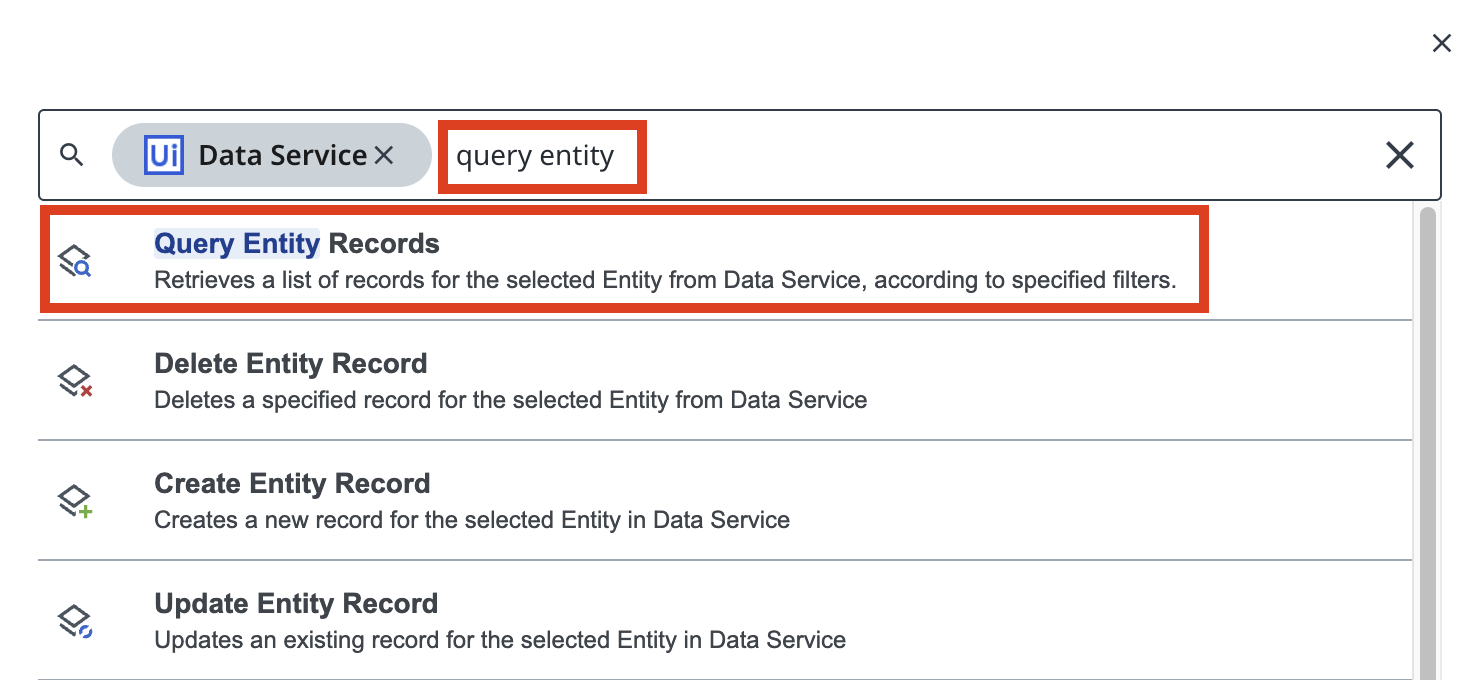
在 Main.xaml 工作流中,添加一个 Query Entity Records 活动(来自 Data Service),配置为查询 PurchaseOrdersDatabase 实体。
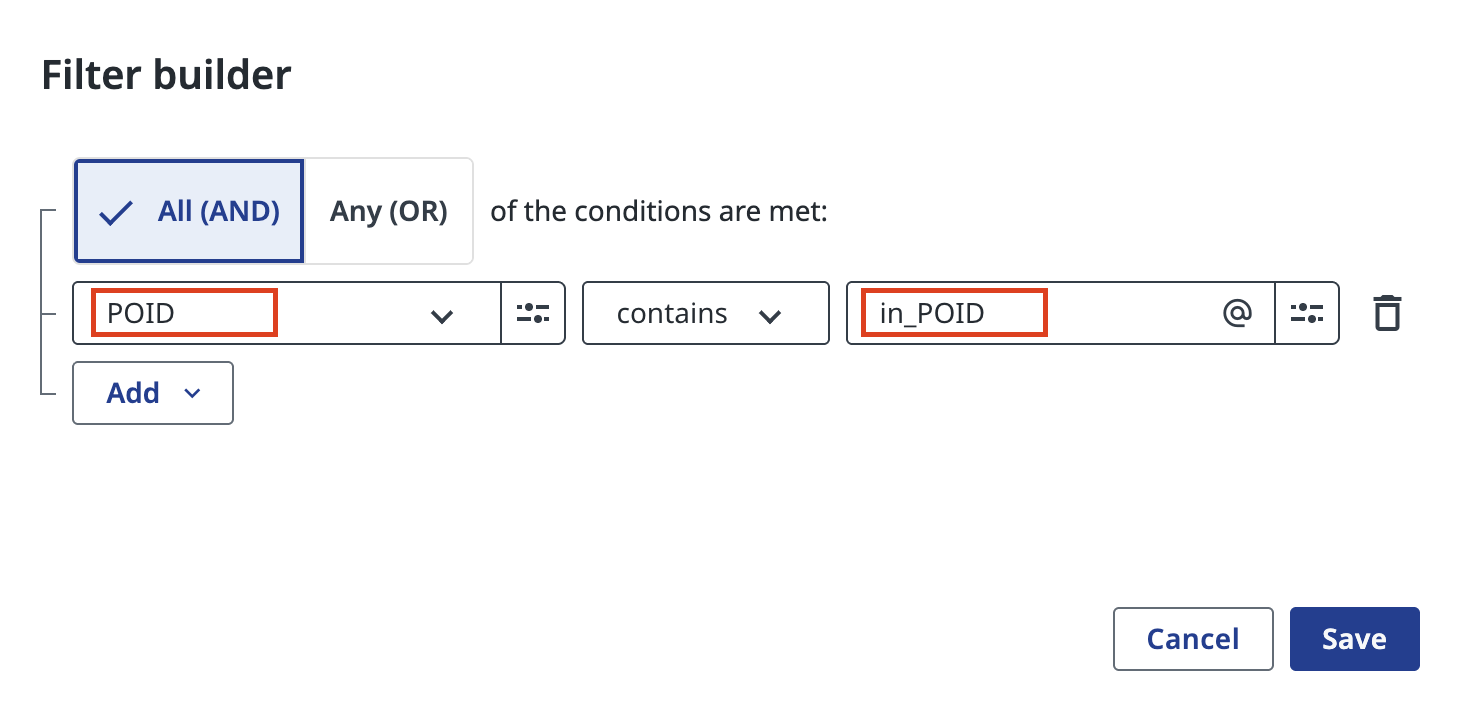
应用过滤条件:POID equals in_POID。
重要
如果工作流没有返回任何记录,请确认 POID 等于输入参数 in_POID 的值,而不是静态文本 "in_POID"
最终你应该得到这样的结果。如果你手头有某张发票上的 PO ID,可以试着运行一下。
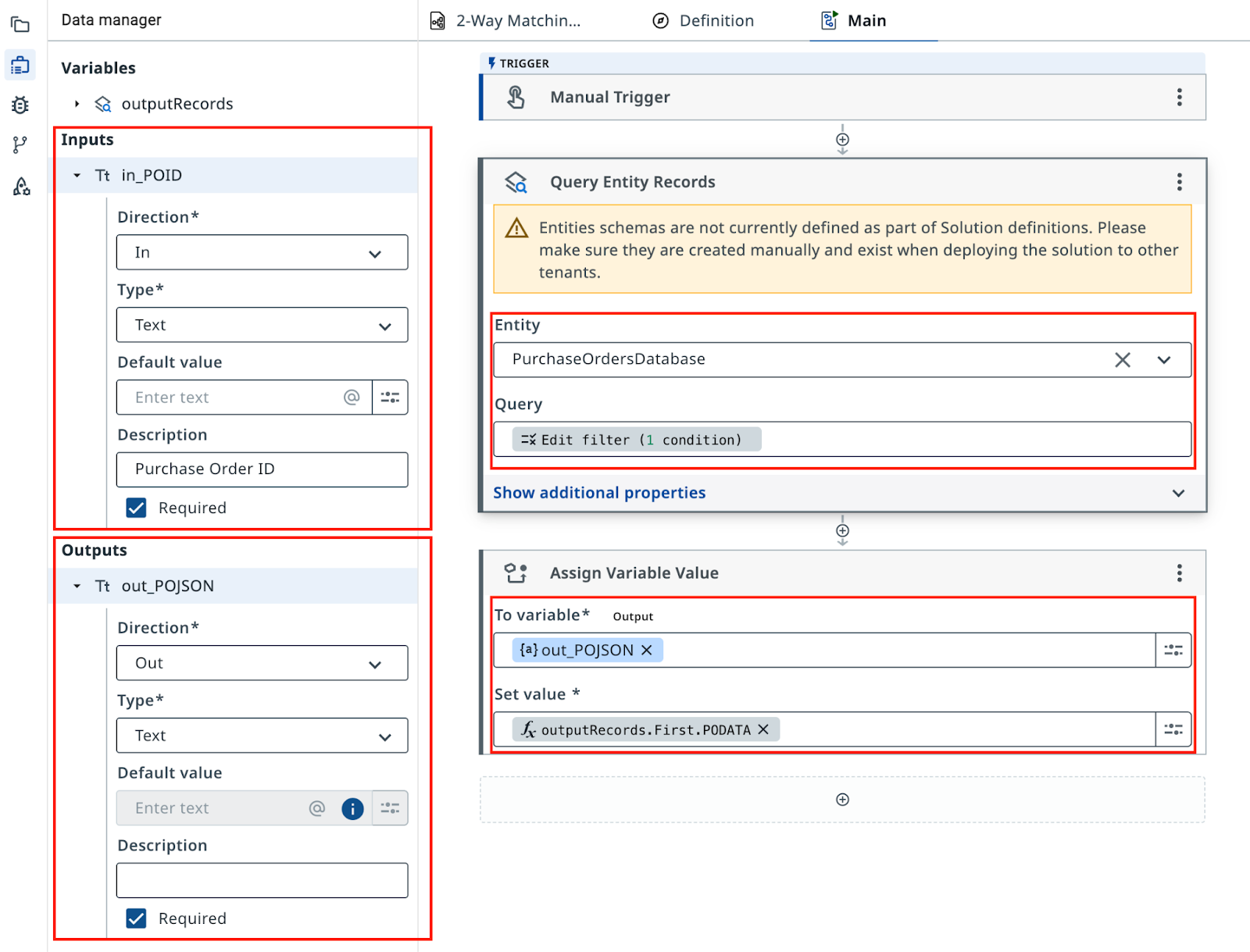
这个 RPA 工作流只够本练习使用——它没有输入校验,也没有异常处理
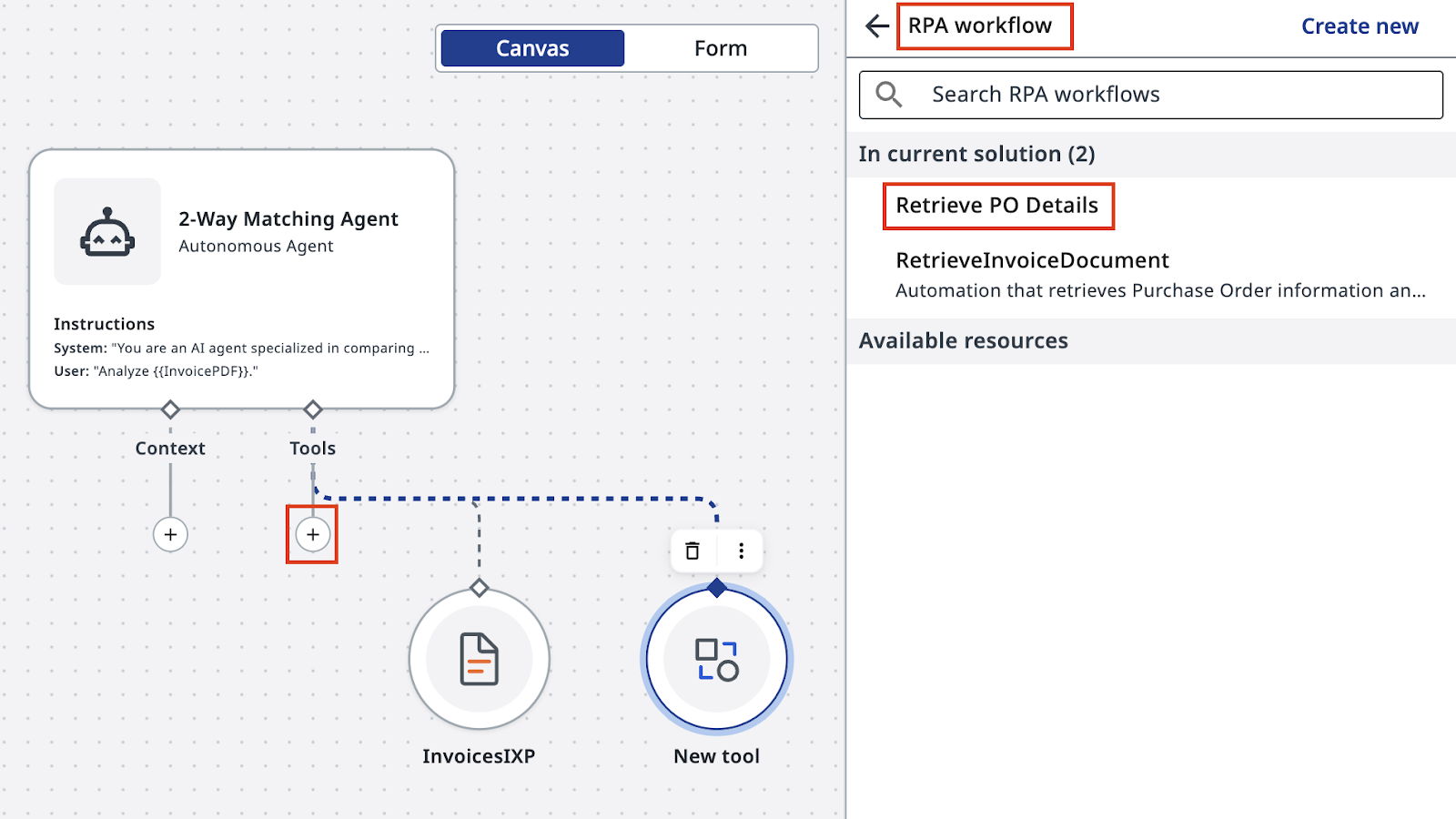
回到你的智能体定义中,把这个 RPA 工作流添加为工具。注意要选 “In current solution”(当前解决方案中)里的那一个。
顺便给智能体一点关于 in_POID 输入参数的提示:
完成。
在真实环境中,你通常会从 SAP 或 NetSuite 这样的系统中检索 PO 数据,并一路处理各种异常。这个简化版本让我们把注意力集中在智能体配置上。
5. 质量控制与评估
想一想:用什么方式测试这个智能体才合适?如何确保未来提示词或 LLM 模型的变更不会影响结果?
6. 把智能体集成到 Maestro 工作流
我们来配置第二个任务,让它使用你刚构建的智能体,并设置根据智能体输出对工作流进行路由的网关。
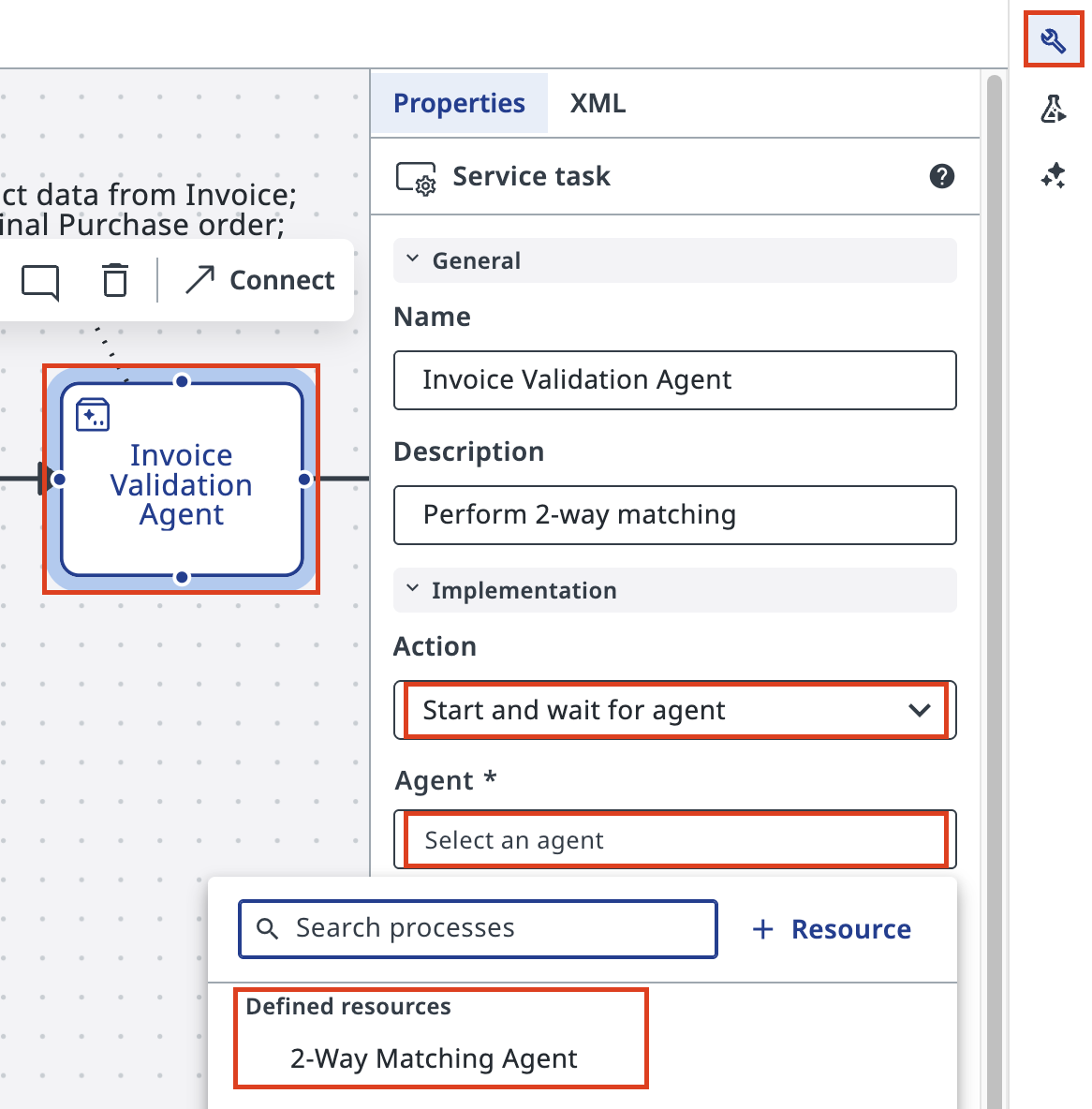
在 Studio Web 中回到你的 Maestro Agentic Process,配置第二个任务。把操作设为 Start and wait for agent(启动并等待智能体),然后在你的解决方案(Defined Resources)中搜索并选中这个智能体。
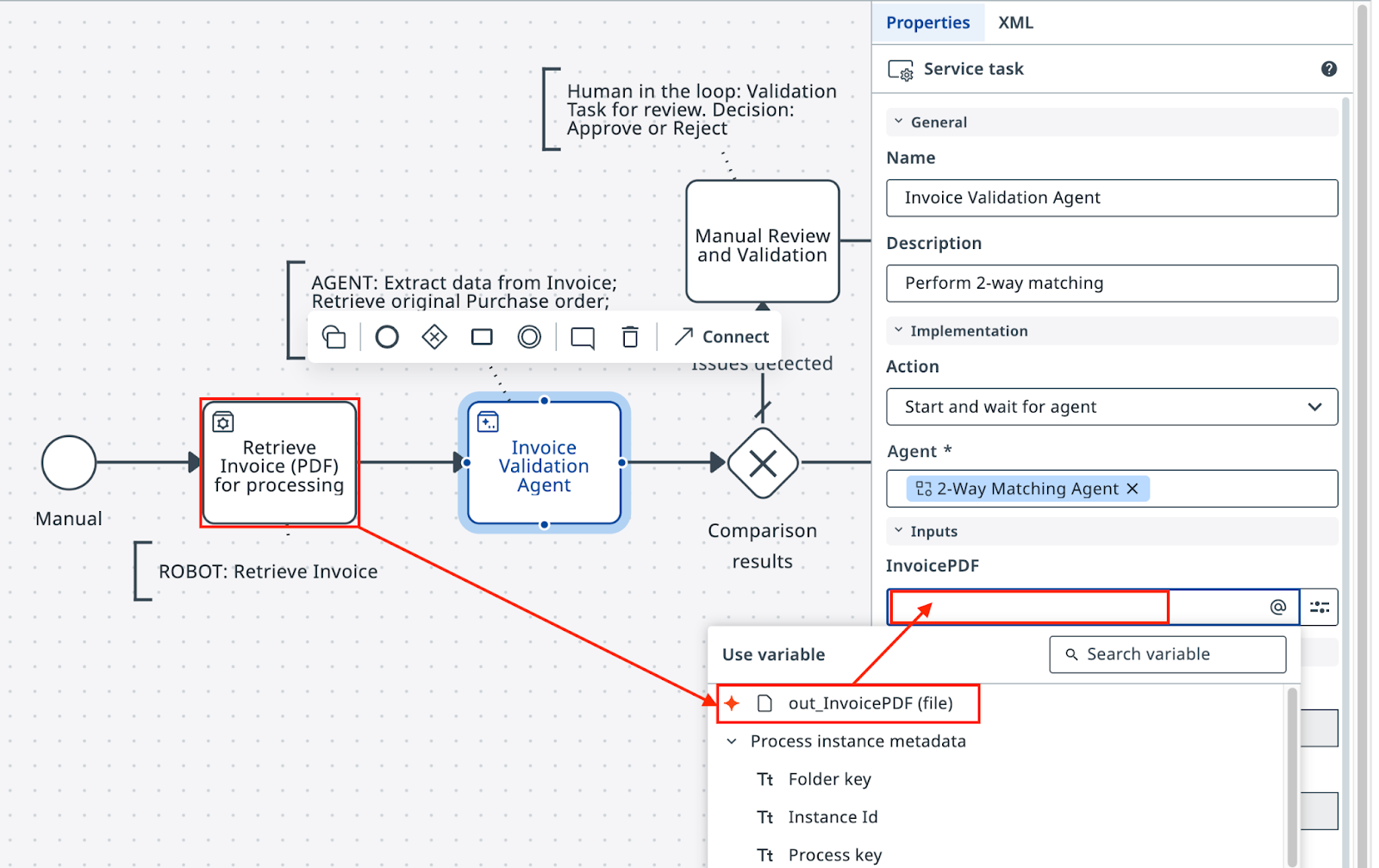
从上一个 RPA 任务(Retrieve Invoice PDF)的输出中挑选数据,作为输入添加给智能体——在智能体任务的 Settings(设置)里这样操作:
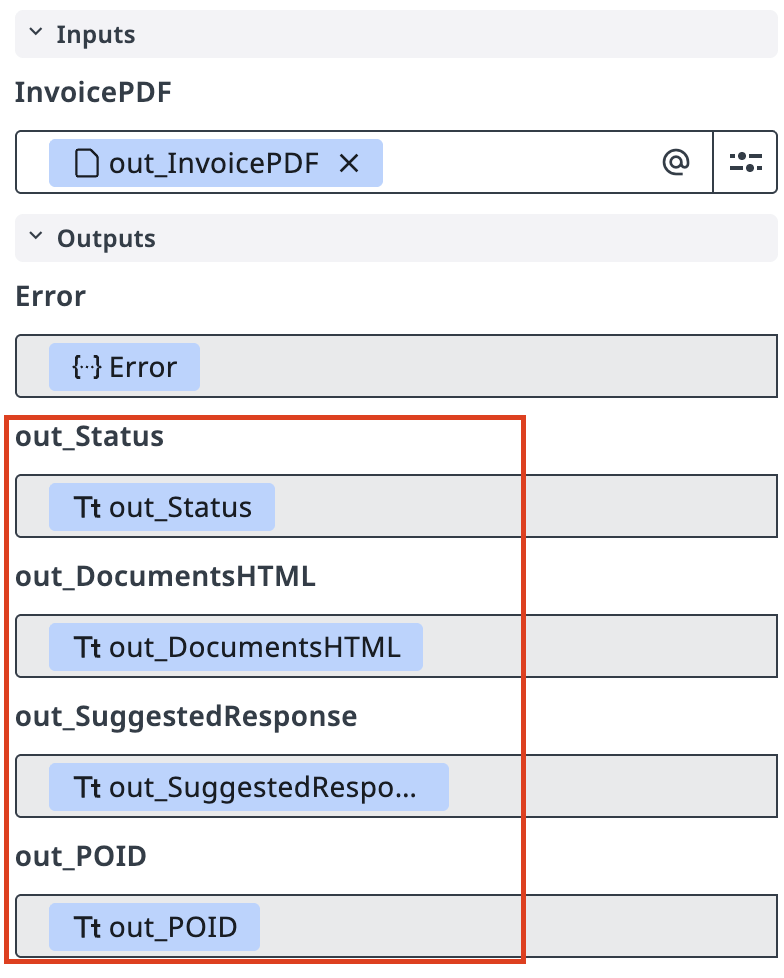
注意,智能体的输出也被自动添加到了工作流中,所以在配置 Exclusive Gateway(排他网关)时可以直接使用。
我们用智能体的状态(out_Status)来决定流程的下一步——要么把发票送去付款,要么转入人工审核。
按照图中所示配置条件。注意,如有需要,条件中的表达式支持复杂计算。例如,使用 ToLower 函数会让它更可靠一些。
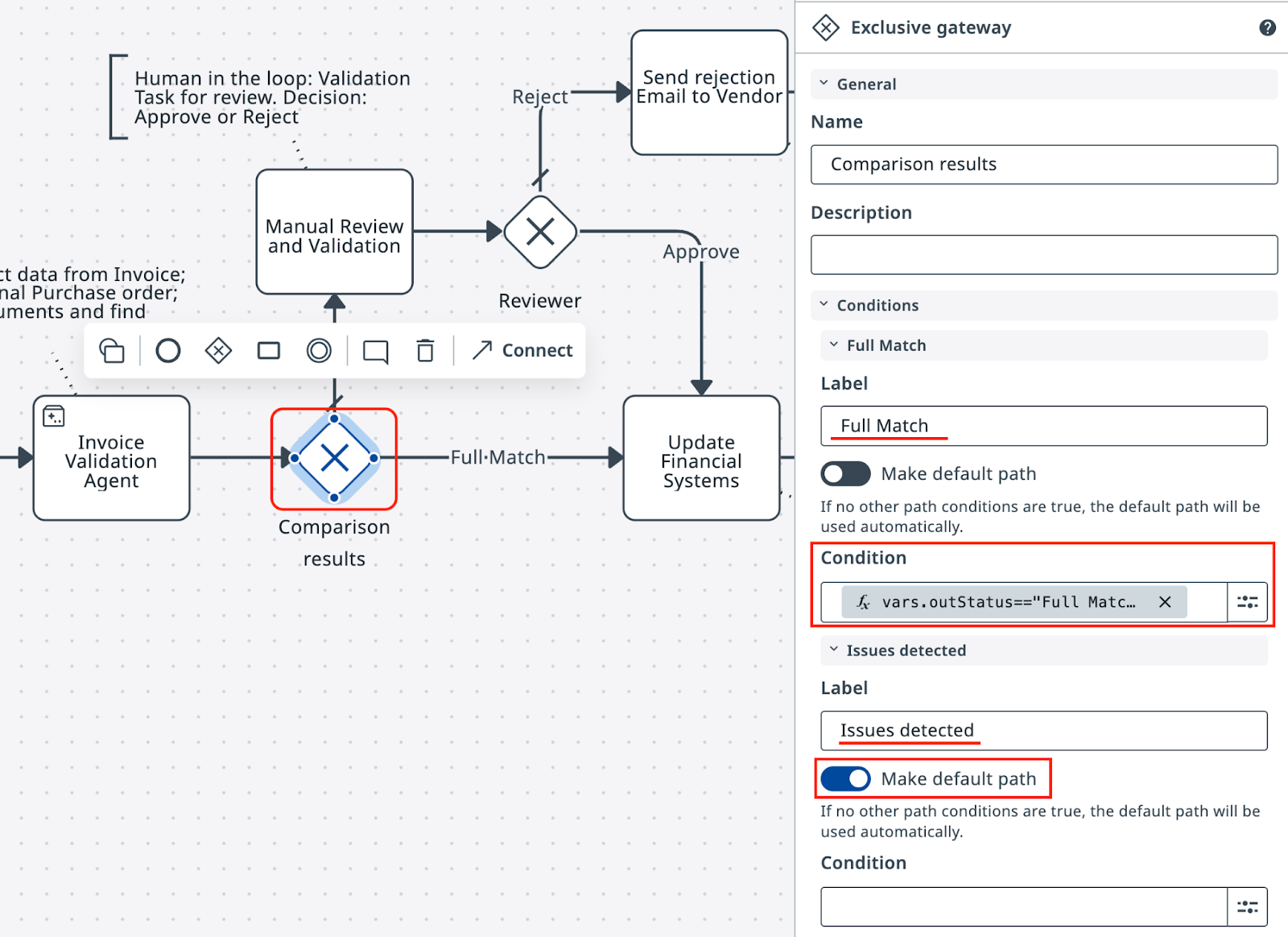
你可以直接在表达式编辑器里测试各种预期输入。别忘了把 Failed Match 设为默认路径!
流程可以测试了——再去点那个 Debug 按钮吧!
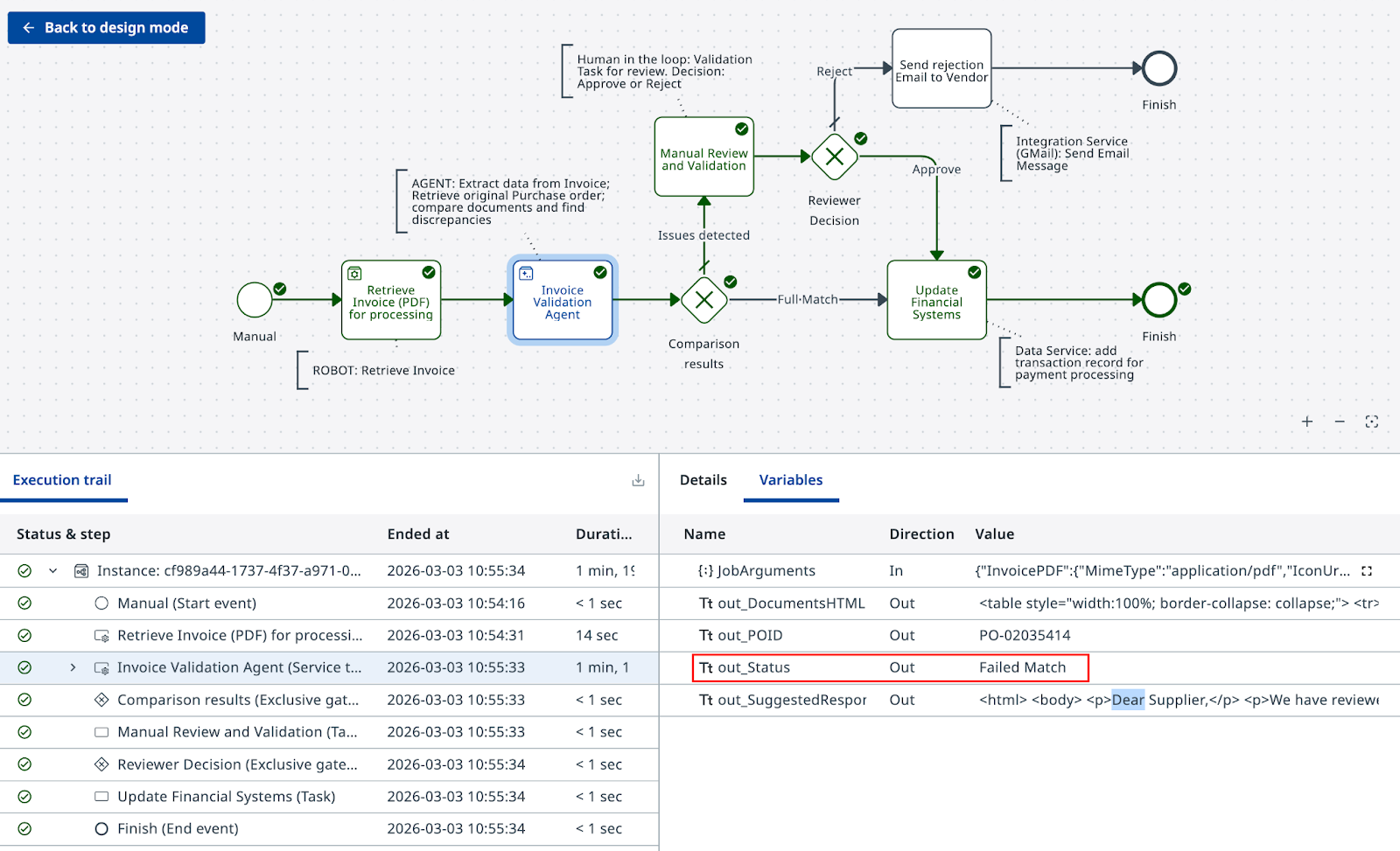
验证网关是否根据智能体的输出正确路由
这一次我们想看到智能体的执行过程,以及智能体的输出如何让执行流离开默认路径、走向正确的方向。
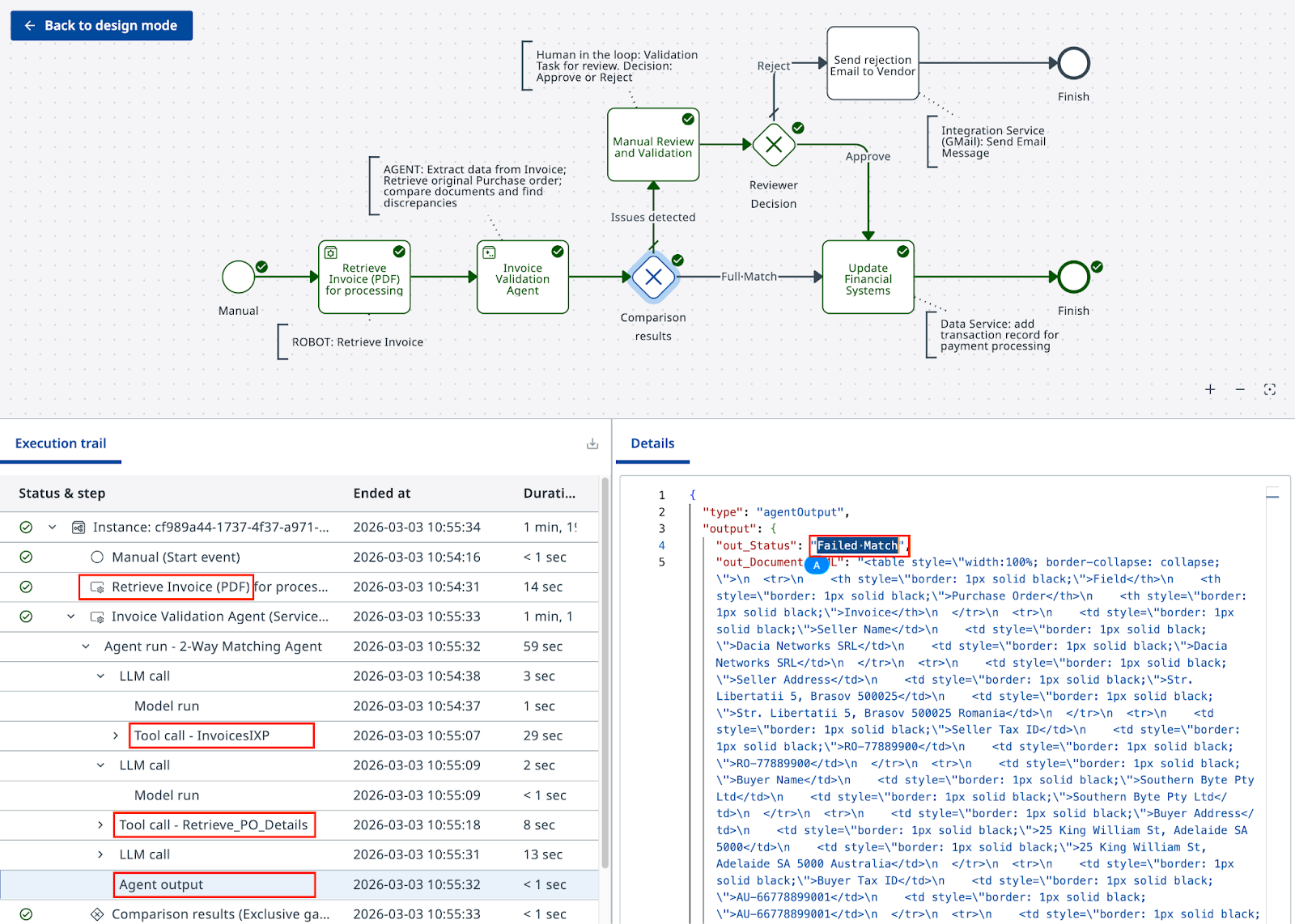
你的智能体已经就绪。不过在大多数情况下,你还会多次回来改进提示词,让它更灵活——这样用户需要做的人工验证更少,运行也更可靠。