工具与升级
把智能体连接到 ServiceNow,并把含糊不清的案例转交给人工处理
你将完成的任务
- 添加 ServiceNow 工具,用于获取事件数据,并把分类结果更新到工单
- 配置升级,把智能体没有把握分类的事件转交给人工审核者
- 用示例事件测试完整工作流,并在 Action Center 中查看升级任务
目标
为智能体添加 ServiceNow 工具,让它能通过 API 获取和更新外部应用中的实时事件数据。然后配置一条升级路径,把智能体没有把握分类的案例通过 Action Center 转交给人工审核者。
工具如何工作
当前版本的智能体擅长做决策和分析数据。但它还不能自己去和数据库、应用程序打交道……至少现在还不行!工具扩展了智能体的能力。有了工具,智能体不再只能分析文本,还可以调用外部系统——从 ServiceNow 查询事件数据,并把分类结果写回去。
为了让智能体与外部系统交互,我们要添加几个必要的工具:
-
获取事件详情:我们希望智能体分析的数据存放在 ServiceNow 里,需要先把它取回来。
-
更新事件详情:分类完成后,需要把事件数据更新回 ServiceNow。
每个工具都要有描述,告诉智能体什么时候用、怎么用。描述非常重要!
什么时候升级
升级不是失败,而是一种设计选择。只要智能体无法从事件描述中确定明确的类别和子类别,就应该升级。一条配置得当的升级路径,比一个靠猜的智能体更有价值。
步骤
1. 添加工具:获取事件详情
UiPath 平台提供多种类型的工具——Integration Service 活动、RPA 流程、其他智能体、MCP 服务器……
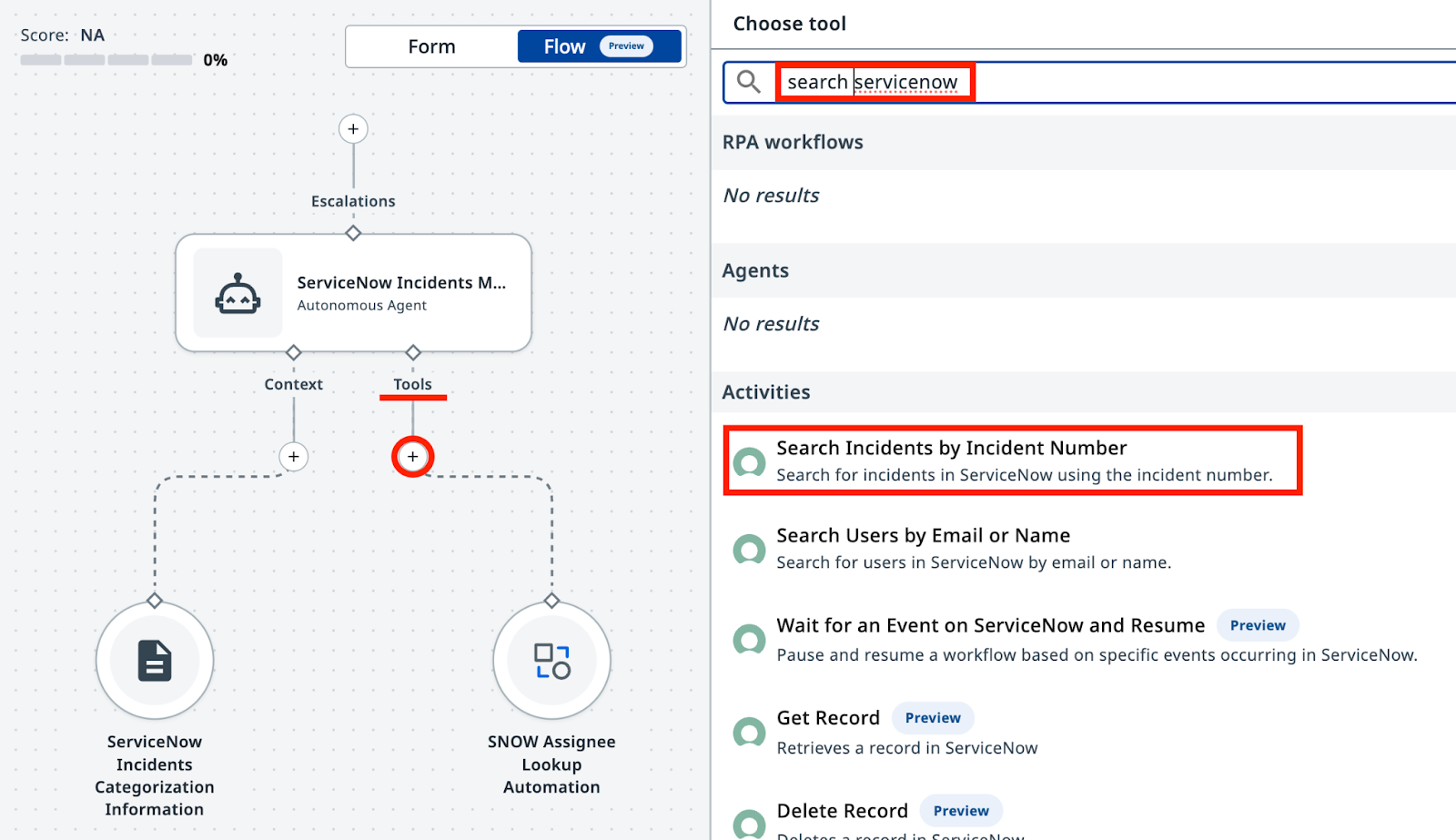
我们需要的第一个工具基于 Integration Service——在 ServiceNow 目录中找到 "Search Incidents by Incident Number"。这个工具会根据 Incident Number(事件编号)查出完整的事件详情。
在 Agent Builder 中打开你的智能体,进入 Tools 选项卡;如果你在 Canvas 模式下,点击 "+"。从 ServiceNow 目录中添加 Search Incidents by Incident Number 工具:
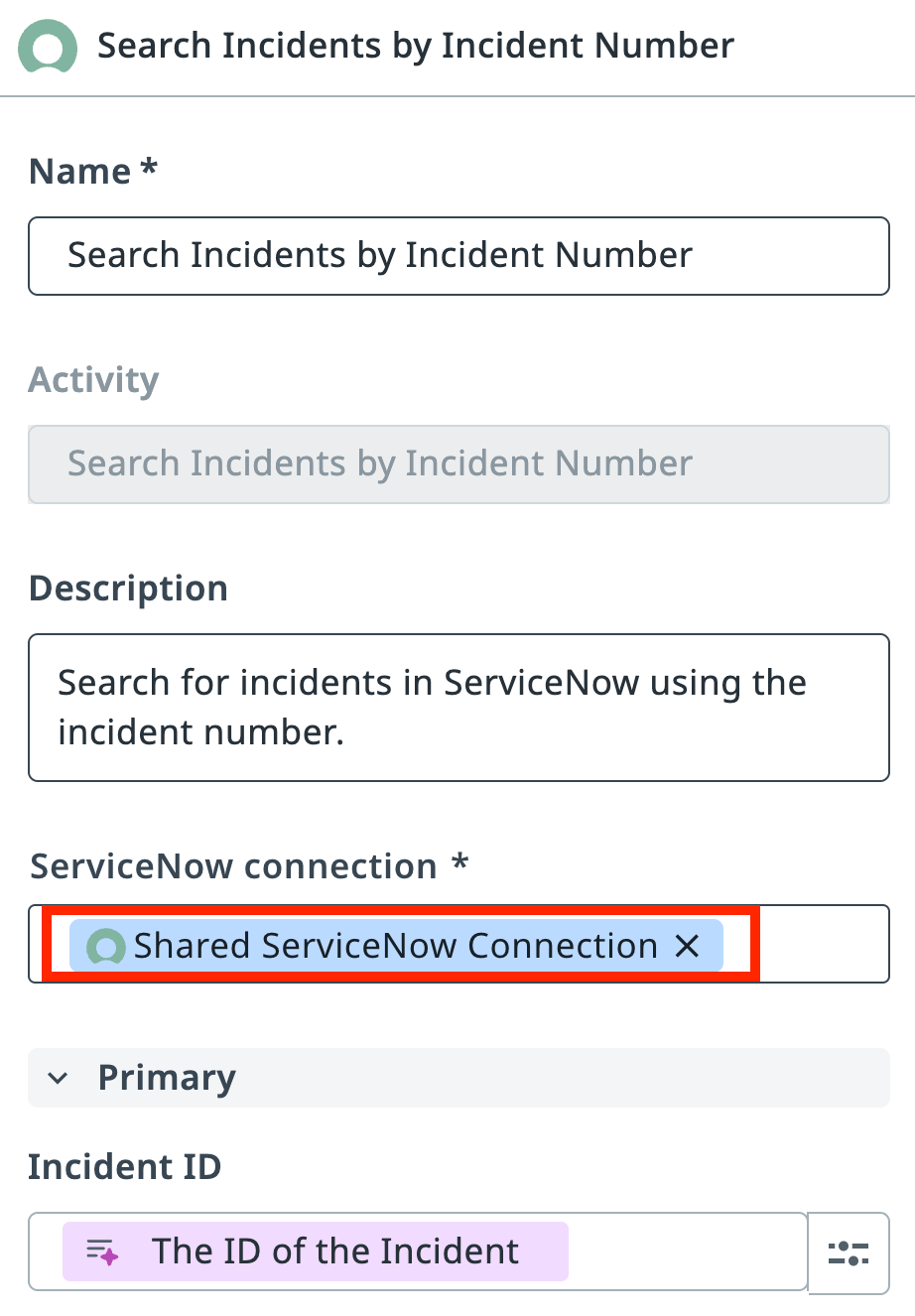
我们还需要指定这个工具使用哪个 ServiceNow Connection(连接)。Integration Service 连接是一份已保存、已授权的身份验证配置,让 UiPath 平台中的各项服务能够安全地连接第三方应用。
从 ServiceNow Incidents 文件夹中选择共享的 ServiceNow 连接。
2. 添加工具:更新 ServiceNow 事件
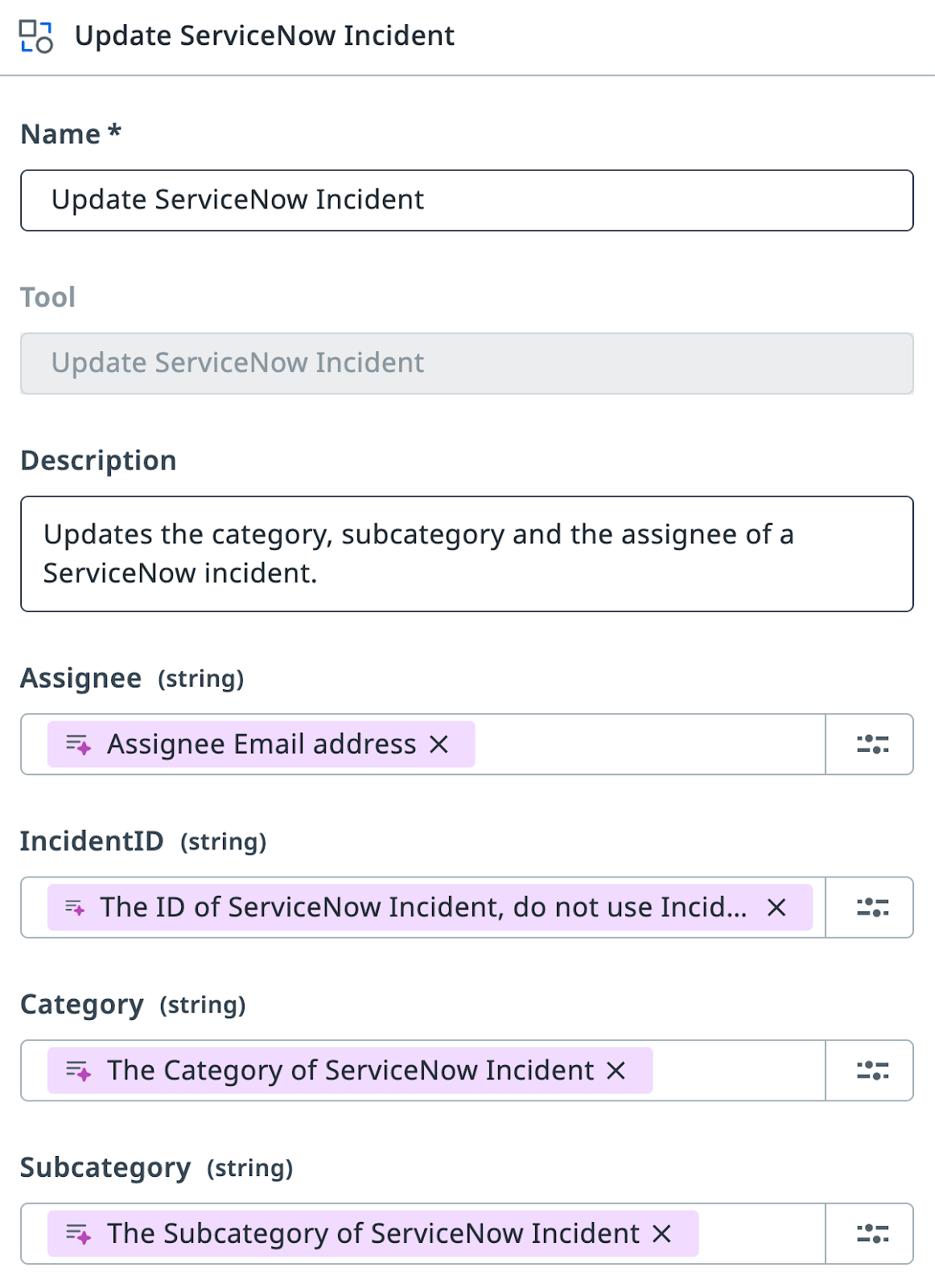
用同样的方式添加 UpdateServiceNowIncident 工具。注意,这是一个现成的 RPA 流程,应该已经发布到 Orchestrator 的 "ServiceNow Incidents" 文件夹中。分类完成后,智能体会用这个工具更新 ServiceNow 事件。
按如下方式配置它的参数描述:
注意!
ServiceNow 事件有两个标识符:ID(形如 36155...53afb2 的唯一字符串)和 Number(形如 INC0111888 的人类可读编号)。更新工具需要的是 ID,而不是 Number。和人一样,LLM 也可能把两者搞混,从而导致错误——这可不是我们想要的。LLM 会根据名称和描述来映射参数,所以描述正是补充这条说明的最佳位置。
3. 更新系统提示词和用户提示词
现在来简化智能体的输入参数。有了刚添加的工具,智能体可以直接从 ServiceNow 获取事件详情,你不再需要把描述作为参数传入。把输入参数改为只接收 Incident Number:
相应地更新 User Prompt(用户提示词):
查看改动
现在,智能体会用事件编号从 ServiceNow 获取事件。改动如下:
--- Original
+++ With Search Tool

Analyze and categorize the following ServiceNow incident:

-Incident Short Description: {{input.IncidentShortDescription}}
-Incident Description: {{input.IncidentDescription}}
+Incident Number:  {{input.IncidentNumber}}

Determine the appropriate category, subcategory, and assignee email for this incident based on the provided information.
Analyze and categorize the following ServiceNow incident:

Incident Number:  {{input.IncidentNumber}}

Determine the appropriate category, subcategory, and assignee email for this incident based on the provided information.
接下来,我们要向智能体说明这些工具是做什么的、什么时候用。更新 System Prompt(系统提示词):
查看改动
添加 Search Incidents 和 UpdateServiceNowIncident 工具后,系统提示词新增了三段内容:
--- Original
+++ With Search and Update Tools

You are a ServiceNow Incidents categorization agent, an AI assistant tasked with managing newly created ServiceNow incidents. Your primary responsibility is to analyze incident details and determine the correct Category, Subcategory, and Assignee email address for each incident.

+# Retrieve Incident details
+-
+- Use Search Incidents tool.
+- Use IncidentNumber as Input.
+- If ticket already has an Assignee, then stop processing.

# Categorize the incident

    - Determine the Incident Category and Subcategory based on Description and Short Description from Categorization Information Context.
    - Context contains table with only possible Category-Subcategory pairs. Do not mix Category-Subcategory pairs if specific pair is not present in the context. Do not generate new categories if they are not present in the context.
    - Pick the Category-Subcategory pair that aligns well with Incident Descriptions. If you are not sure or no category pair is a clear match, return "Unknown" as category..
    - Once categories have been established, determine the on-duty Assignee email address who handles this type of requests by calling Assignee Lookup automation.

+- If Category, Subcategory and Assignee have been successfully established, update the ticket by running UpdateServiceNowIncident tool.
+- If Category, Subcategory or Assignee can not be established, do nothing.

# Summarize the actions taken.

In the ExecutionDetails, provide:
    - Incident Category
    - Incident Subcategory
    - Assignee Email
    - Reasoning for your decisions
You are a ServiceNow Incidents categorization agent, an AI assistant tasked with managing newly created ServiceNow incidents. Your primary responsibility is to analyze incident details and determine the correct Category, Subcategory, and Assignee email address for each incident.

# Retrieve Incident details

- Use Search Incidents tool.
- Use IncidentNumber as Input.
- If ticket already has an Assignee, then stop processing.

# Categorize the incident

- Determine the Incident Category and Subcategory based on Description and Short Description from Categorization Information Context.
- Context contains table with only possible Category-Subcategory pairs. Do not mix Category-Subcategory pairs if specific pair is not present in the context. Do not generate new categories if they are not present in the context.
- Pick the Category-Subcategory pair that aligns well with Incident Descriptions. If you are not sure or no category pair is a clear match, return "Unknown" as category..
- Once categories have been established, determine the on-duty Assignee email address who handles this type of requests by calling Assignee Lookup automation.

- If Category, Subcategory and Assignee have been successfully established, update the ticket by running UpdateServiceNowIncident tool.
- If Category, Subcategory or Assignee can not be established, do nothing.

# Summarize the actions taken.

In the ExecutionDetails, provide:
- Incident Category
- Incident Subcategory
- Assignee Email
- Reasoning for your decisions
到这里,我们已经给智能体配齐了必要的指令、相关工具和用于分析的上下文。是时候拿几条 ServiceNow 事件试一试了!
打开 Ticket Management App(工单管理应用),把 Tag 更新为你的名字,应用就会显示最近 2 天内用这个 Tag 生成的所有工单(如果有的话)。如果没有新工单,尽管生成几条——但在点击 "Generate" 之前,别忘了先把 Tag 设为你的名字。
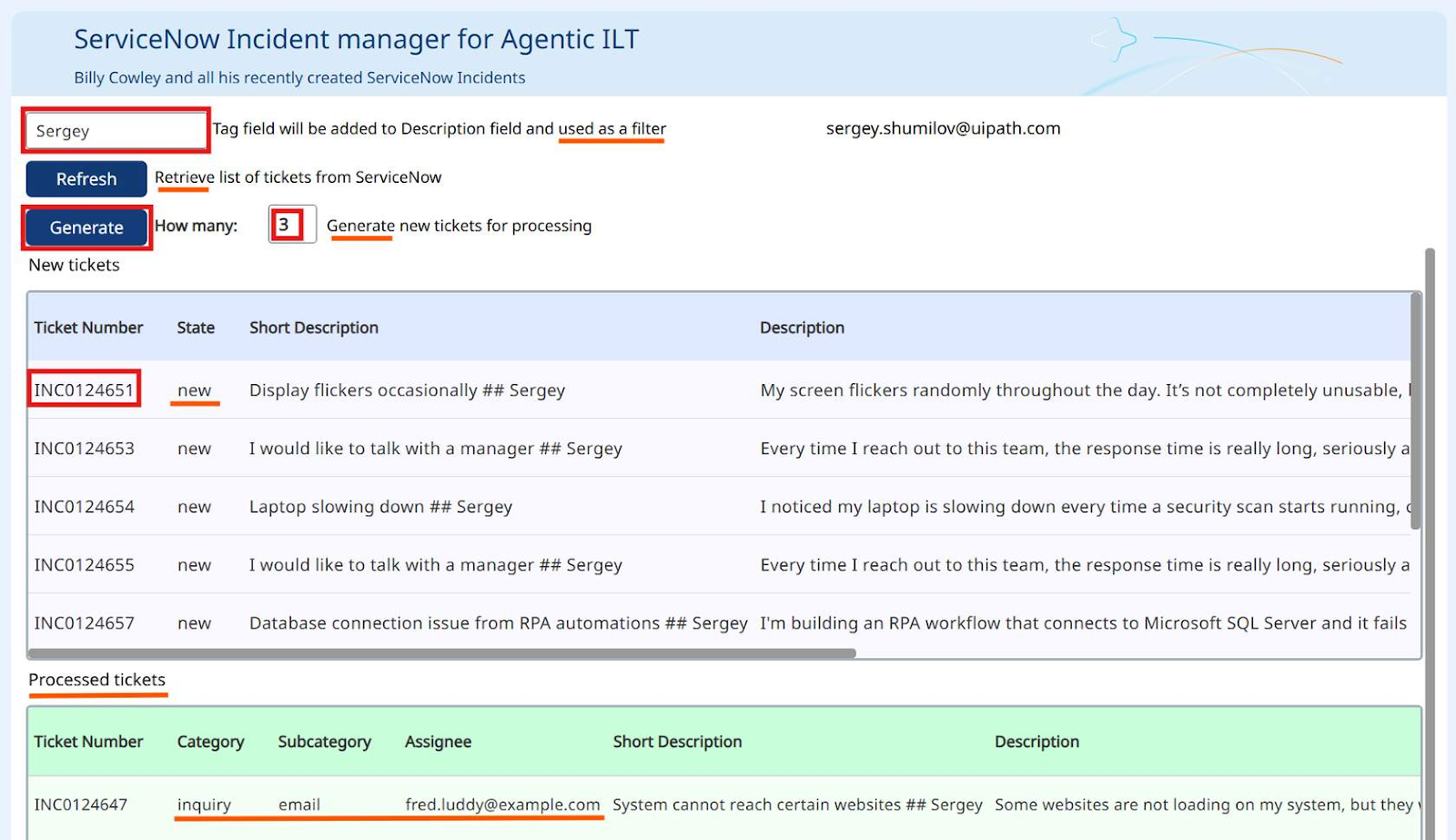
你可以把第一个列表 Ticket Number 列中的 Incident Number 作为智能体的输入。处理完成后,已分类的事件会移到下方列表,方便你验证结果。
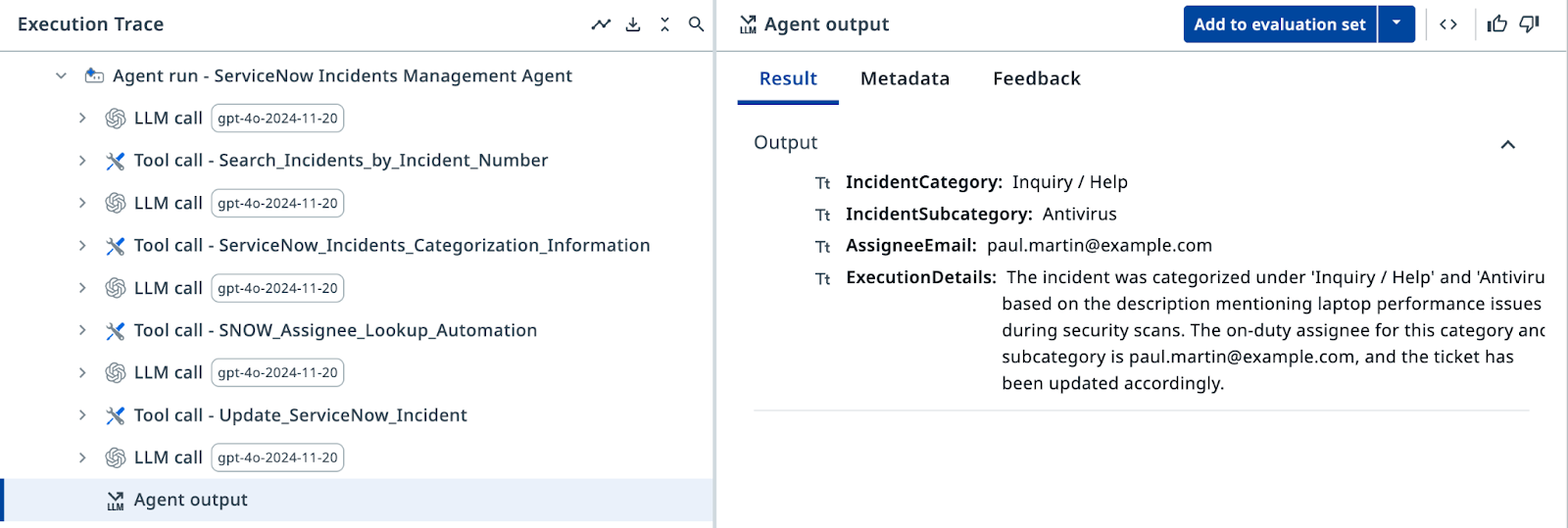
在 Execution Trace(执行轨迹)中确认:智能体调用了 Search Incidents 工具,检索了分类上下文,调用了 Assignee Lookup 工具,最后更新了 ServiceNow 事件。每一步都留有可供审计的详细信息,你可以追踪每一步的逻辑。而且结果全部正确——太出色了!
4. 使用升级寻求帮助
总会有一些工单,智能体没有把握分类。也许描述缺少细节,也许几个类别看起来都说得通。这种情况下,就升级给人工审核者。
我们来添加一条升级路径——为每个无法分类的事件创建一个 Action Center 任务。
使用 ServiceNow Incidents 文件夹中的 ServiceNow Agent Escalation App 添加升级路径。
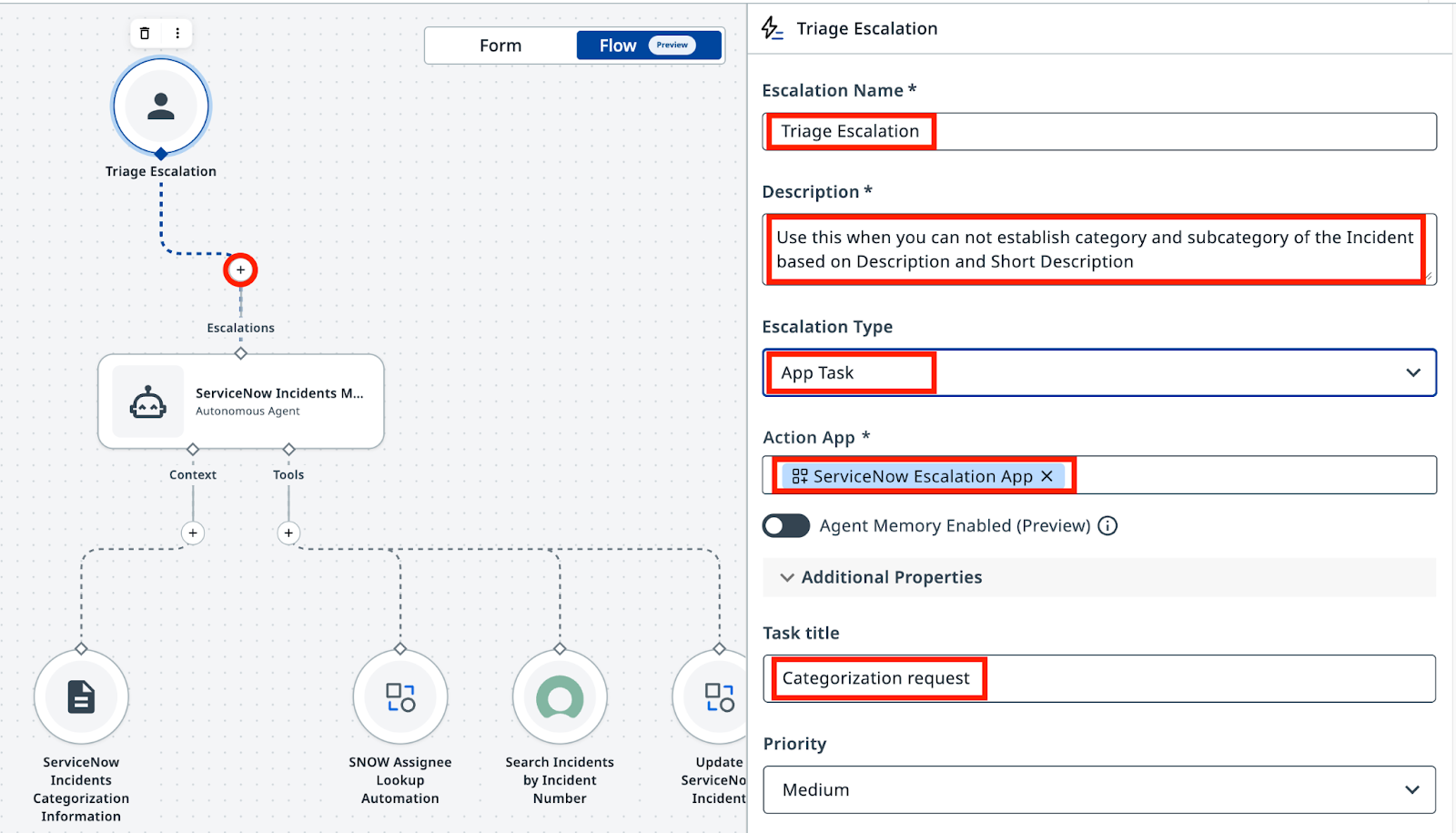
为升级工具配置提示词和参数设置。
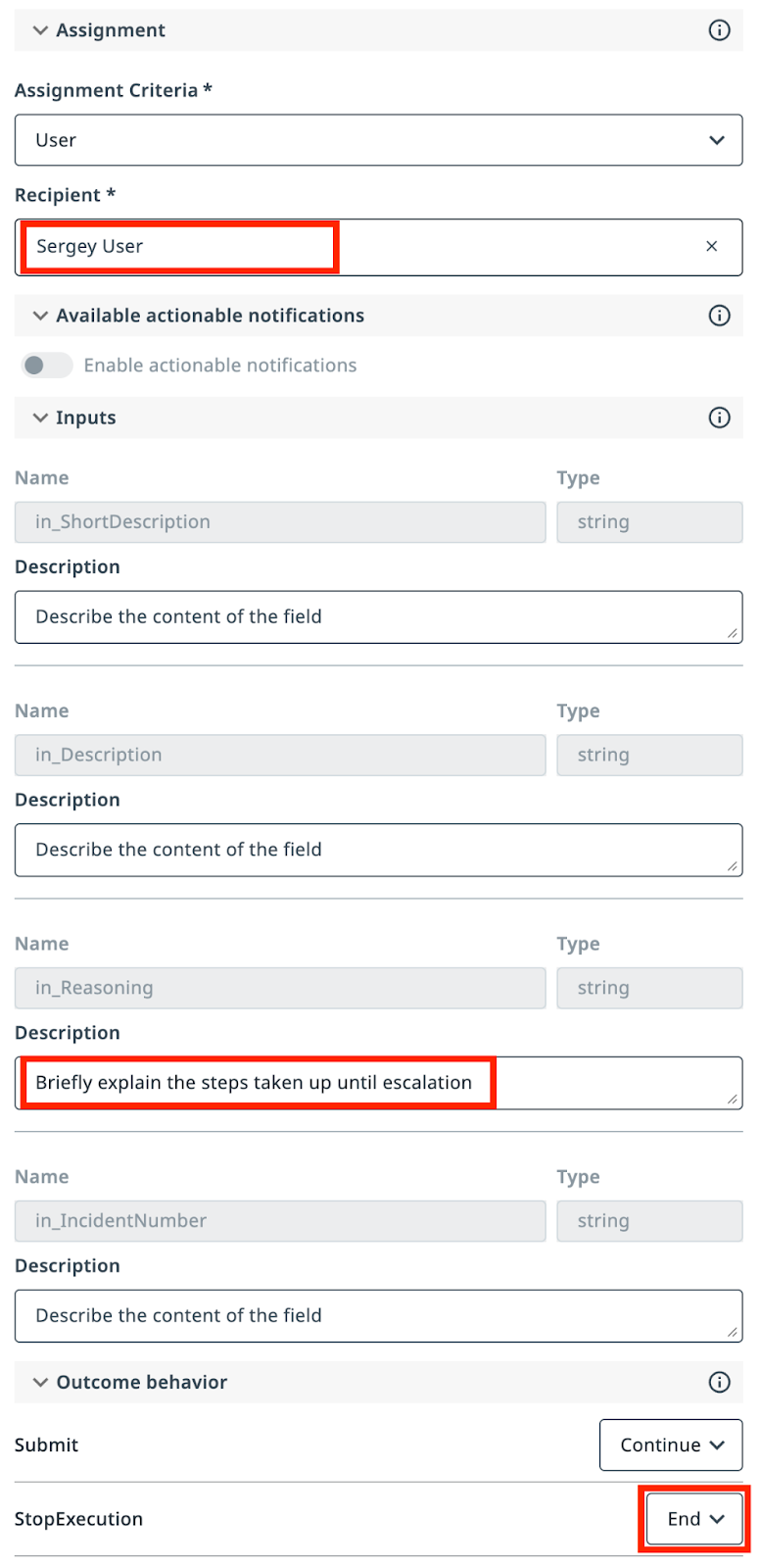
在 Recipient(接收人)中选择你自己,让所有工单都转到你这里。
设置以下描述提示词:
Use this when you cannot establish category and subcategory of the Incident based on Description and Short Description.
为 in_Reasoning 添加以下描述:
配置升级的处理结果:
- Submit → Continue(继续执行)
- Stop → End(结束执行)
Tip
你可能注意到了,我们没有动 in_Description 这类参数。名字足够明确,再加上完整的上下文,智能体自己就能想明白该往里填什么。也可能想不明白?我们对生产环境实现的建议是:宁可“具体”过头,也别事后“抱歉”。
更新 System Prompt,让它同时涵盖工具使用和升级处理。用下面这份完整版本替换之前的系统提示词:
查看改动
启用升级后,系统提示词会把拿不准的案例转交给人工,并处理他们的反馈。改动如下:
--- With Search and Update Tools
+++ With Escalation Handling

# Categorize the incident.
 - Determine the Incident Category and Subcategory based on Description and Short Description from Categorization Information Context.
 - Context contains table with only possible Category-Subcategory pairs. Do not mix Category-Subcategory pairs if specific pair is not present in the context. Do not generate new categories if they are not present in the context.
 - Pick the Category-Subcategory pair that aligns well with Incident Descriptions.
-- If you are not sure or no category pair is a clear match, return "Unknown" as category.
+- If you are not sure or no category pair is a clear match, use escalation.

# Once categories have been established, determine the on-duty Assignee email address who handles this type of requests by calling Assignee Lookup automation.

# If Category, Subcategory and Assignee have been successfully established, update the ticket by running UpdateServiceNowIncident tool.

-# If Category, Subcategory or Assignee can not be established, do nothing.
+# If Category, Subcategory or Assignee can not be established, use the Escalation.

+# If Category and Subcategory have been selected by the user as part of escalation, look up Assignee based on selected Category and Subcategory, and then update ticket. Only use email addresses retrieved from the lookup tool, do not generate email addresses.

# Summarize the actions taken.
You are a ServiceNow Incidents categorization agent, an AI assistant tasked with managing newly created ServiceNow incidents. Your primary responsibility is to analyze incident details and determine the correct Category, Subcategory, and Assignee email address for each incident.

# Retrieve Incident details

- Use Search Incidents tool.
- Use IncidentNumber as Input.
- If ticket already has an Assignee, then stop processing.

# Categorize the incident

- Determine the Incident Category and Subcategory based on Description and Short Description from Categorization Information Context.
- Context contains table with only possible Category-Subcategory pairs. Do not mix Category-Subcategory pairs if specific pair is not present in the context. Do not generate new categories if they are not present in the context.
- Pick the Category-Subcategory pair that aligns well with Incident Descriptions.
- If you are not sure or no category pair is a clear match, use escalation.

- Once categories have been established, determine the on-duty Assignee email address who handles this type of requests by calling Assignee Lookup automation.

- If Category, Subcategory and Assignee have been successfully established, update the ticket by running UpdateServiceNowIncident tool.
- If Category and Subcategory have been selected by the user as part of escalation, look up Assignee based on selected Category and Subcategory, and then update ticket. Only use email addresses retrieved from the lookup tool, do not generate email addresses.

# Summarize the actions taken.

In the ExecutionDetails, provide:
- Incident Category
- Incident Subcategory
- Assignee Email
- Reasoning for your decisions
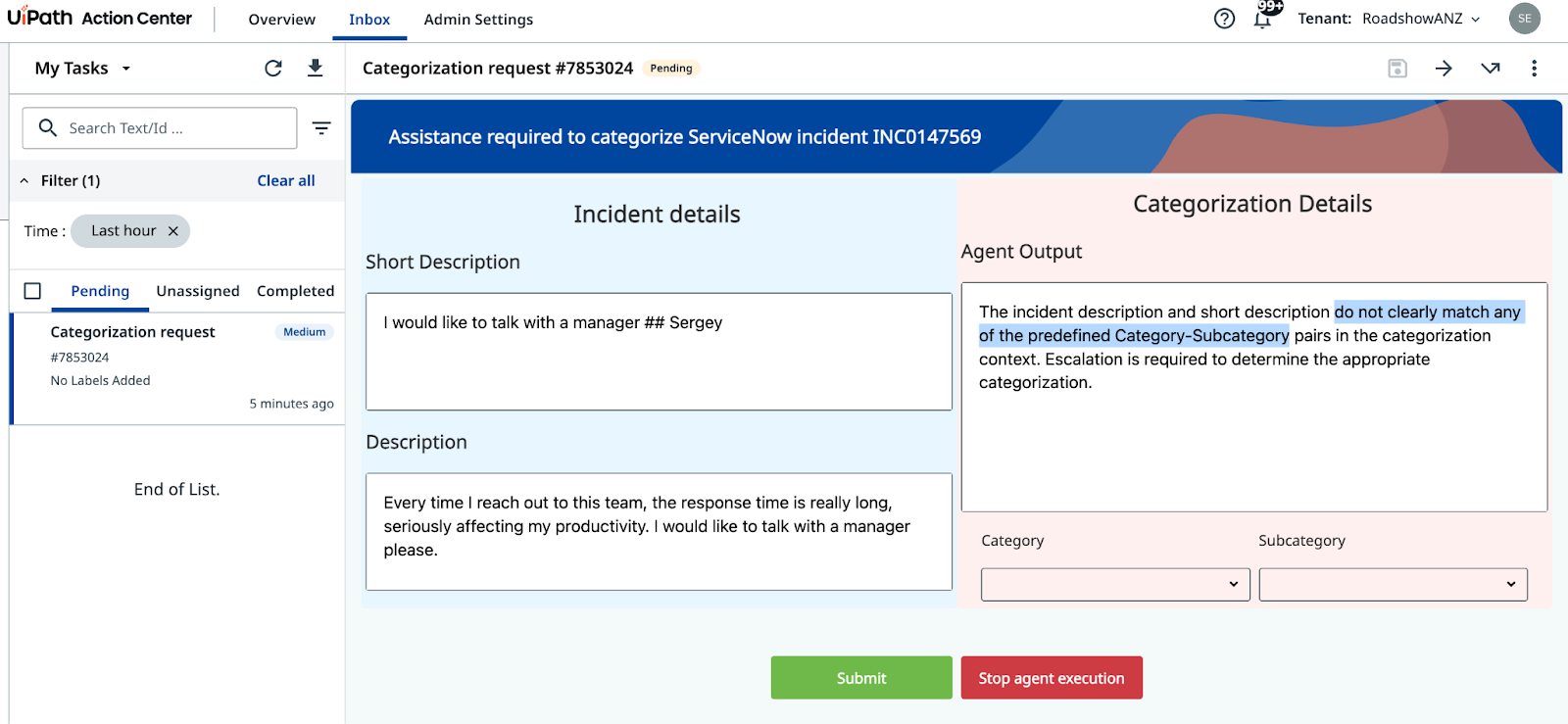
- Short Description:
I would like to talk with a manager - Description:
Every time I reach out to this team, the response time is really long, seriously affecting my productivity. I would like to talk with a manager please.
这段文字显然没法对应到任何类别,所以智能体应该升级。
如果你手头有这样的事件编号,就用它运行智能体;没有的话,再多生成几条工单,总会碰到一条。智能体应该会意识到自己没有把握给这条事件分类,于是触发升级,在 Action Center 中为人工审核者创建一个任务。
(提示:如果没有触发升级,请再检查一遍你的提示词,确认里面包含升级指令)
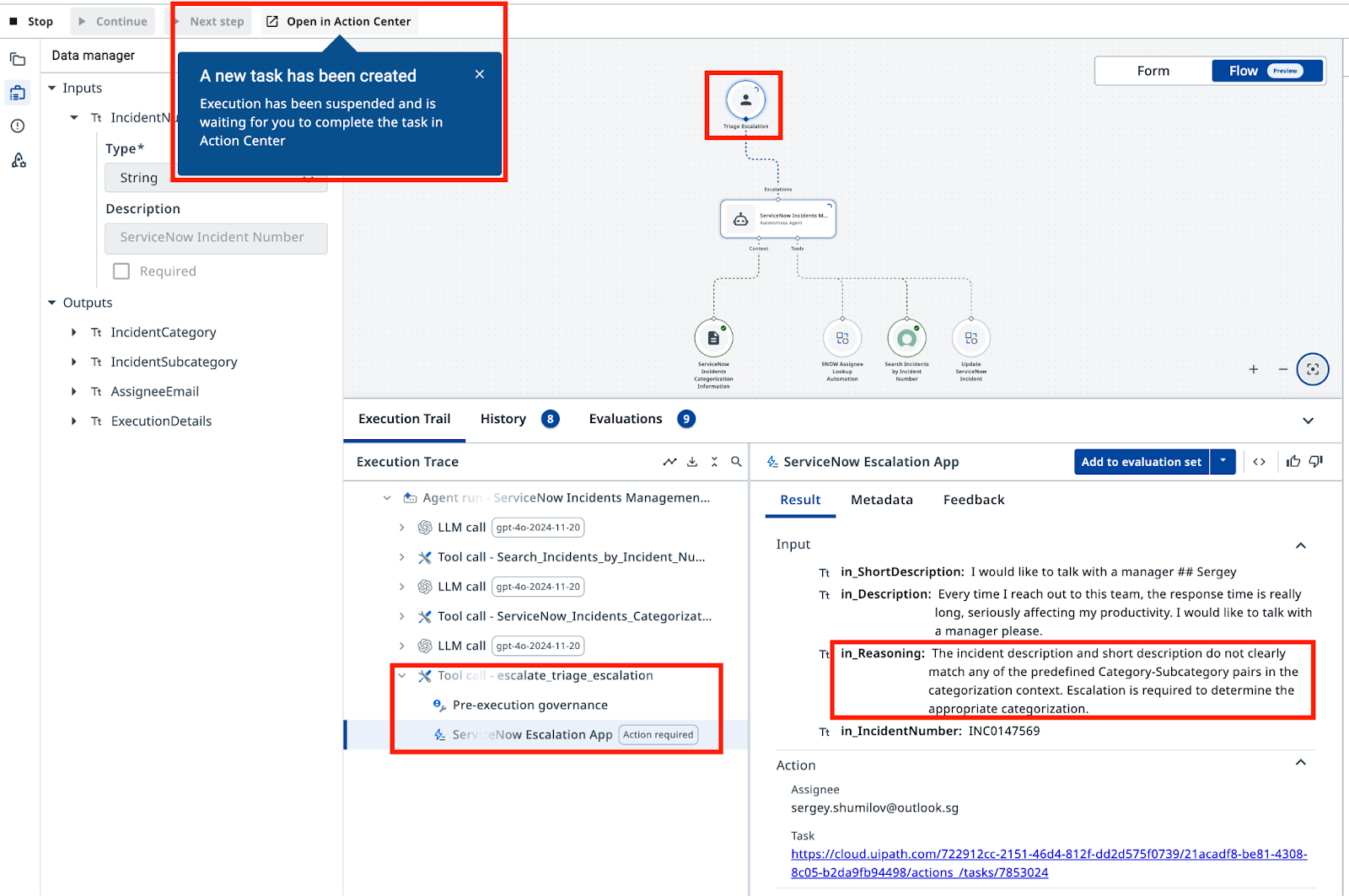
在 Action Center 中,人工审核者会看到事件详情以及类别/子类别选项。等他们选好类别并提交,智能体就会用 Assignee Lookup 自动化完成指派,并更新 ServiceNow 中的工单。
猜猜看,哪个参数会影响智能体分配类别时的信心?试着调一调,看看之前能成功分类的事件会不会也走向升级。提示:就在 Context 设置里。
智能体现在可以投入使用了——你已经用 UiPath Agent Builder 完成了自己的第一个智能体!它能从 ServiceNow 获取事件详情,基于关联上下文进行分类,更新工单,并在无法确定明确类别时升级求助。
恭喜你,干得漂亮!