Automating cognitive Tasks using Agents
Here is our plan for this lesson:
-
Build the 2-Way Matching AI Agent from scratch.
- The agent will use Robot's PDF outputs as its inputs, and return validation result.
- If there is a problem with the invoice, the agent will also prepare data for the human validation task.
-
Configure testing and build an evaluations dataset to ensure quality of the Agent (optional).
-
Configure the Agent in the Maestro workflow.
-
Configure decision Gateway based on Agent's outputs.
-
Simulate to see if the decision goes the right direction.
Goal
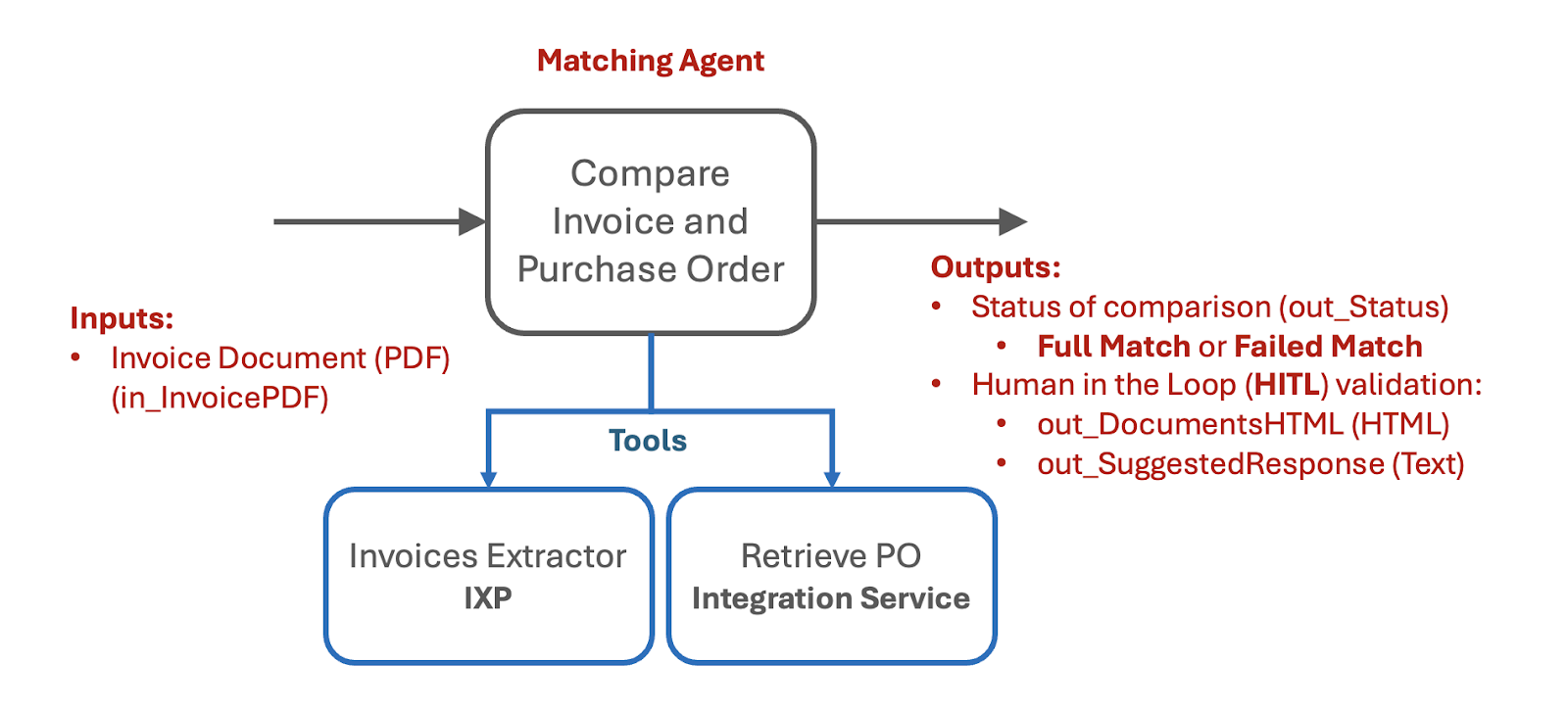
Create the 2-Way Matching Agent with two tools:
-
an IXP data extraction tool
-
RPA workflow tool that queries the Purchase Order database.
The agent receives a PDF invoice, extracts structured data (including PO details), looks up the corresponding PO, and returns a matching decision with supporting outputs.
Why use the LLM for Matching
One of the steps in our process is to compare Purchase Order and Invoice.
You can write traditional code that would compare and analyze invoice data and line items, but it might be fairly challenging, since "rules" are usually flexible — for example, tables might include lines with semantically similar but not identical descriptions, or there may be some other acceptable variations. This increases code complexity and implementation time for every such edge case.
Also, if discrepancies are detected, the usual next step is to write to the sender and request to update the invoice.
LLMs are ideal for this job — they can analyze large amounts of text in any format, identify discrepancies and exceptions, then follow the instructions in prompts to generate a validation summary or email response in the required format and language.
Here is the structure of the agent's inputs and outputs, as well as Tools that agent will require to perform the task:
Steps
1. Create the agent and configure arguments
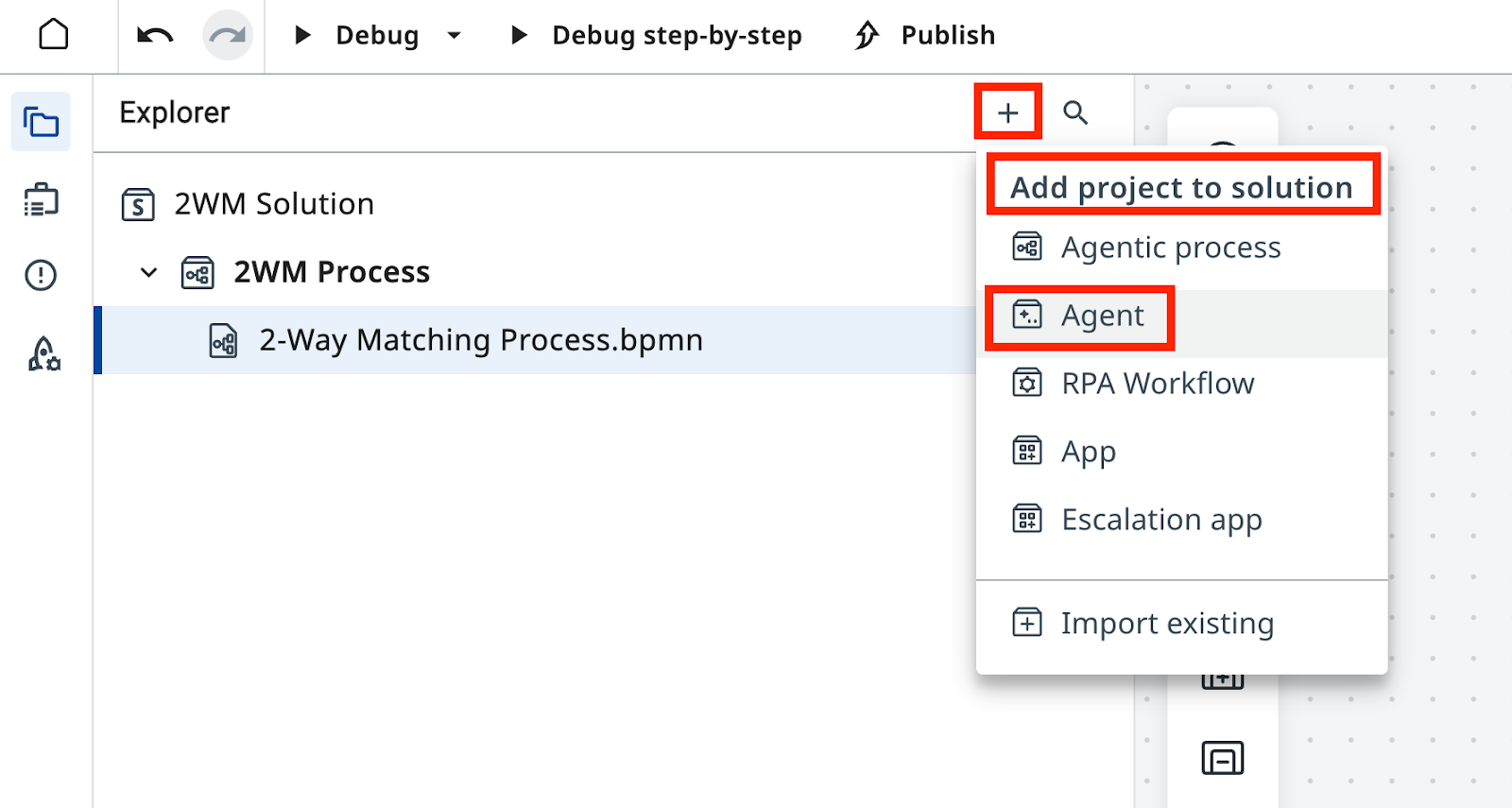
In Studio Web, add a new Agent to your solution.
Remember that Solutions can have multiple components such as apps, automations, workflows and agents. Name it as
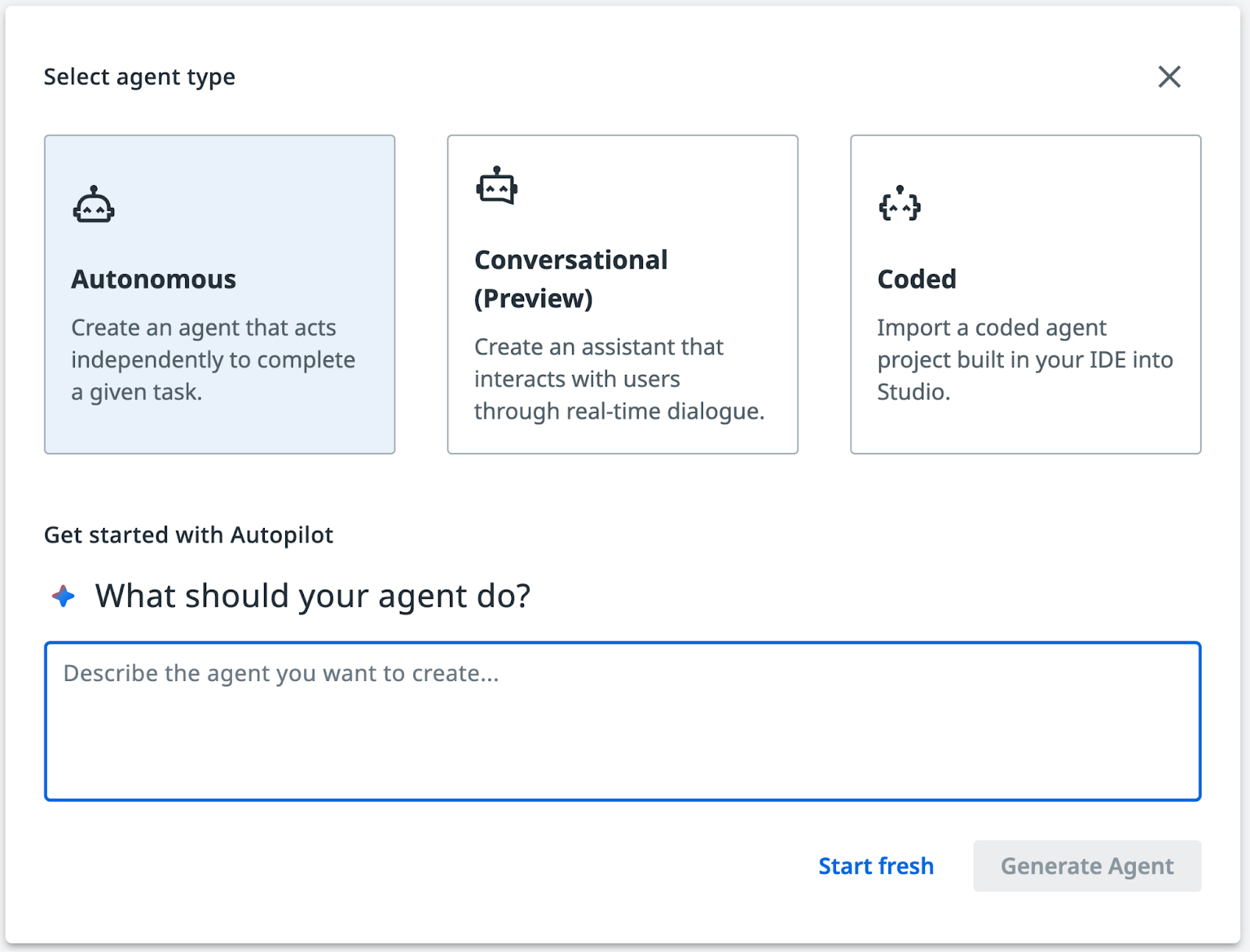
Dismiss the Autopilot screen when you see the prompt to generate a new agent.
You can explore Autopilot later. For now, you'll configure prompts and settings manually — click Start fresh.
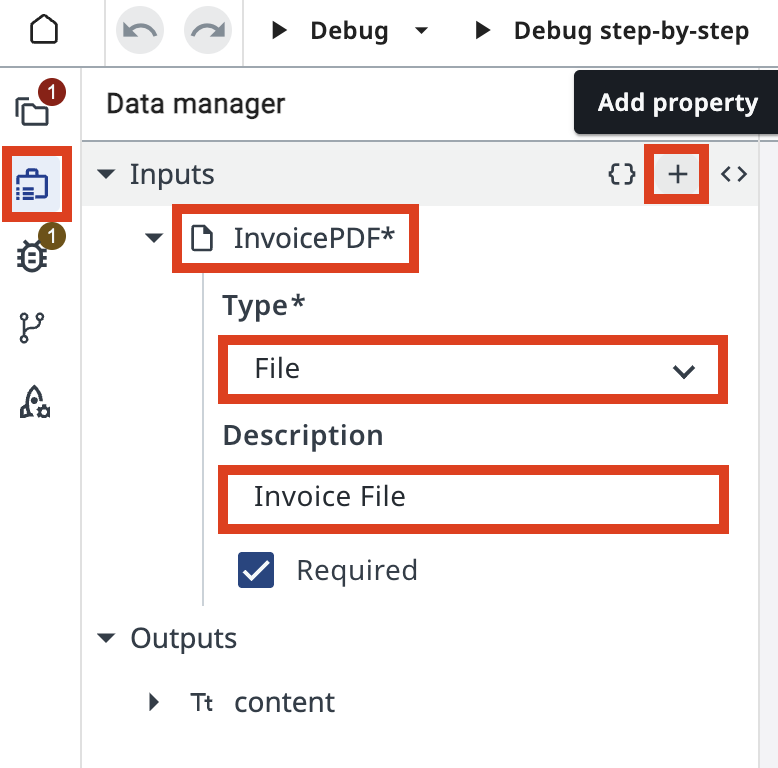
Just like a Robot, Agent has its inputs and outputs, called Arguments. Click on Data Manager icon from the left ribbon and then click on "+" add a new Input argument:
| Field | Value |
|---|---|
| Name | in_InvoicePDF |
| Type | File |
| Description | Invoice File |
For Output arguments, copy paste below JSON into editor after switching to "Editor mode":
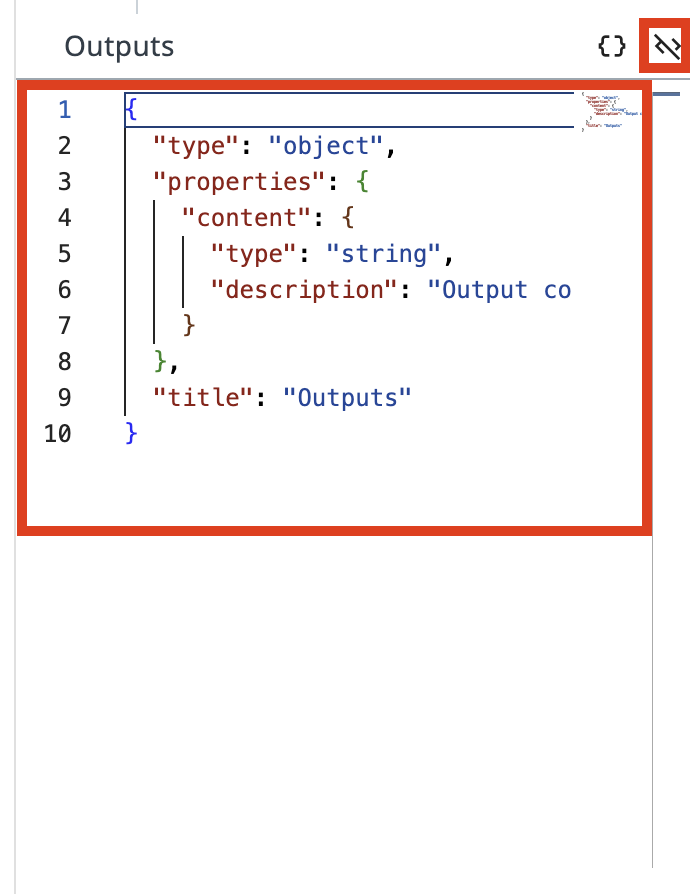
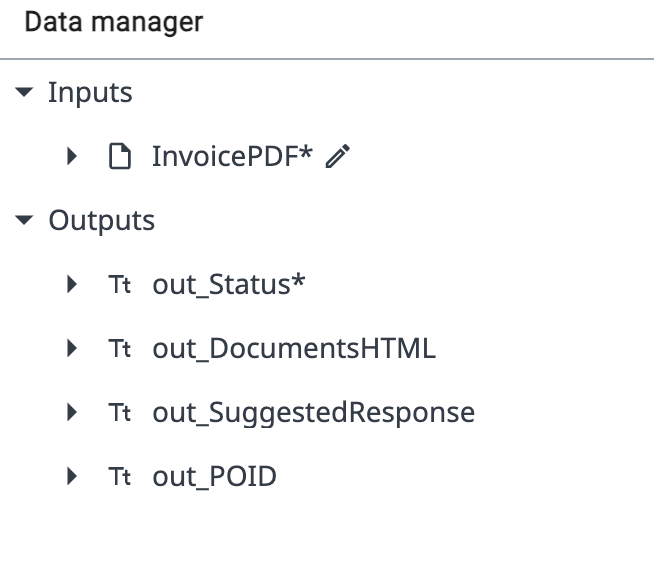
Output JSON schema:
{
  "type": "object",
  "required": [
    "out_Status"
  ],
  "properties": {
    "out_Status": {
      "type": "string",
      "description": "Status of matching - either 'Full Match' or 'Failed Match'"
    },
    "out_DocumentsHTML": {
      "type": "string",
      "description": "HTML code containing side by side comparison of Purchase Order and Invoice"
    },
    "out_SuggestedResponse": {
      "type": "string",
      "description": "Suggested response to Invoice Supplier with description and request to mitigate issues"
    },
    "out_POID": {
      "type": "string",
      "description": "Purchase Order ID extracted from Invoice PDF"
    },
    "out_InvoiceJSON": {
      "type": "string",
      "description": "JSON document containing Invoice data extracted by IXP"
    }
  },
  "title": "Outputs"
}
2. Configure the prompts

"Precision in prompts, like in coding, leads to powerful and predictable results. If your prompt is messy, expect messy output. Treat it like code, and write every word with purpose!" — another piece of advice from gpt-4o
Prompts are configured in Agent's setting (open by clicking on the wrench icon).
As you remember from previous exercise:
-
System prompt is like human's work instructions, the "How".
-
User Prompt is the specific request or task input by the end user, the "What".
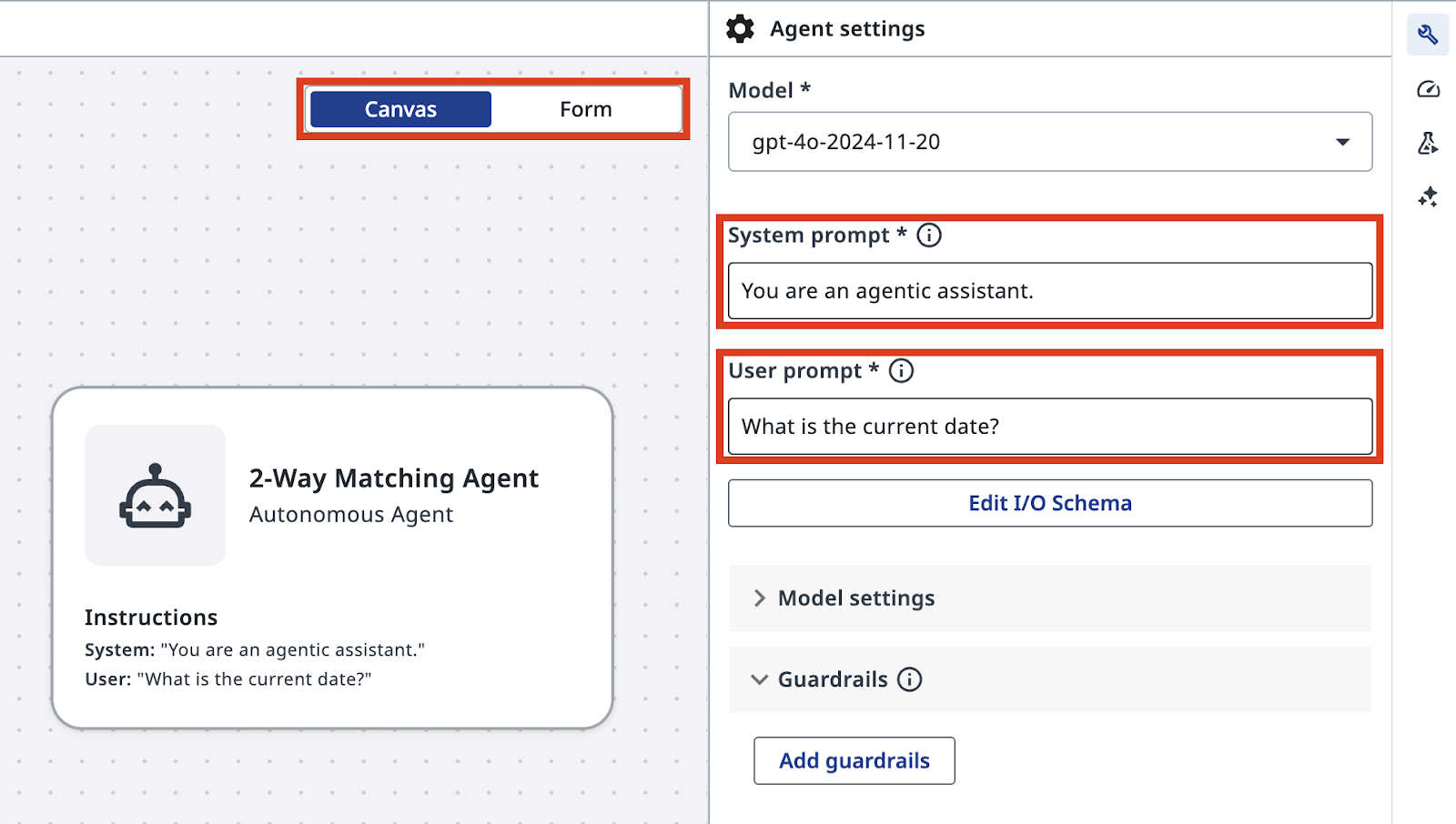
Enter the following System Prompt:
You are an AI agent specialized in comparing Invoice PDFs with Purchase Orders. Your primary responsibilities are:

1. Analyze the contents of an Invoice PDF file using the InvoicesIXP tool. Extract all relevant information including company details, line items, totals, and tax information. Trigger Escalation if confidence falls beyond 60%.

2. Use the Retrieve PO Data tool to fetch Purchase Order data from the Data Fabric. The Purchase Order ID should be extracted from the Invoice. If the PO data cannot be retrieved, use Escalation.

3. Compare the Invoice details with the Purchase Order information. Identify and list any mismatches or discrepancies between the two documents. Pay special attention to:
  - Company names and details
  - Line items (product names, quantities, prices)
  - Totals and subtotals
  - Tax information
  - Dates (order date, delivery date, payment due date)

4. Handle any unexpected data formats or missing information gracefully. If crucial information is missing from either document, note this in your analysis and use Escalation.

5. Provide a clear, concise report of your findings, highlighting any issues that require attention.

You should be thorough in your analysis, checking for discrepancies in items, quantities, prices, dates, and any other relevant fields. Always maintain a professional and objective tone in your reports.

out_Status: Status of comparison should be:
  - "Full Match" - if Invoice and Purchase order match fully. Every line item in PO matched to Invoice line items, company name and details match, total and tax information matches.
  - "Failed Match" - if there are items that cannot be matched or other details do not align.

out_DocumentsHTML: If match is not successful, generate HTML code containing side by side comparison of Purchase Order and Invoice, including Company details, document Line Items, Total and Tax information.
  - Use a table structure with three columns: Field, Purchase Order, Invoice.
  - Field titles should be placed in the leftmost column.
  - Tax value should include tax rate and tax name, if available.
  - Line items should be displayed as sub-tables inside the main table cell, aligned top.
  - Cells with discrepancies should have a light red background, both in the main table and in cells of line items sub-tables.
  - Set the table width property to 100%.
  - Use appropriate HTML tags for headers, rows, and data cells.

out_SuggestedResponse: If match is not successful, draft the invoice rejection email to the supplier.
  - The email should have HTML formatting.
  - Start with "Dear Supplier" and do not include a Subject line or placeholders. Sign the email as "Payments Team".
  - Display product names, prices, and other data from documents in bold text.
  - Include a bullet list with reasons for rejection, i.e., discrepancies that can't be matched, and a request to adjust the invoice and resend.
  - In the bullet list, do not include items if that individual item is considered a match. Only list items that do not follow the rules.
  - Maintain a professional and courteous tone throughout the email.

out_InvoiceJSON: JSON document containing Invoice data extracted by IXP. Exclude confidence score, only include datapoints as they appear on the invoice. This will be uploaded to finance system for processing.

Always double-check your analysis and outputs for accuracy before finalizing your response.
3. Add the IXP and PO retrieval tools
Next, our agent will need tools that we mentioned in the system prompt:
- InvoicesIXP tool — uses the existing Invoice IXP project for data extraction
- Retrieve PO Data tool — looks up Purchase Order details using the extracted PO ID
In canvas mode, select your agent and add a new Tool by clicking "+".
You will be able to see the IXP configuration inside IXP section of UiPath Cloud. Let's not deep dive into IXP configuration as part of this exercise.
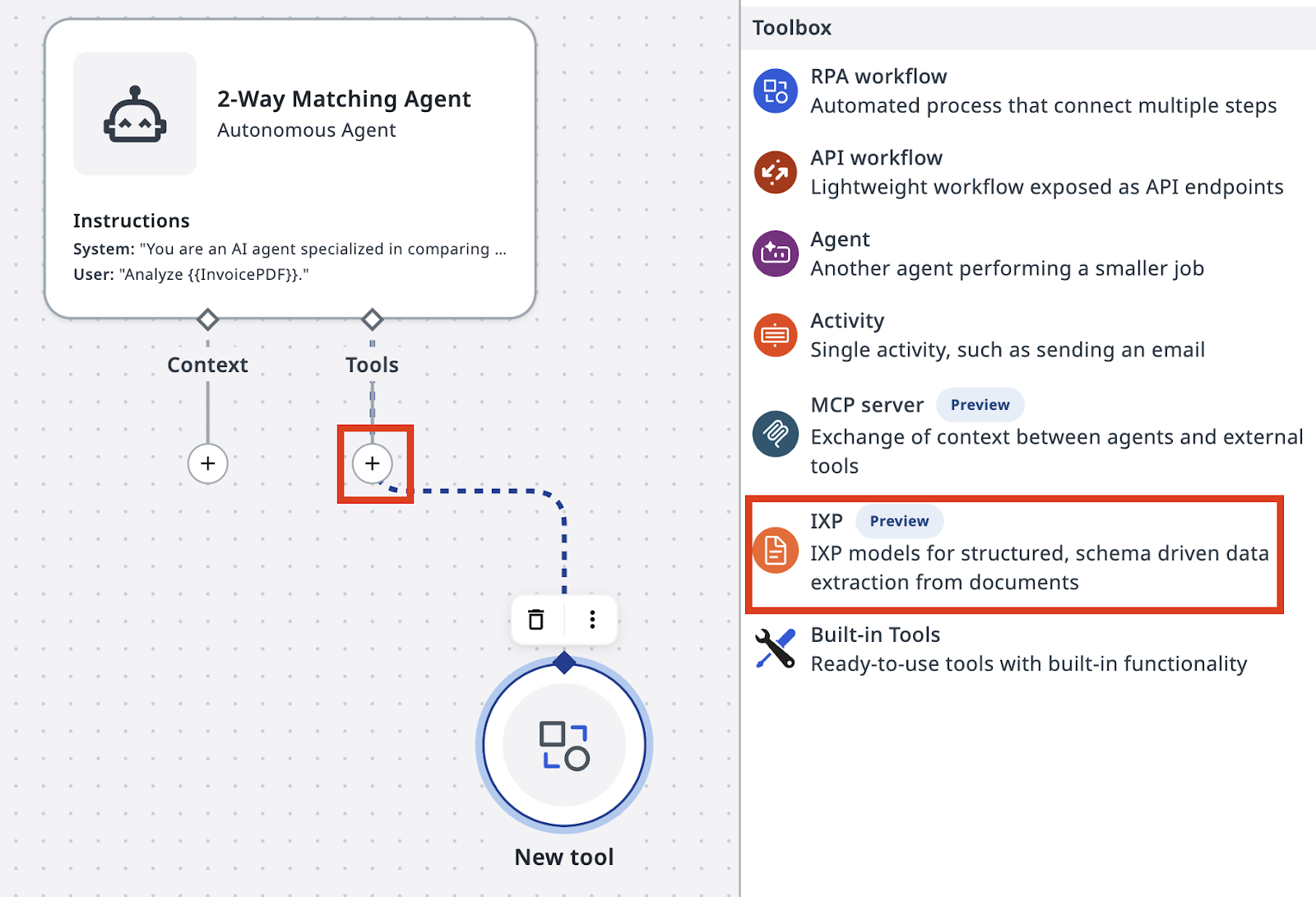
Select IXP from the toolbox and choose the InvoicesIXP project.
Add a meaningful description, for example:
InvoicesIXP is an out-of-the box extraction model with predefined standard Invoice taxonomy. It will return JSON object containing extraction data.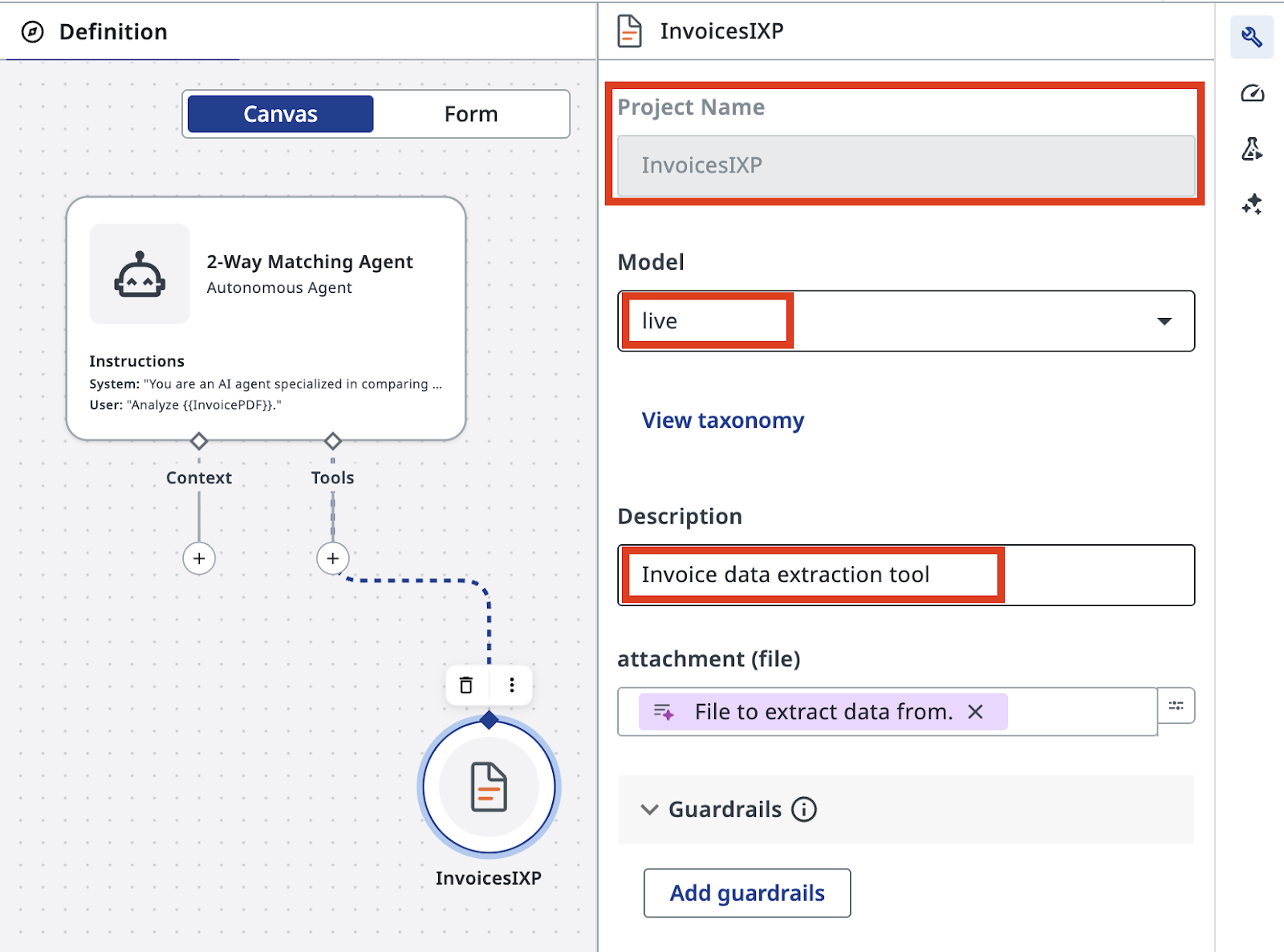
That's all we need to do to enable Invoice extraction!
4. Build and add the PO lookup tool
Next, let's build the Retrieve PO Data tool as a new RPA workflow. PO data is stored in Data Fabric and we can look up records using POID.
Add a new RPA Workflow into your solution. Give it a meaningful name, like always:
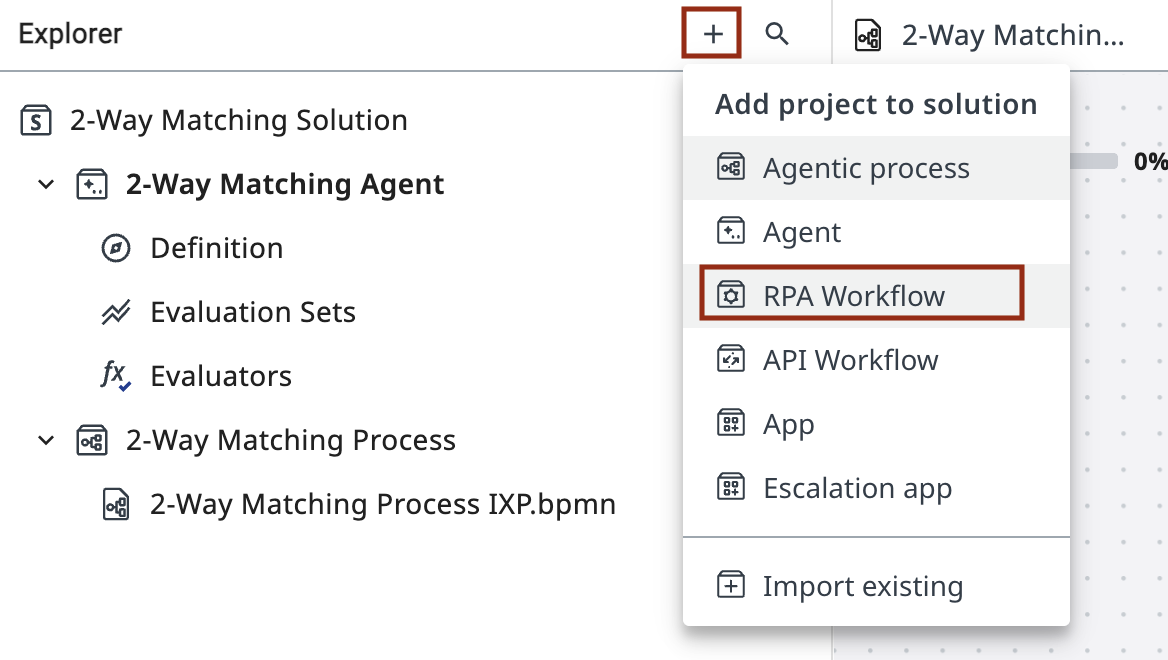
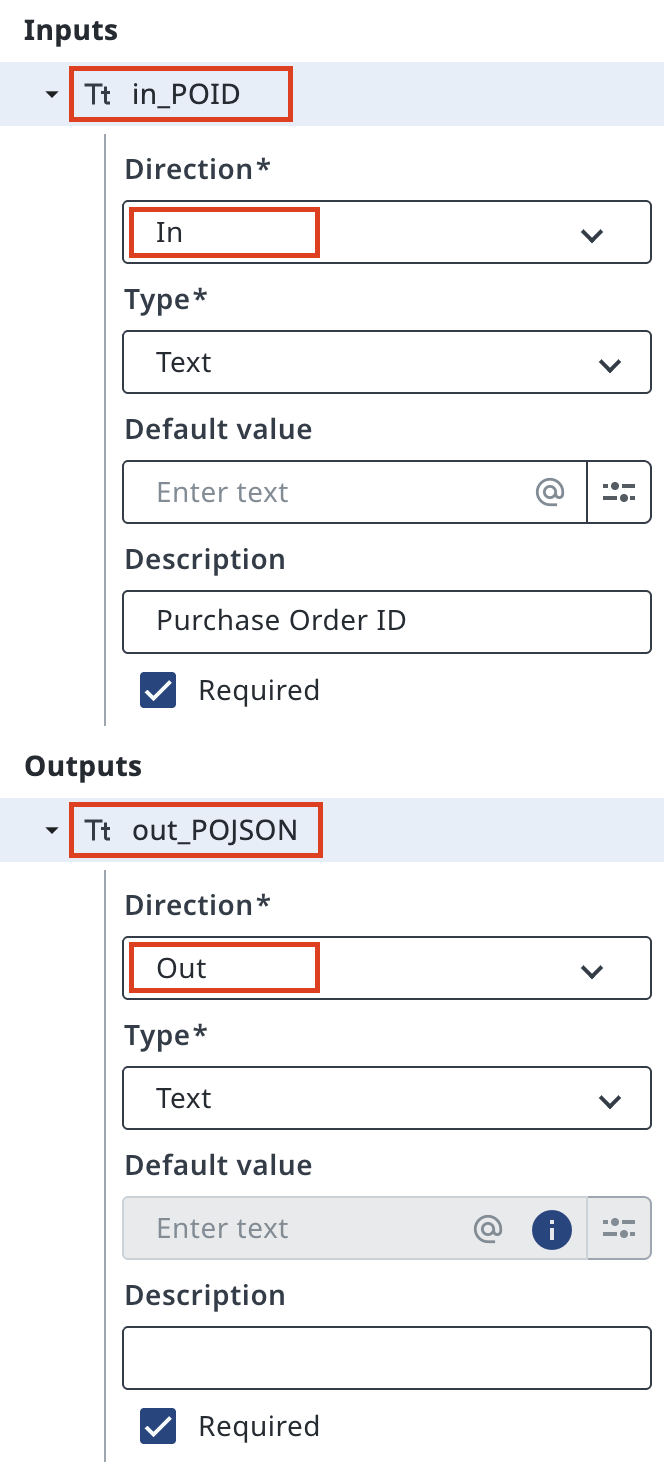
Then, configure the input and output arguments for the workflow:
- Receive Purchase Order ID as in_POID.
- Return the PODATA field from the entity as out_POJSON.
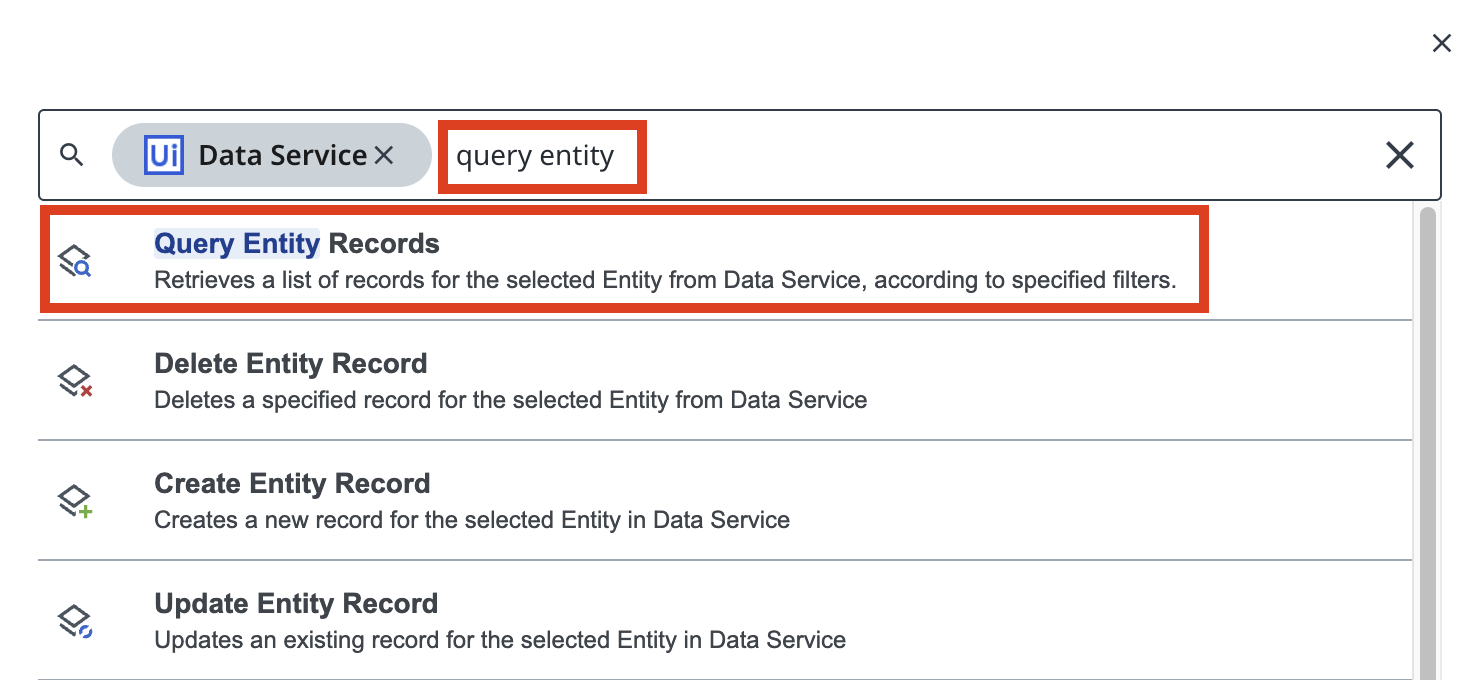
In order to retrieve data from Data Fabric, configure the activity to Query Entity Records from PurchaseOrdersDatabase.
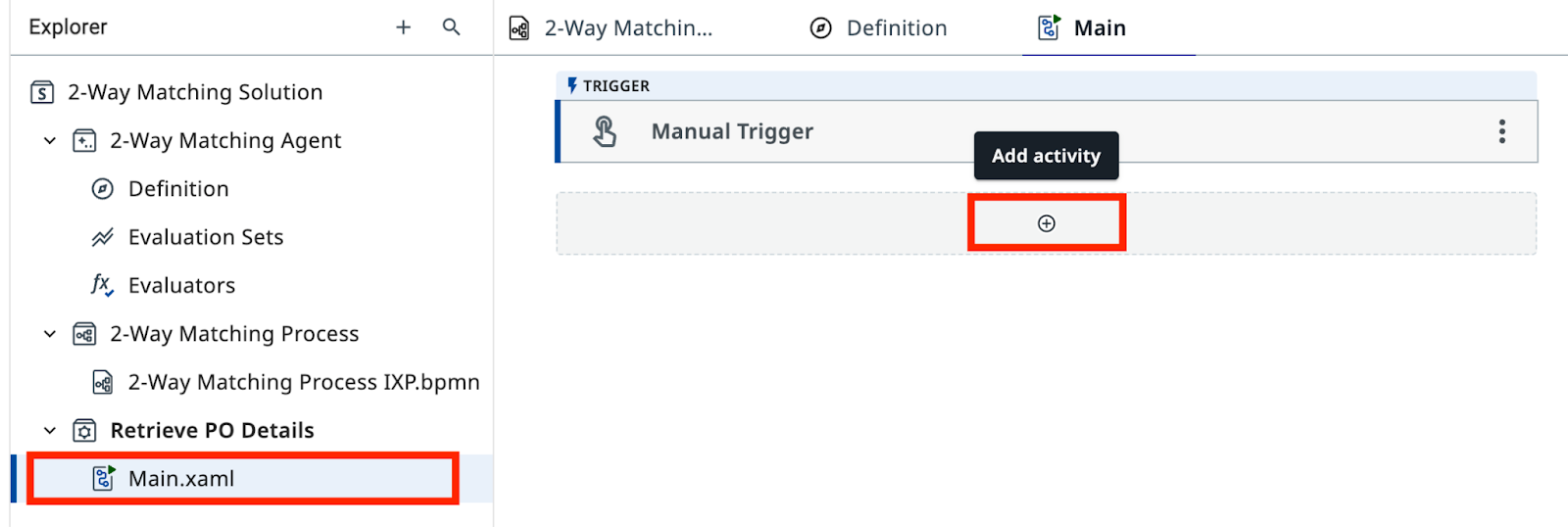
Inside of Main.xaml workflow, add a Query Entity Records activity (from Data Service) configured to query from the PurchaseOrdersDatabase entity.
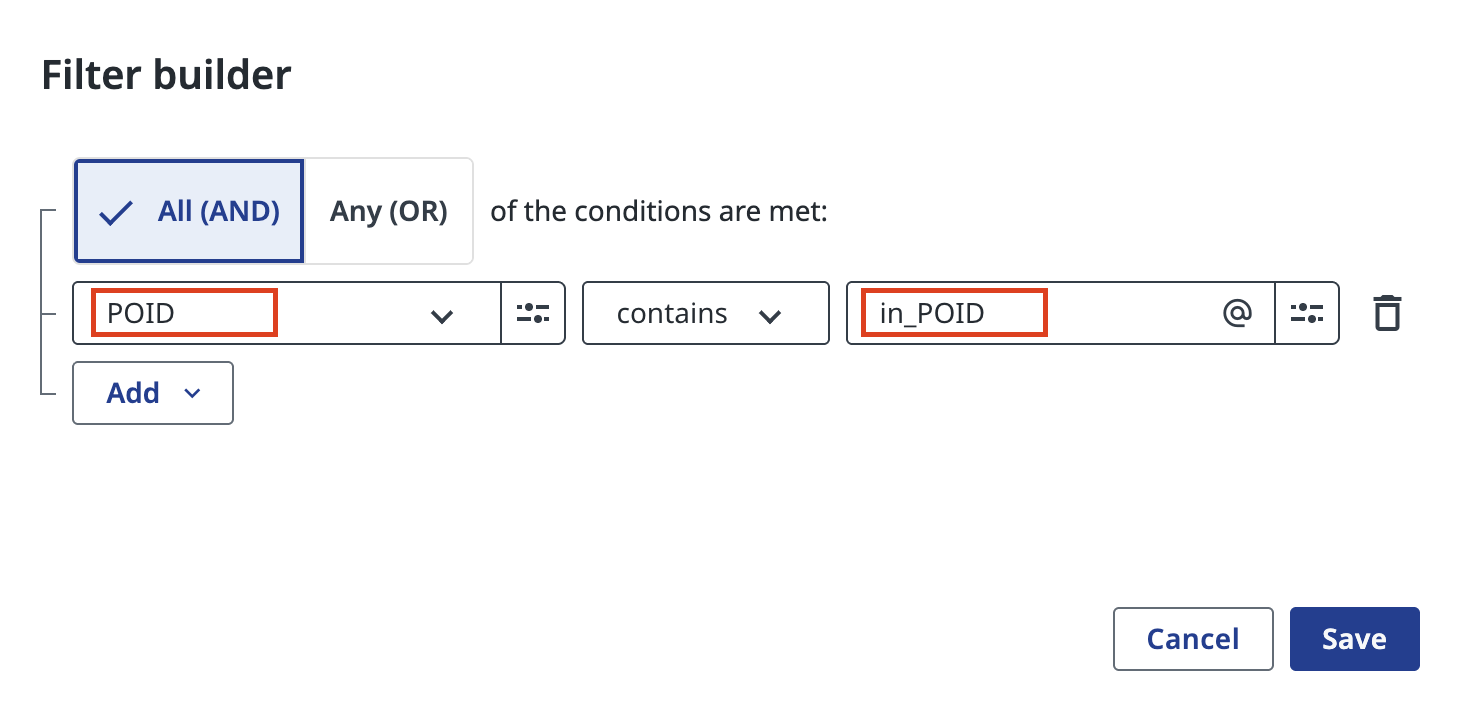
Apply the filter: POID equals in_POID.
Important
If workflow returns no records, make sure that POID equals value of input argument in_POID and not static text "in_POID"
Here is what you should get in the end. Try running it if you have a PO ID from one of the invoices.
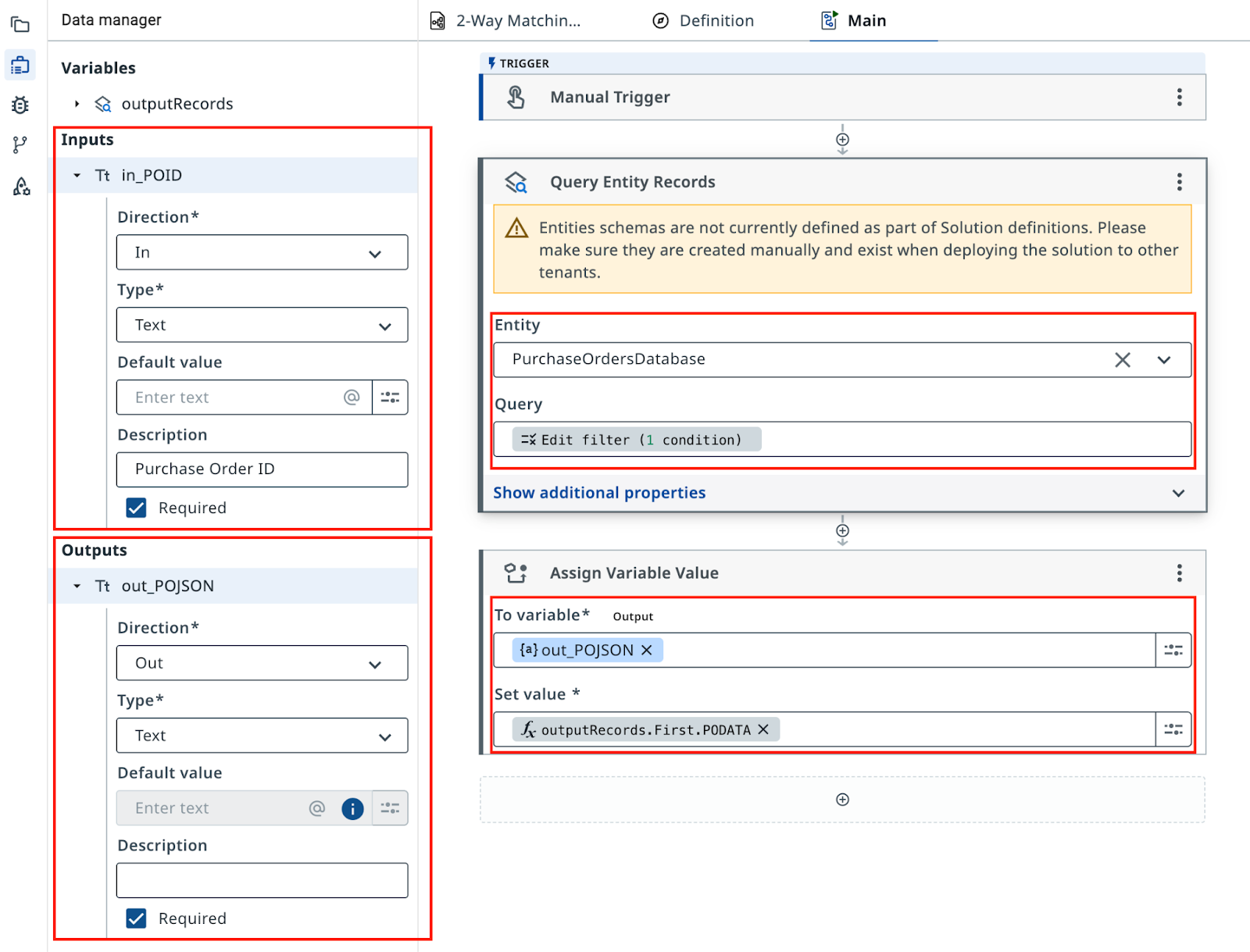
This RPA workflow is good enough only for this excercise since this workflow has no input validation and no exception handling
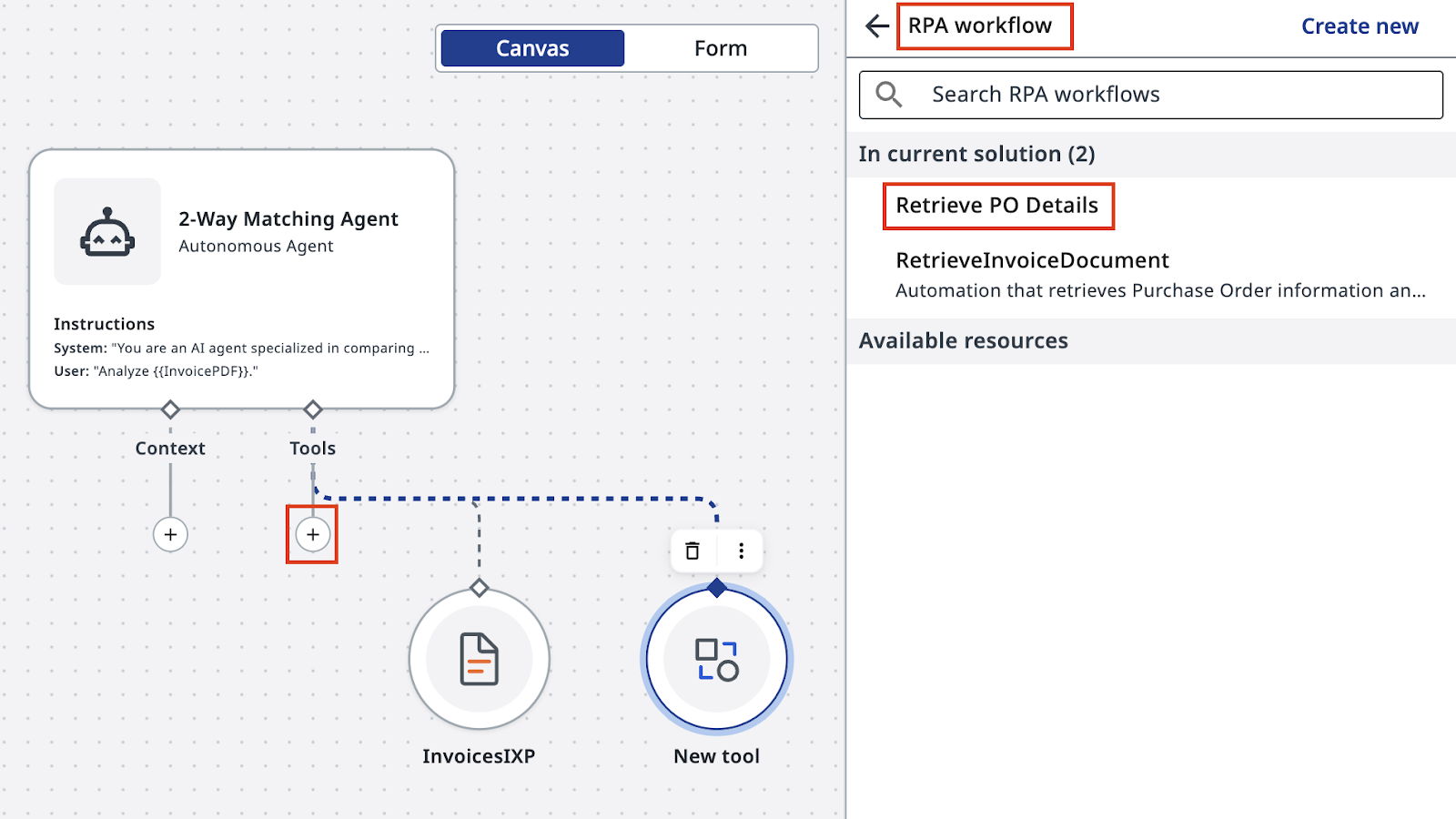
Back in your Agent's definition, add this RPA Workflow as a Tool. Make sure you pick the one "In current solution".
Just in case, give a hint to Agent about in_POID input argument:
Done.
In a real environment, you'd typically retrieve PO data from a system like SAP or NetSuite and handle exceptions along the way. This simplified version keeps the focus on the agent configuration.
5. Quality Control and Evaluations
Think about what could be the right way to test this agent and make sure that future changes in prompts or in LLM model do not affect the results?
6. Integrate the agent into Maestro workflow
Let's configure the second task to use the agent you just built, and set up the gateway that routes the workflow based on the agent's output.
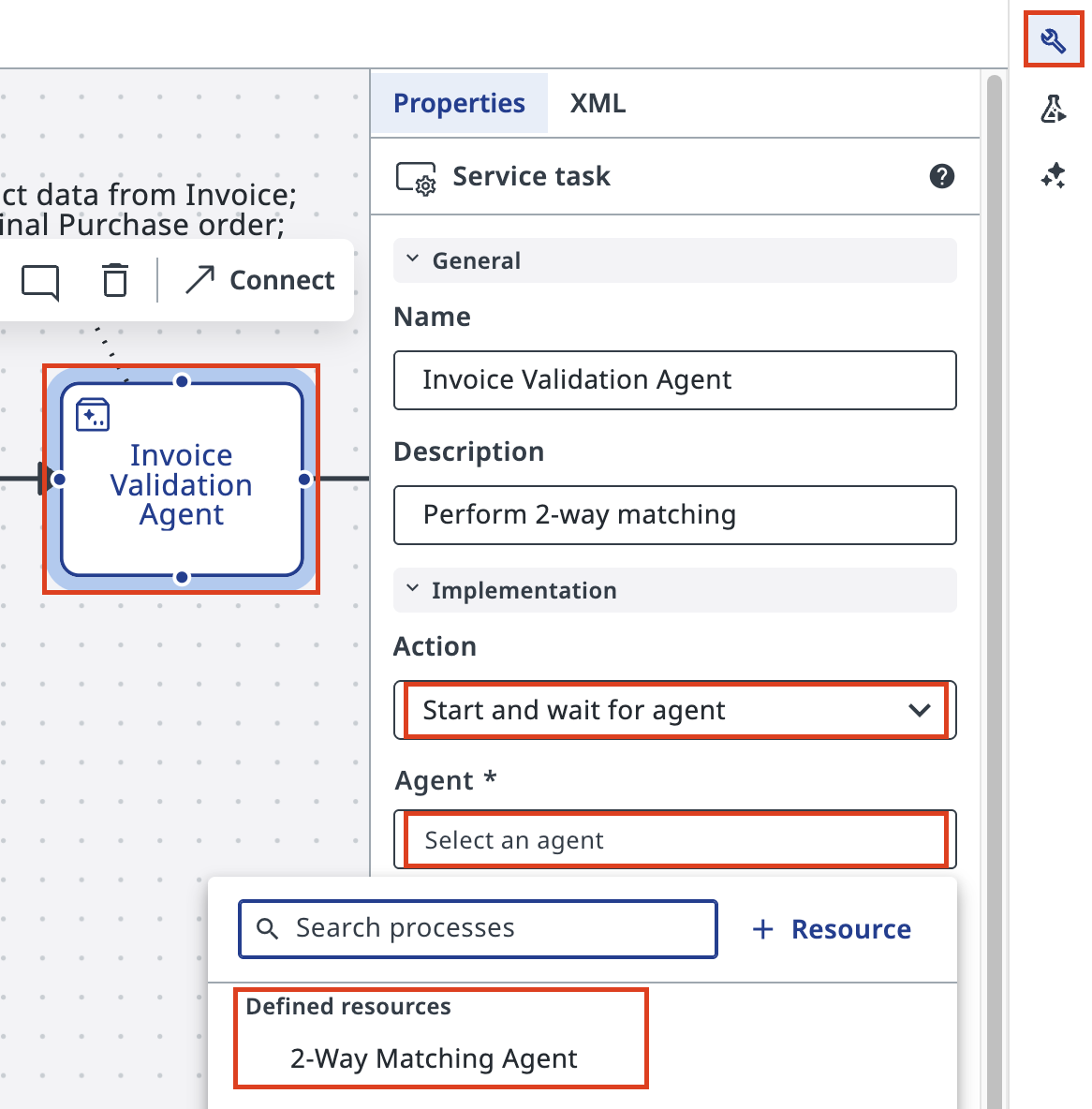
In Studio Web return to your Maestro Agentic Process and configure the second task. Set the action to Start and wait for agent, then search for the agent in your solution (Defined Resources) and select it.
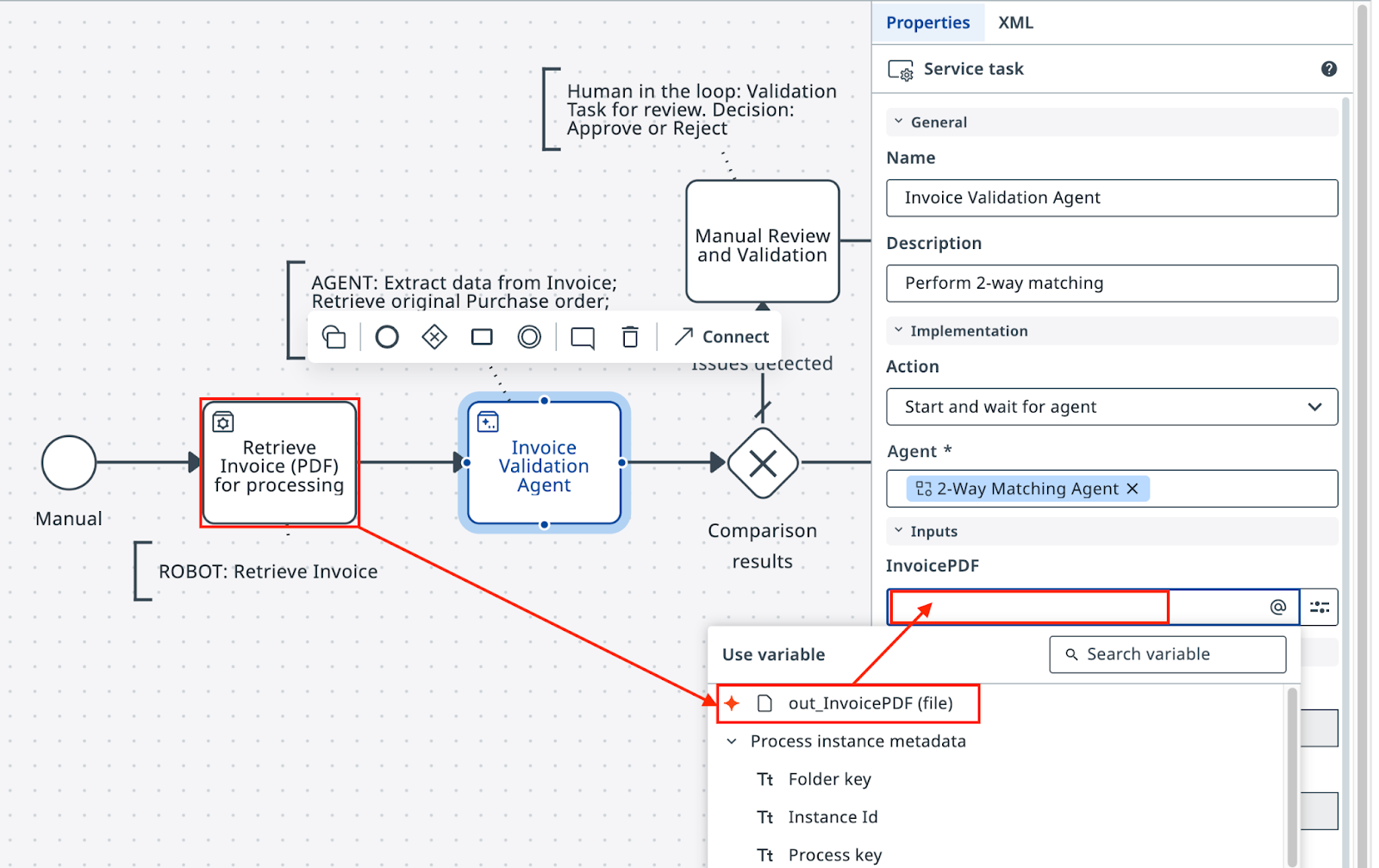
Pick outputs from the previous RPA Task (Retrieve Invoice PDF) and add them as inputs to the Agent — here is how you do it in your Agentic Task's Settings:
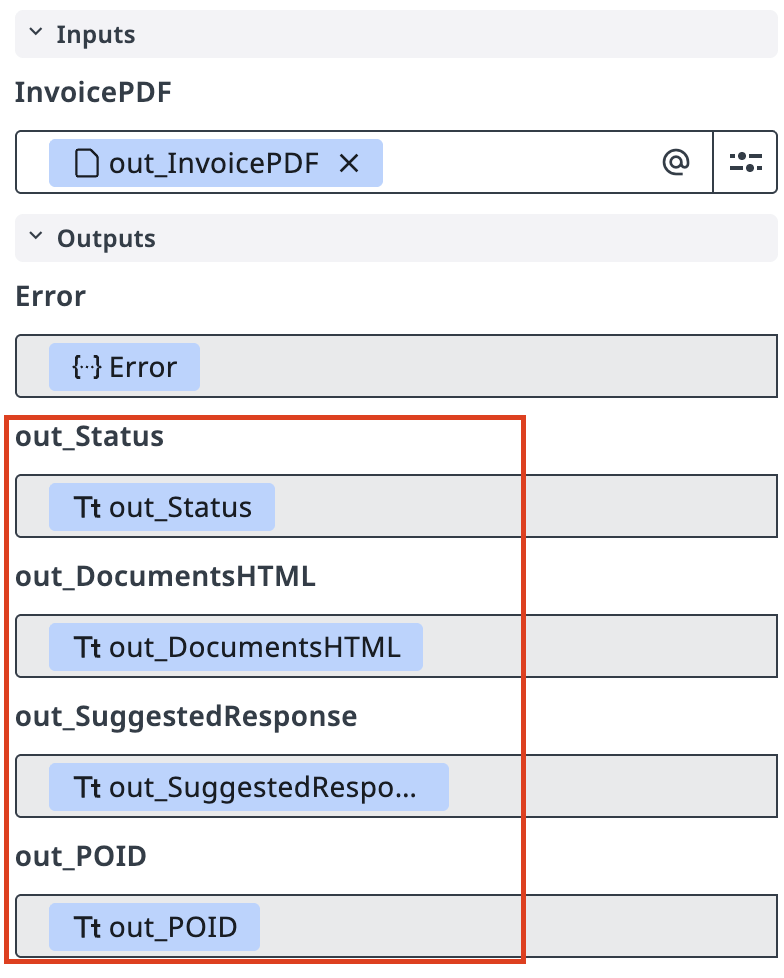
Note that Agent's outputs were also automatically added to the workflow, so you can use them right away when configuring the Exclusive Gateway.
Let's use Agent's Status (out_Status) and direct the process to the next step — either sending the invoice for payment, or towards manual review.
Configure conditions as per the image. Note that expressions in condition allow using complex calculations, if required. For example, using ToLower function will make it a bit more reliable.
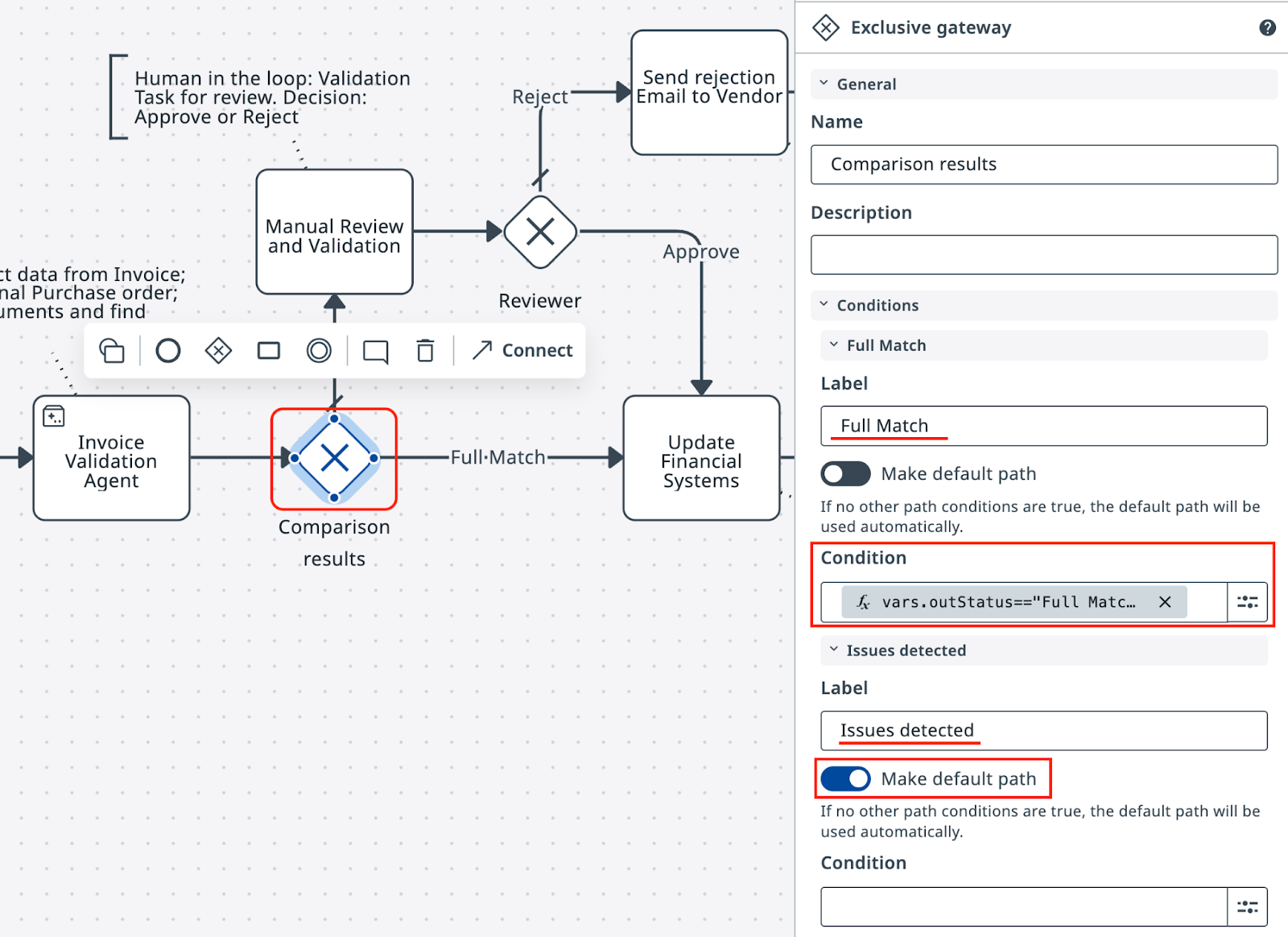
You can test various expected inputs right in the expression editor. Don't forget to set Failed Match as the default path!
Process is ready for testing - click on that Debug button again!
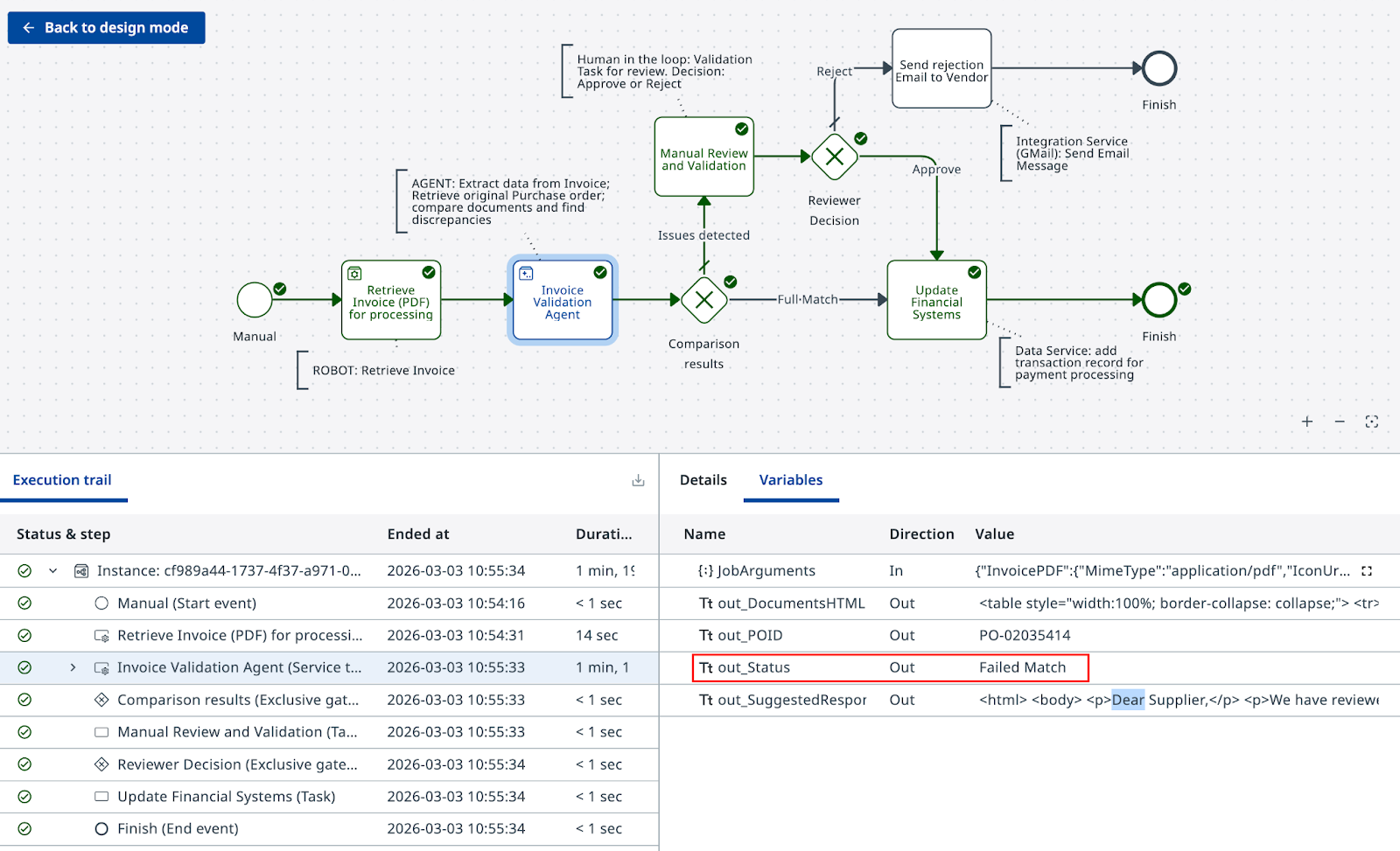
Validate that the gateway routes correctly based on the agent's output
This time we want to see execution of the Agent and how Agent's output changes the direction of the execution flow from the default path.
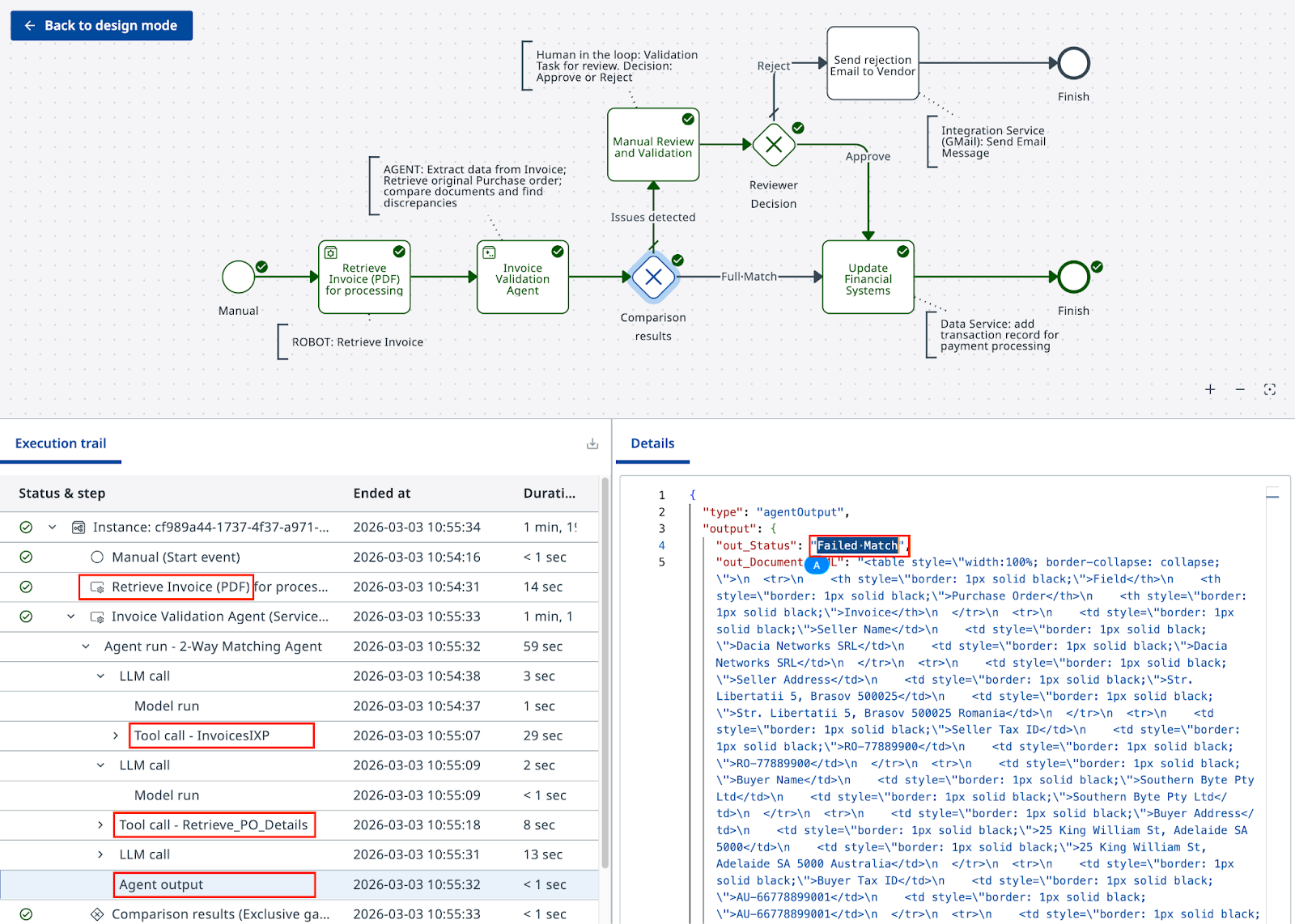
Your agent is ready. However, in most cases you will need to come back multiple times and improve the prompt in order for it to be more flexible — this way users need to perform less manual validation and it will work more reliably.