Talking to external services
Here is our plan for this lesson:
- Send a message to the supplier whenever an invoice is rejected, using the response text from validation step and Gmail Connector.
- Store approved invoice data in Data Fabric so the finance team can process payments using their own automation.
Goal
Complete the end-to-end process by adding two final tasks: a rejection email connector on the Reject path, and a data storage connector on the Approve path. Both use Integration Service connectors already configured in AgenticPractice tenant.
Integration Service and Data Fabric
UiPath Integration Service is the fastest and most convenient way to automate API-enabled applications. It handles authorization and authentication, centralizing API connection management and enabling faster SaaS platform integration.
Two connections are already configured in your tenant:
- Gmail — a shared mailbox for sending automated emails
- Data Fabric — shared data storage for structured records (tables, files, etc.)
Your platform administrators have prepared these connections. You don't need to configure authentication.
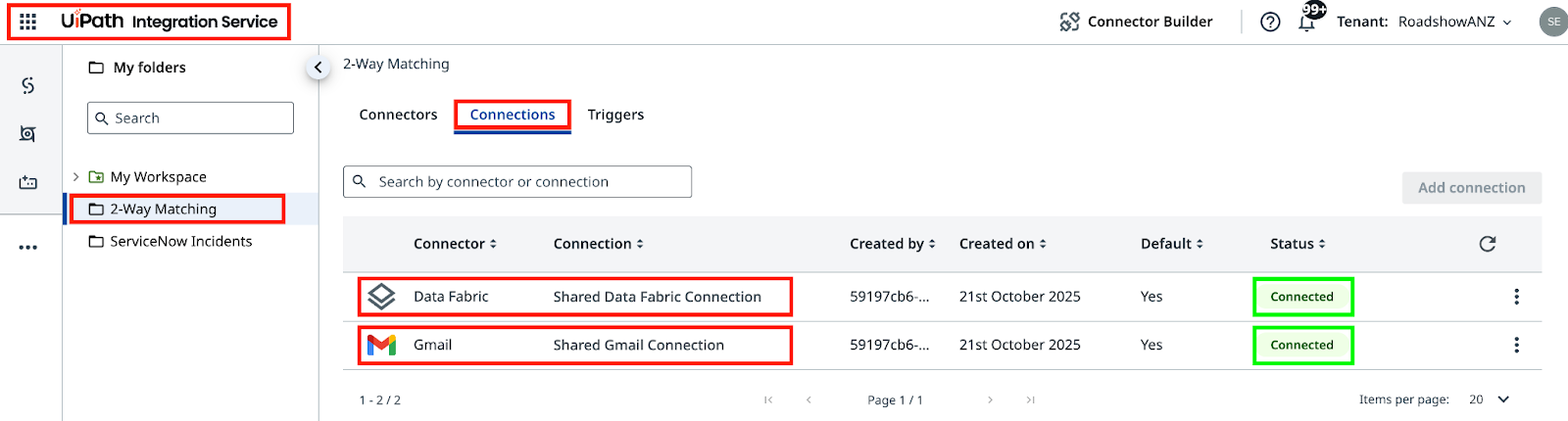
Tenant check
Make sure you're using the correct tenant. Contact your trainer if there are issues with connections.
Steps
1. Configure the rejection email task
The process should send a rejection email when an invoice fails validation. The email uses the draft response that the Agent generated and the reviewer had a chance to edit.
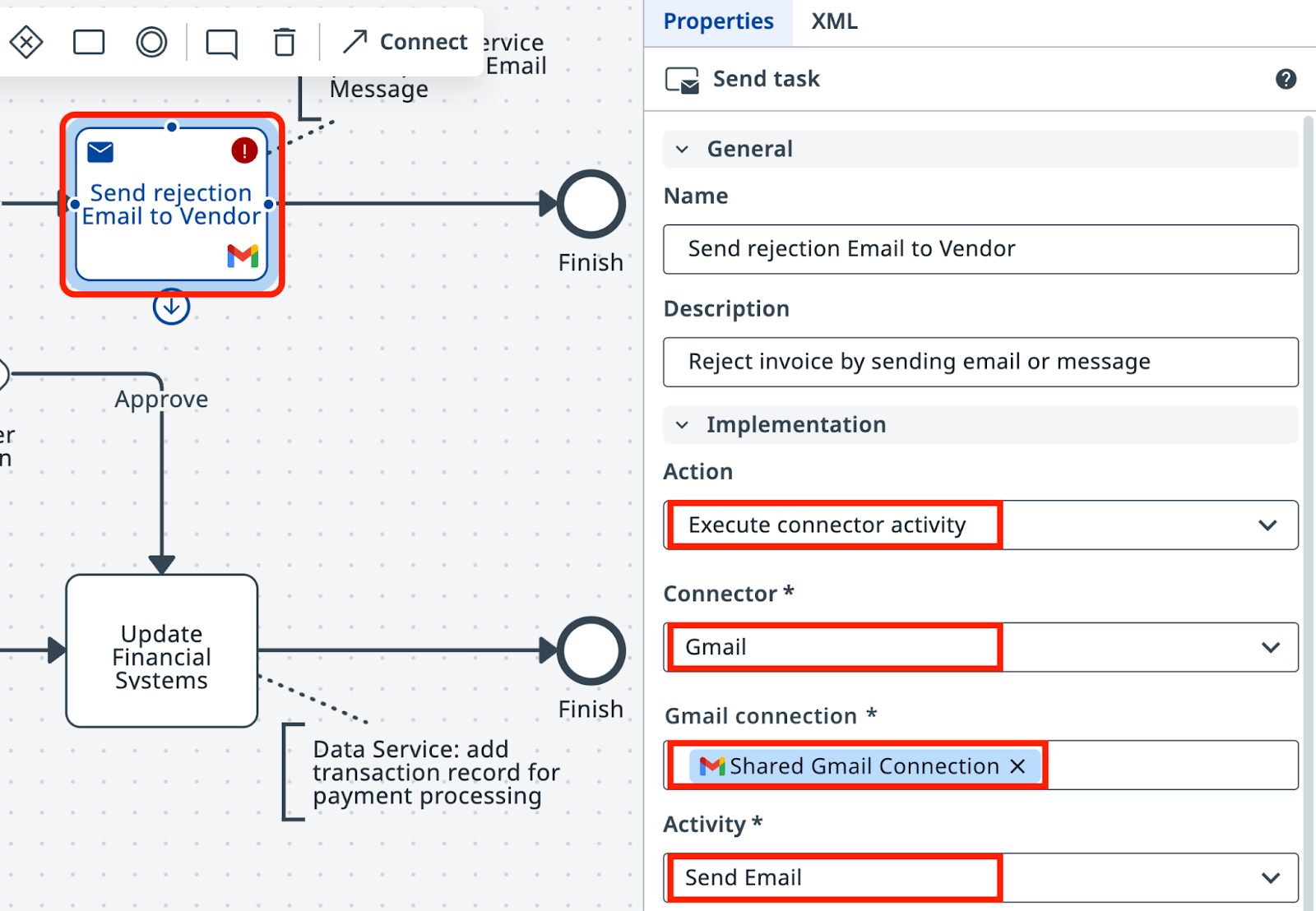
In your Maestro Agentic Process, select the task on the Reject path and set the action type to Execute Connector Activity.
Use the "Shared Gmail Connection" and pick "Send Email" activity.
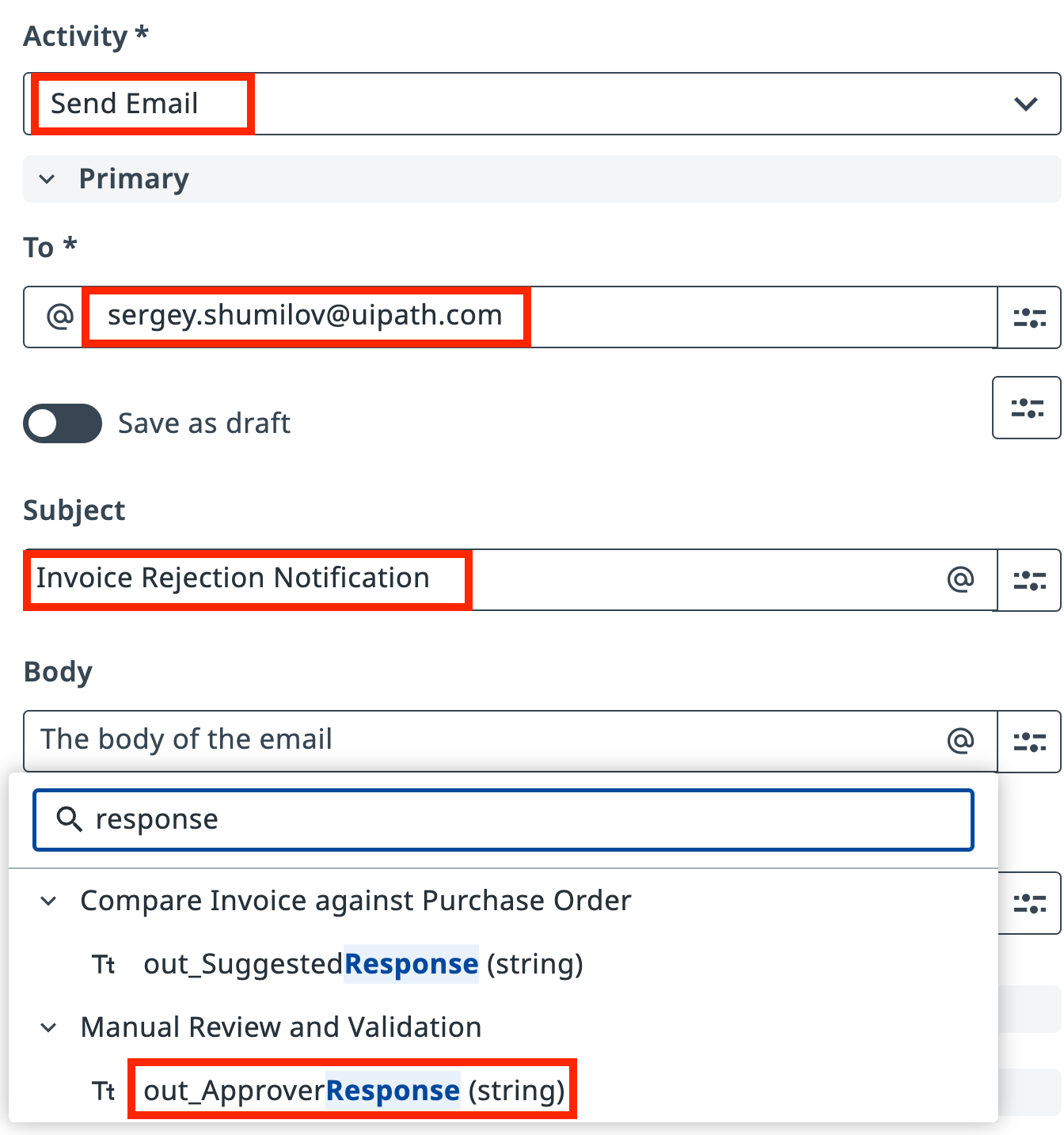
Configure the Send Email activity: enter your email address as the recipient address, suitable subject line, and map the email body to the reviewer's edited version, out_ApproverResponse.
2. Configure the Data Fabric storage task
Now we know what would happen with the rejected Invoices. For approved invoices, pass the invoice data to Data Fabric so the finance team's own UiPath automation can pick it up and process payments. They are using their own UiPath Automation connected to same data source, so all we need to do is to push our data there.
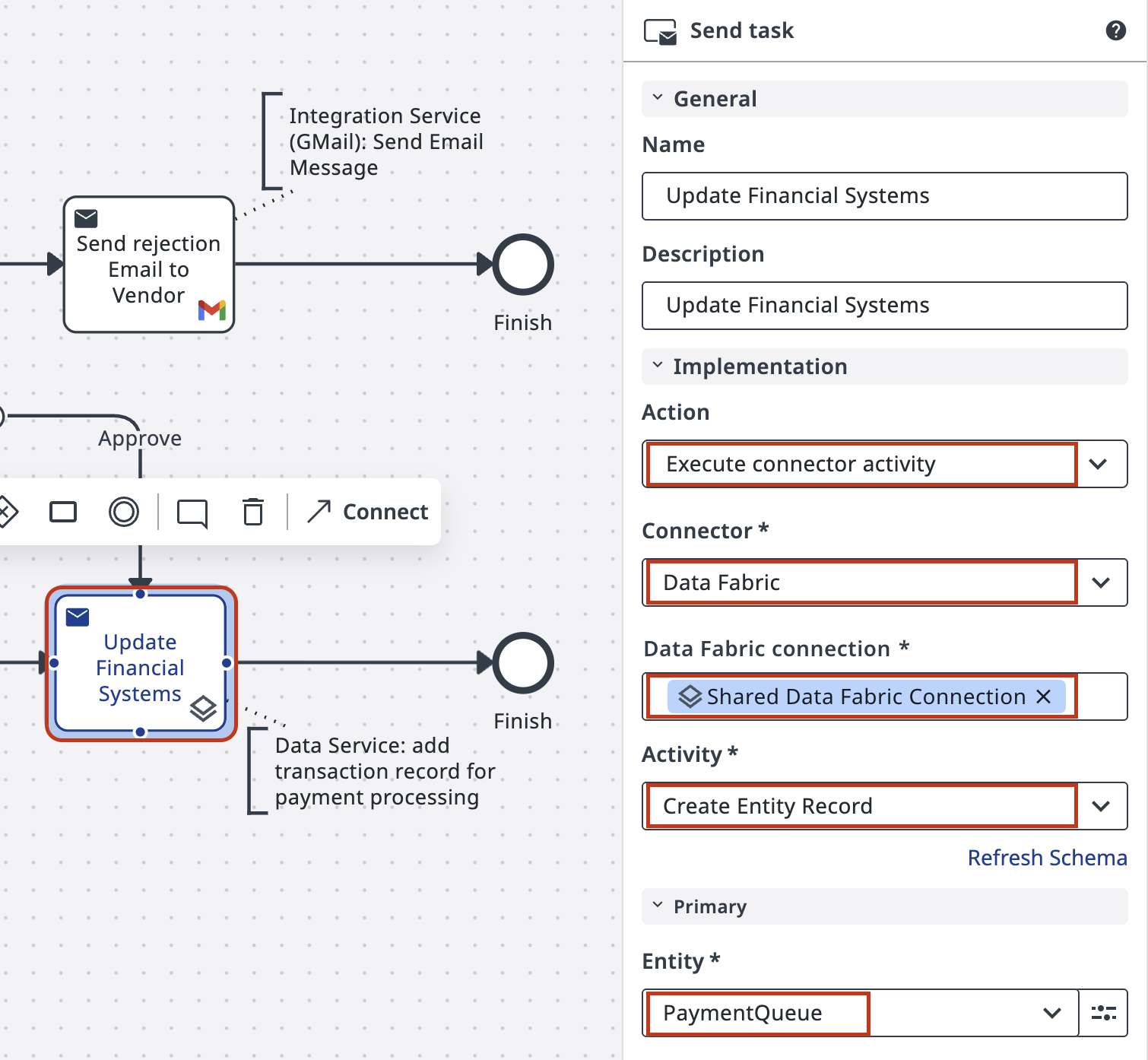
Select the task on the Approve path and set the action type to Execute Connector Activity.
Configure the task to use the Data Fabric connector with the shared connection and Create Entity Record activity for the Payments Queue object.
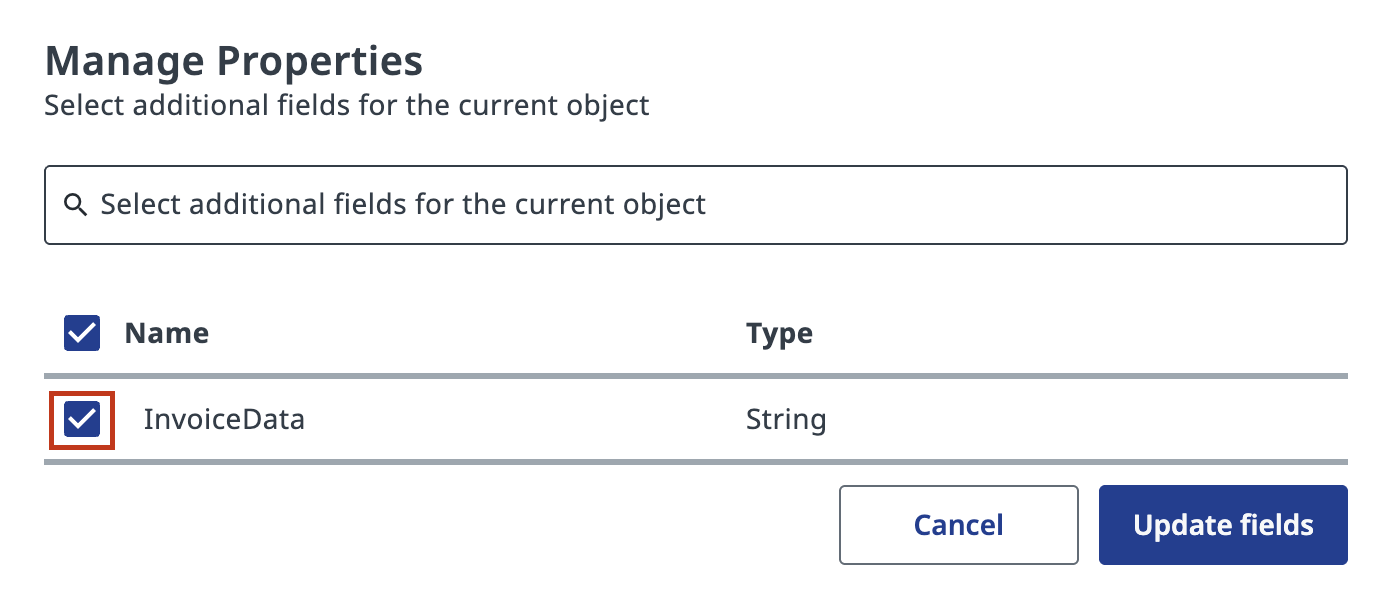
Click Manage Properties to add the invoice data field to the Payments Queue entity. Check the InvoiceData field to map your invoice data.
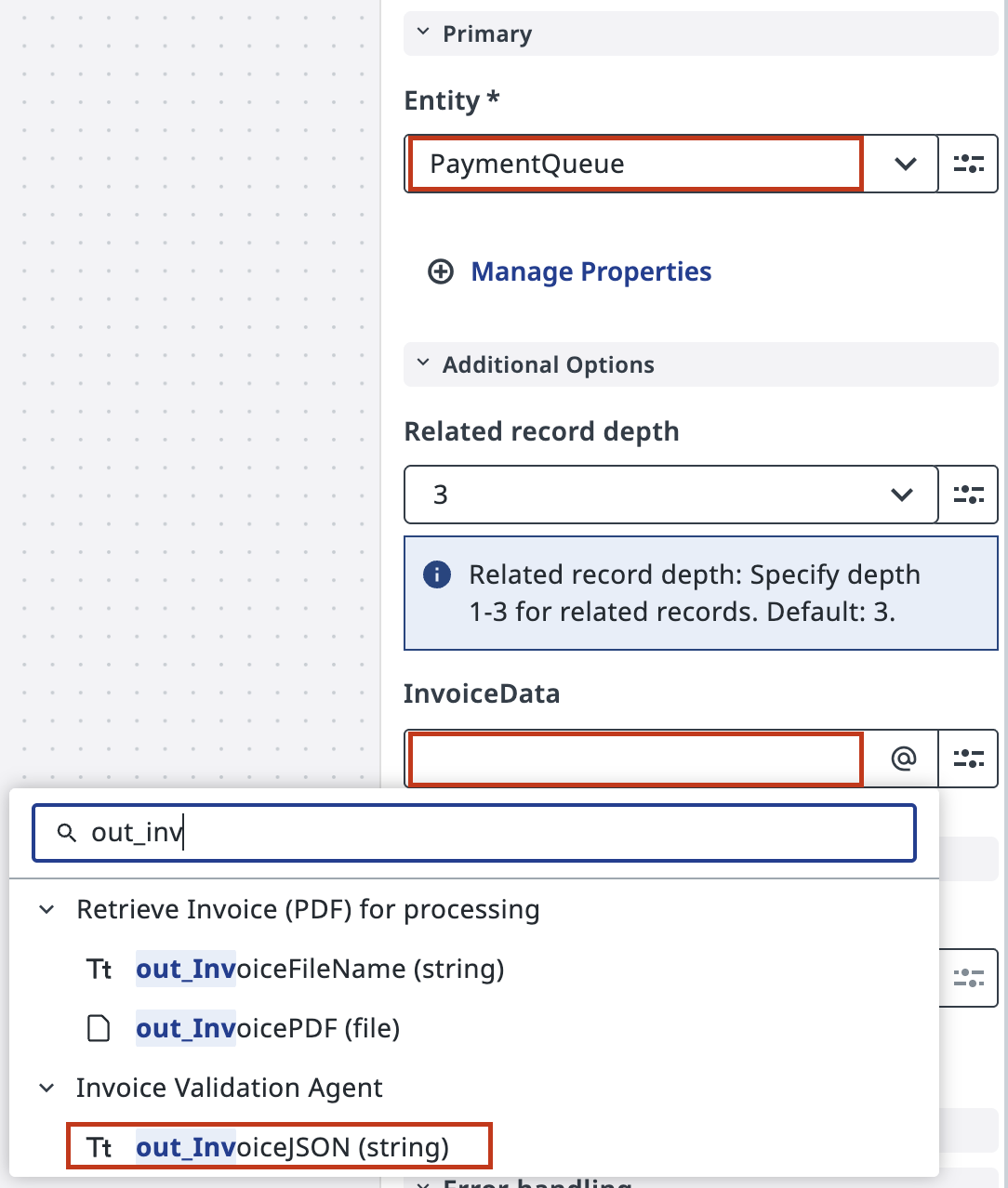
Map the invoice JSON data from Agent's output to the InvoiceData input field. This passes information about every approved invoice to the payments queue for downstream processing.
3. Test both paths
Click Debug and let the process run. Remember that with in_FailureProbability parameter of RPA automation you can control how often you'll see rejected and approved invoices.
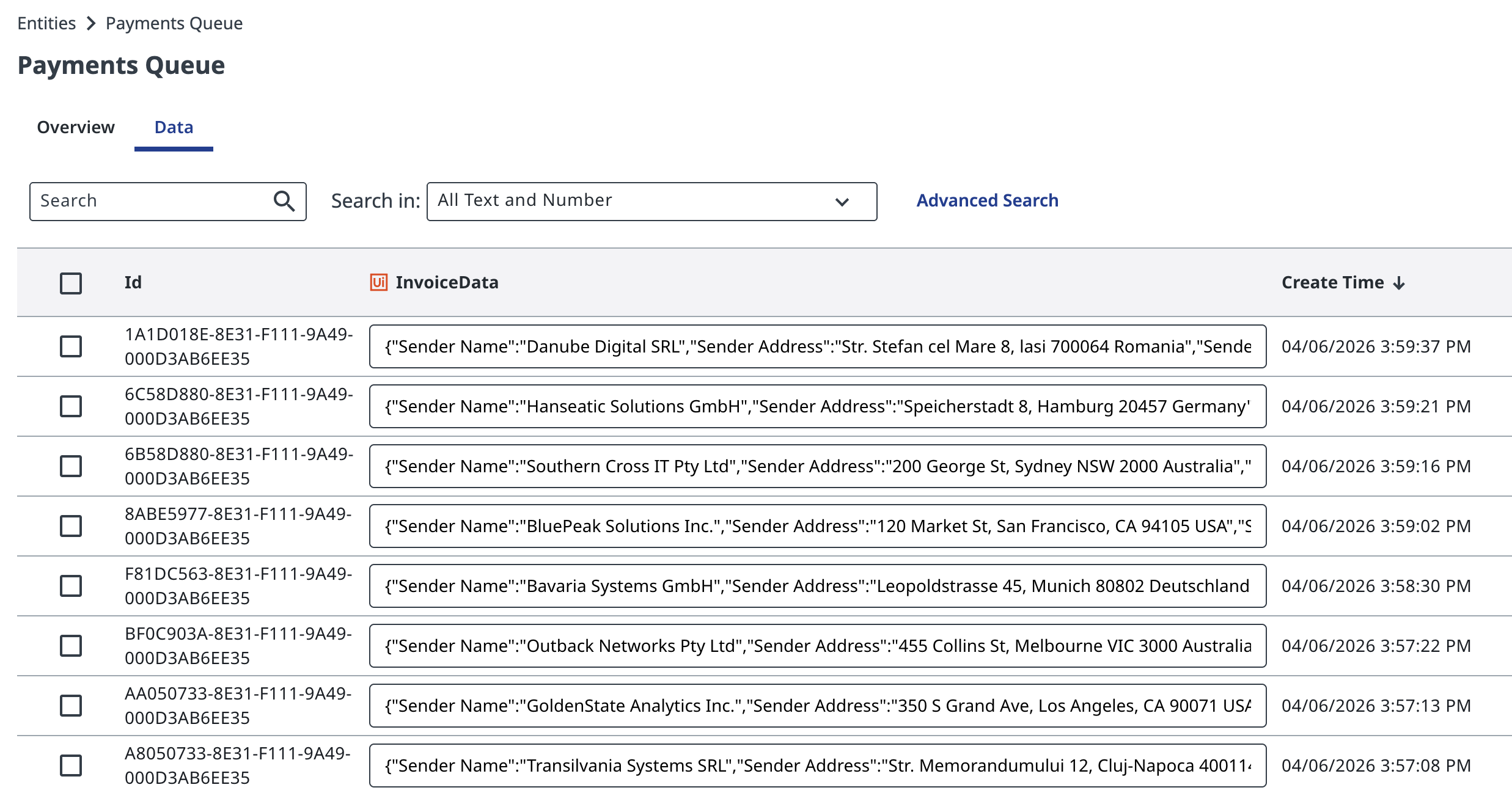
Check Data Fabric to see approved invoices accumulating in the Payments Queue:
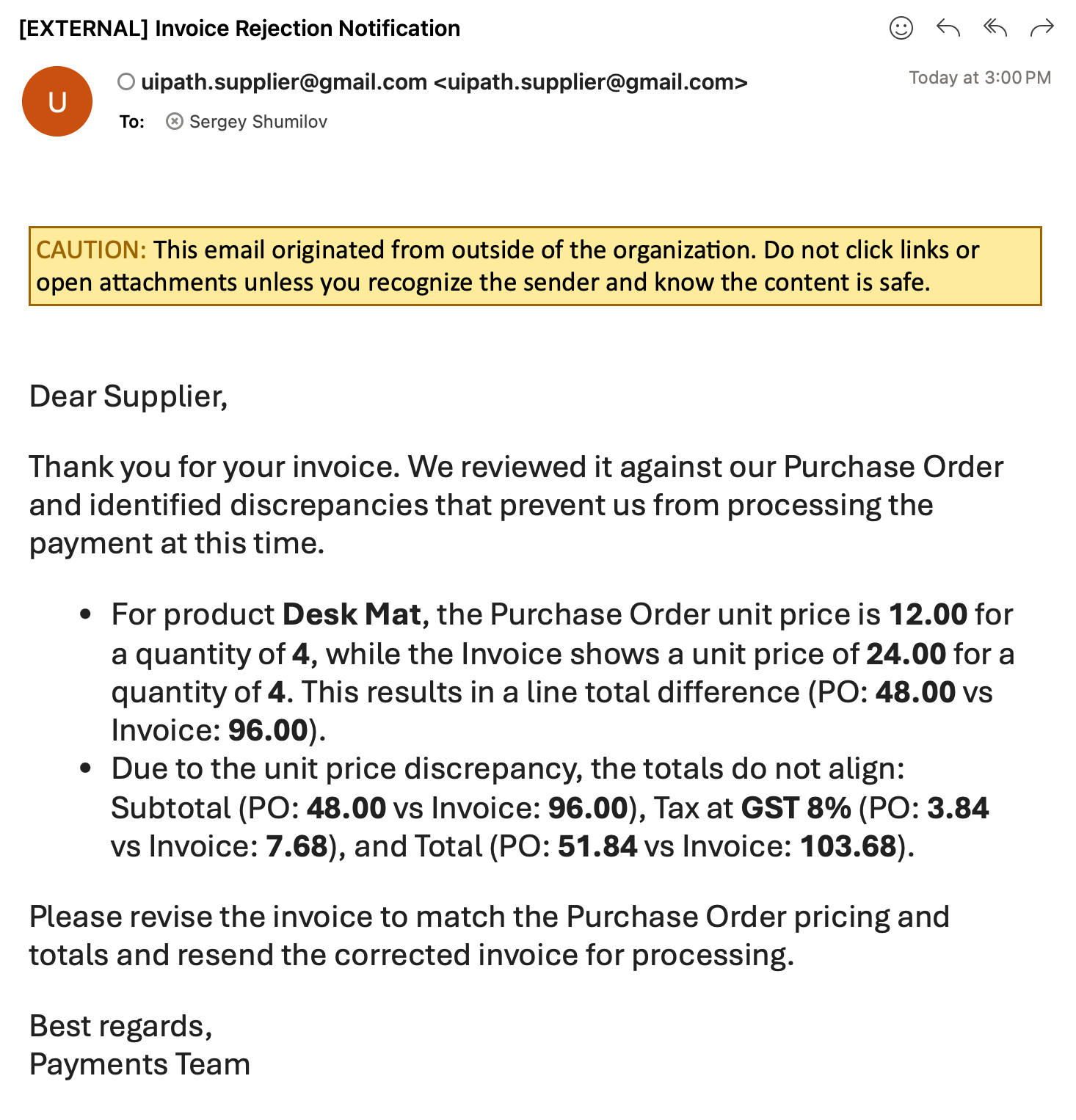
Check your inbox for rejection emails from the shared Gmail account. Each email contains the discrepancies identified by the Agent and reviewed by the human validator: