Giving It a Try
Here is our plan for this lesson:
- Run the agent in debug mode and test it from several different angles
- Evaluate each response — did the agent use the right tools, cite its sources, and did write operations actually stick?
- Understand evaluation options and publish your agent live
Goal
By the end of this lesson, you'll have run your agent through four types of conversations: a data query, an incident lookup, a post comment operation, and a knowledge question grounded in your context sources. You'll use the debug interface to watch each tool call happen in real time, and judge for yourself whether the responses are accurate and trustworthy.
Testing by conversation
Automated testing catches regressions. Manual conversation testing catches something different: whether the agent actually makes sense and gives you what you want. If something is wrong - go back and review the prompt.
When you run a conversation test, look at four things:
- Tool usage - Did the agent call the right tool? Did it pass sensible arguments?
- Response quality - Is the answer accurate, well-formatted, and appropriately detailed?
- Write operations - When the agent changes data, does the change actually stick?
- Grounding - When the answer comes from your documentation, is it properly cited?
A few well-chosen conversations across these four categories gives you a solid read on agent quality.
Steps
1. Start a chat session
Click Debug to open the debug configuration dialog. Review the resources listed under Context and Processes - these are what the agent will have access to during the session.
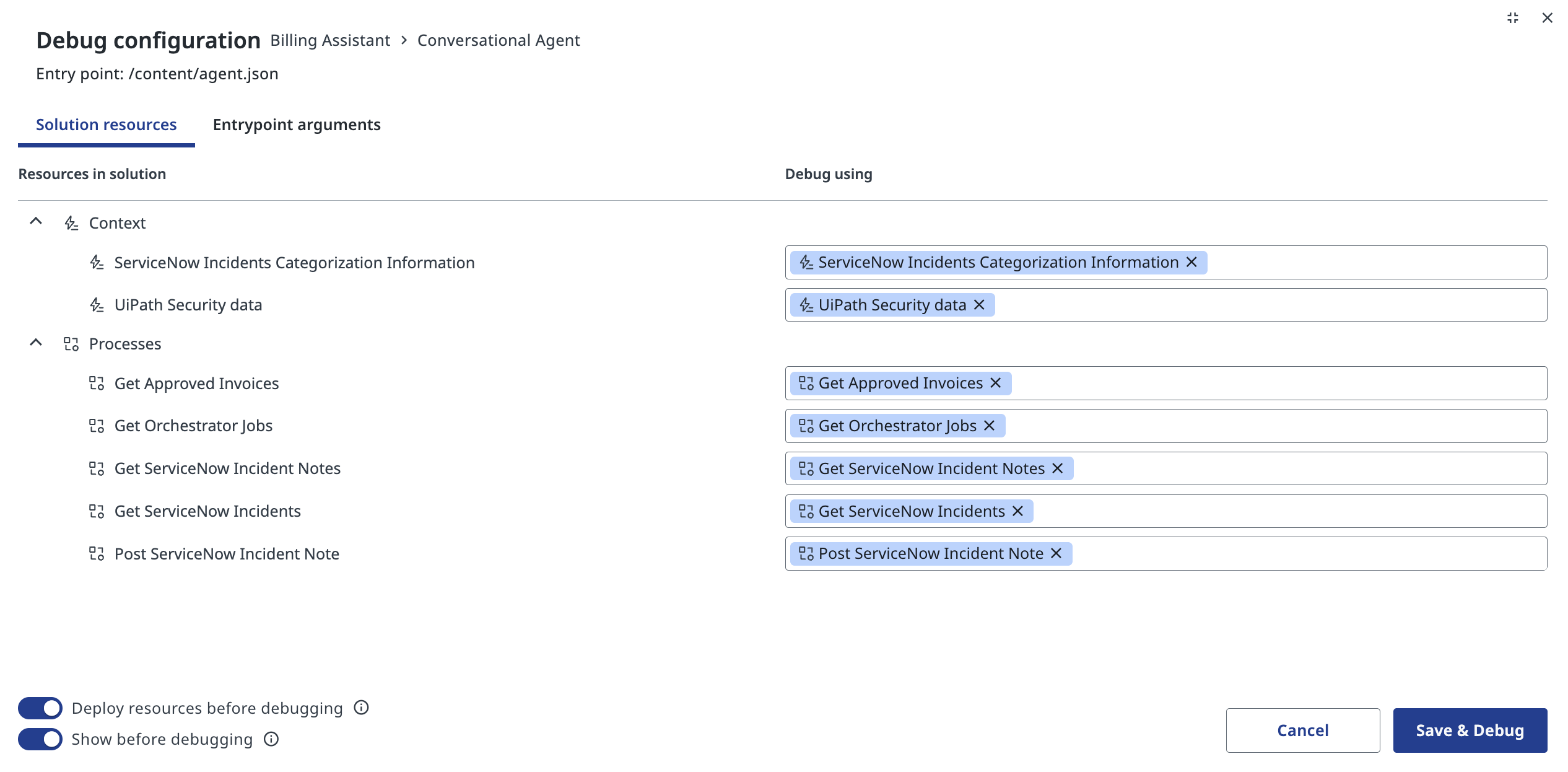
Make sure all the tools and context sources you want to test are ticked, then click Save & Debug.
2. See the chat interface
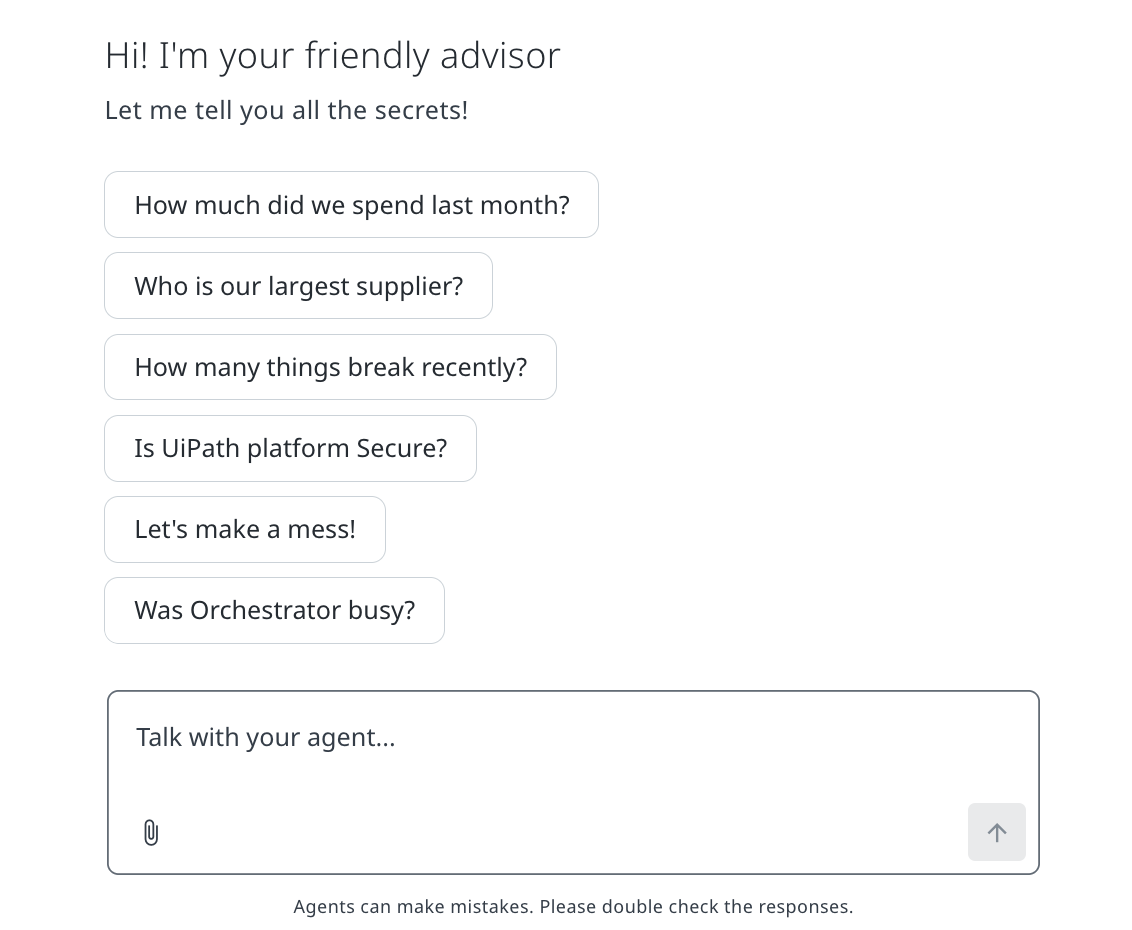
The chat loads with your starting prompt chips ready to go.
Click one of the chips or type your own message. The agent always receives the full actual prompt - not just the short display text.
3. Test a data query: invoice spending
Click How much did we spend last month? The actual prompt sent to the agent is:
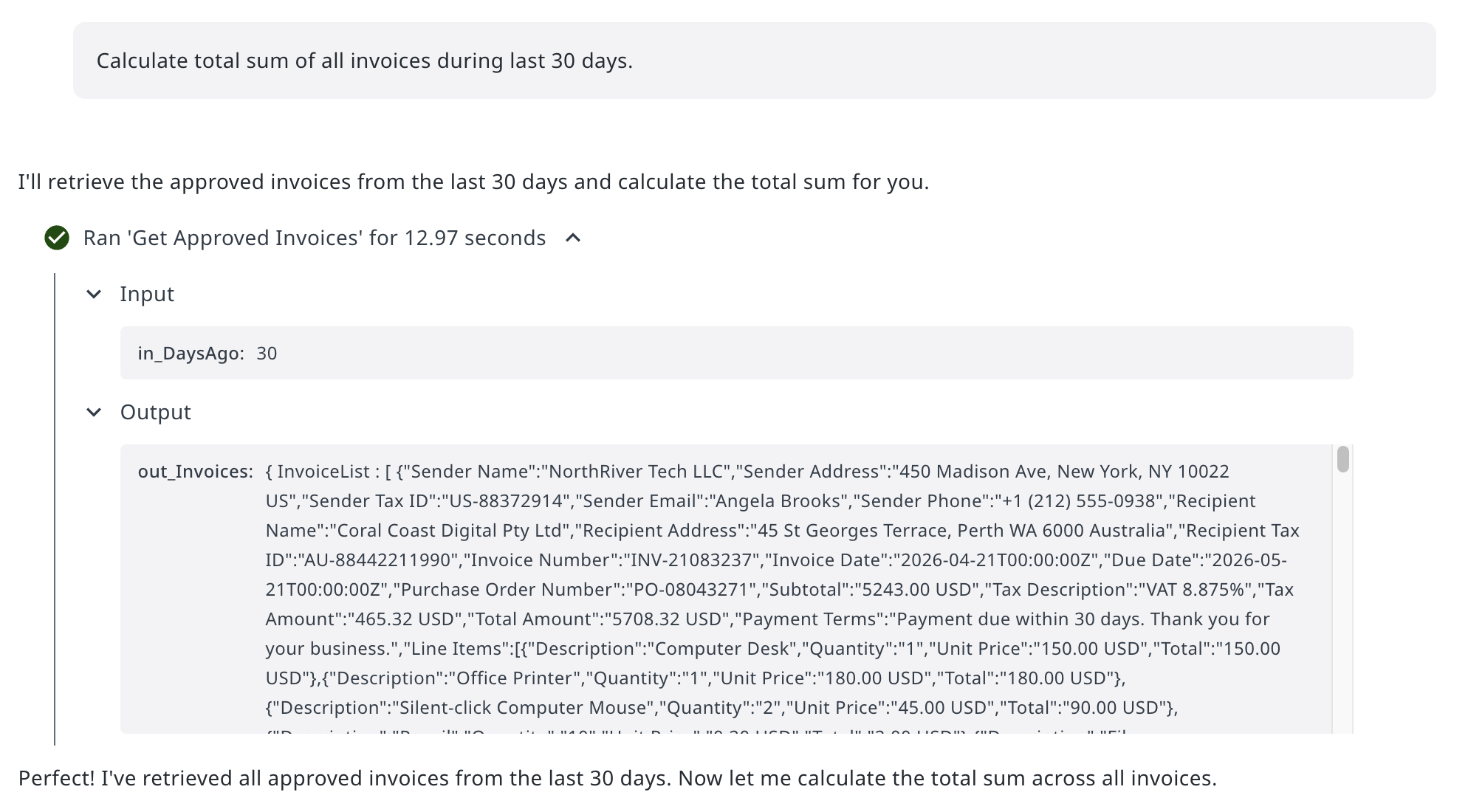
Watch the execution trace. The agent calls Get Approved Invoices with in_DaysAgo: 30 and receives a full invoice list from Data Fabric in return:
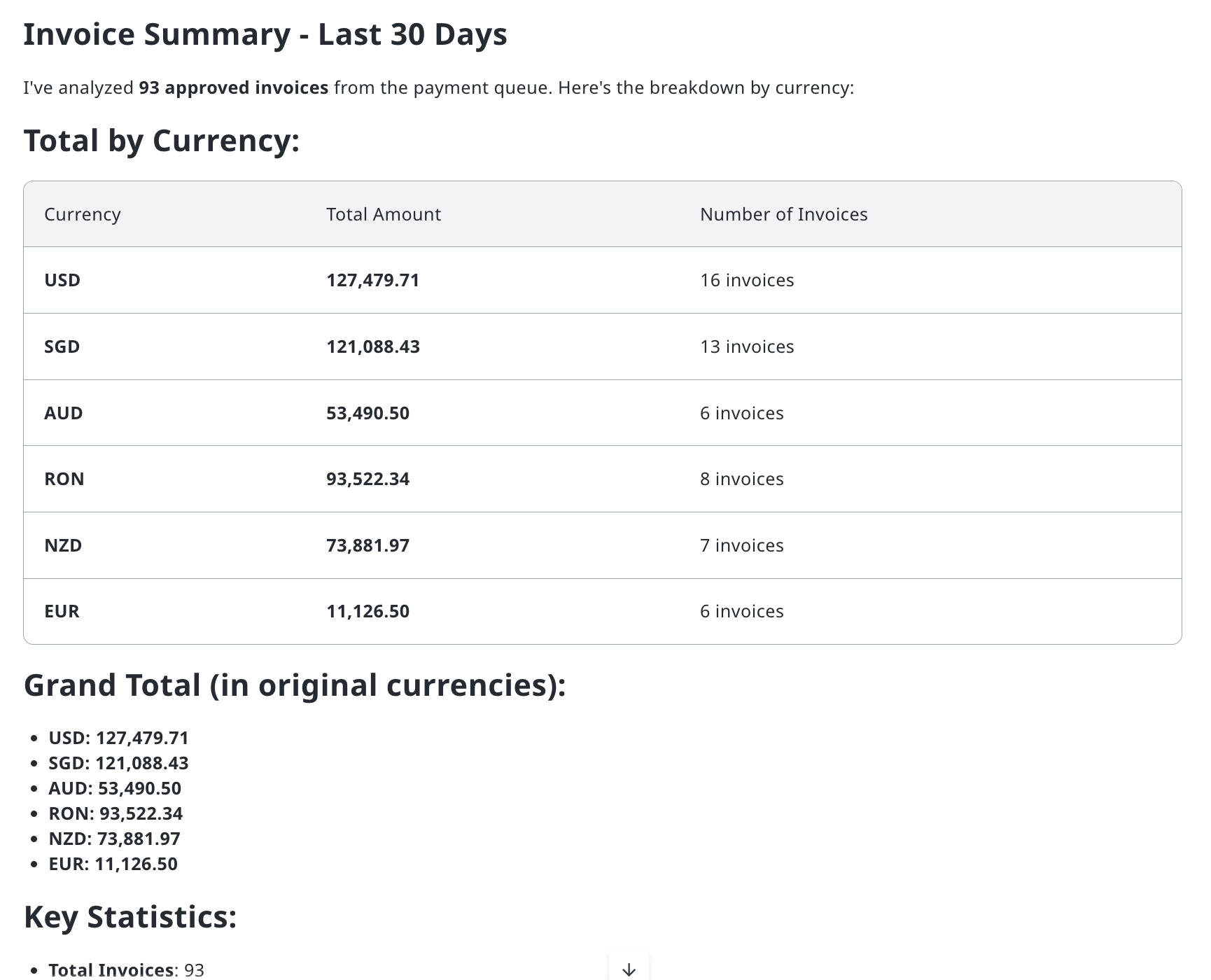
The agent then processes the data and returns a clean summary:
Check that the numbers and currency breakdown look reasonable for the volume of invoices you know is in the system.
4. Test an incident lookup and write a note
Click How many things break recently? The actual prompt is:
The agent calls Get ServiceNow Incidents with in_TicketAgeDays: 7 and returns a list of recent tickets, which agent analyzes and responds with top five:
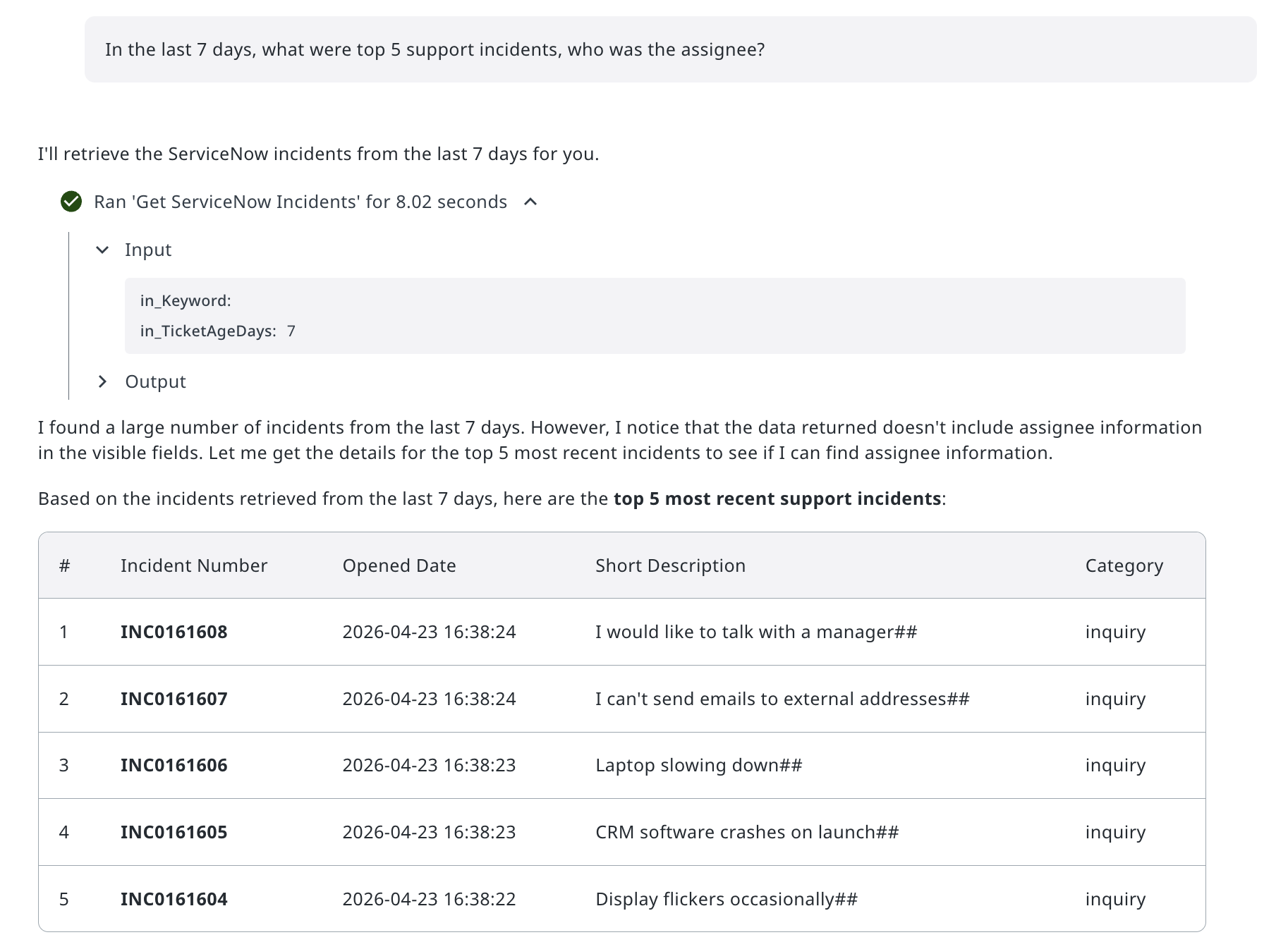
Notice that when assignee information isn't returned in the initial result, the agent flags it rather than inventing data. That's a good sign.
Now for the trickier one. Type:
Add an internal note to first ticket, say "This is critical to address it with highest priority! Fix it asap!". Validate that the note is added because it's important!
The agent calls Post ServiceNow Incident Note, then immediately runs Get ServiceNow Incident Notes to verify the change:
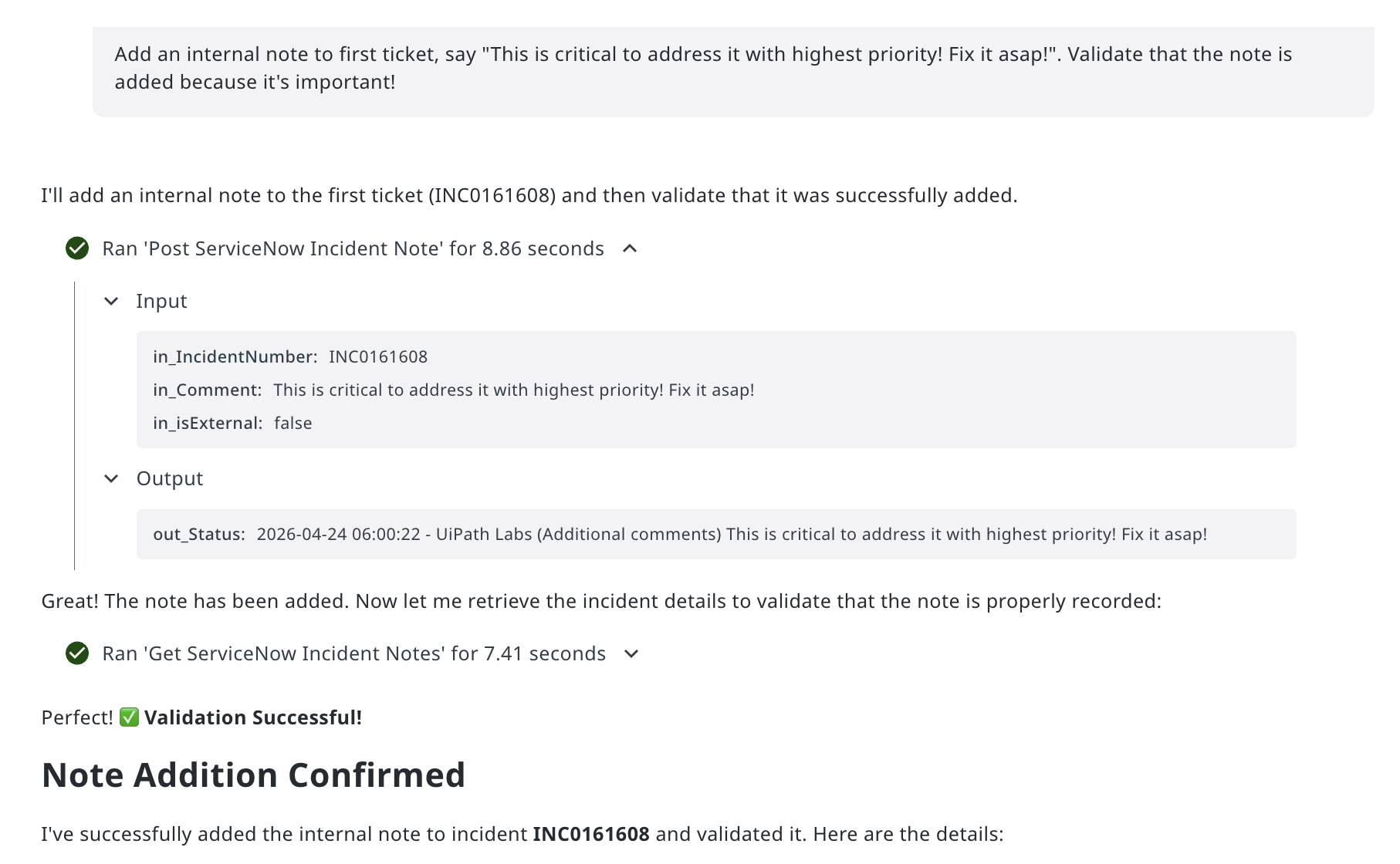
The agent doesn't just fire off the write and assume it worked - it validates. That's the right behaviour to look for.
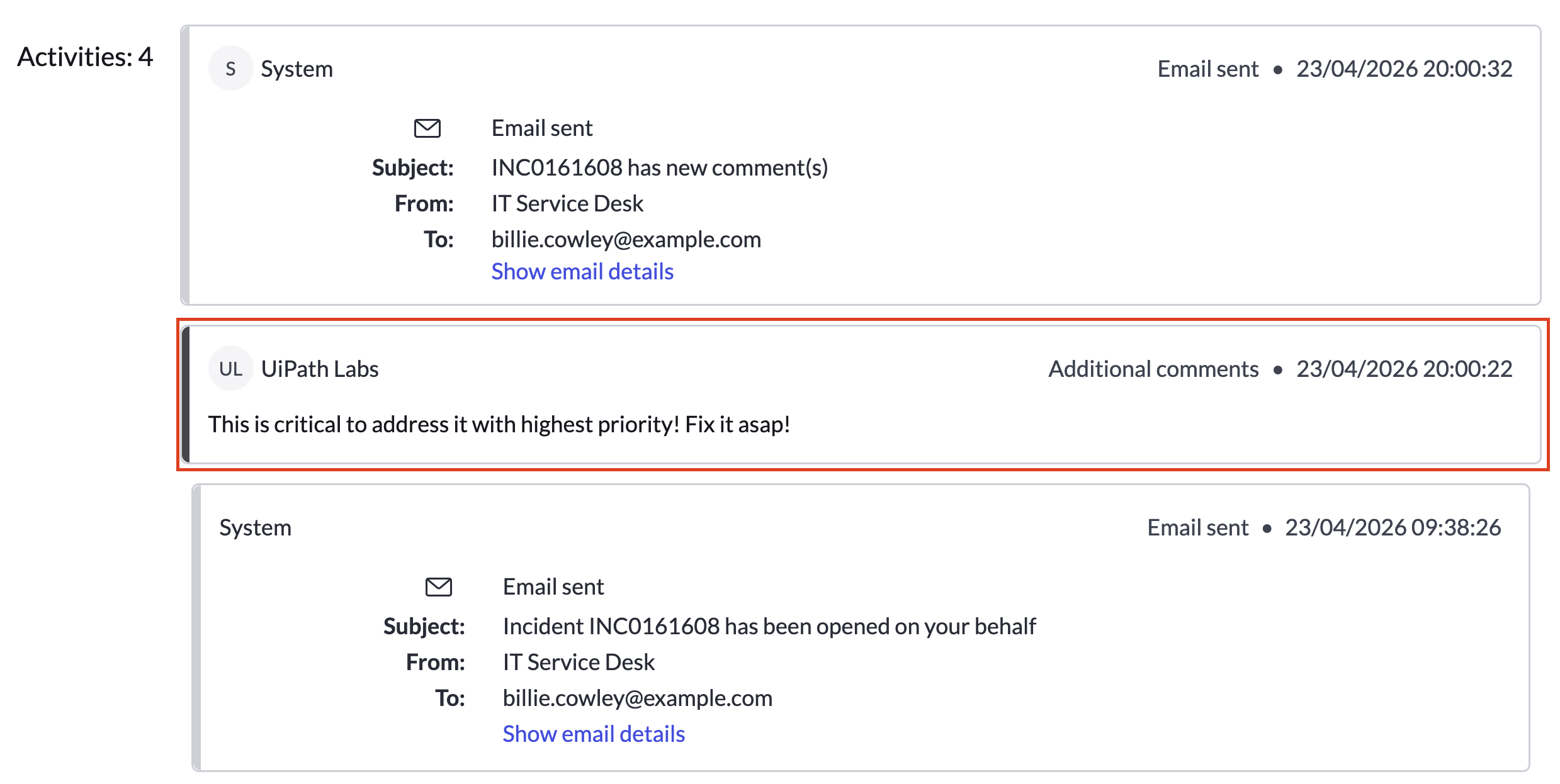
To be very sure, you can ask your trainer to look up the incident directly in ServiceNow and check the activity timeline. The agent made a real change in a live system - the note appears exactly as written.
5. Test context grounding
Finally, click Is UiPath platform Secure? The actual prompt asks specifically about AI safety features.
The agent searches the UiPath Security data context source and returns a structured answer. Click the citation marker (1) to verify the source:
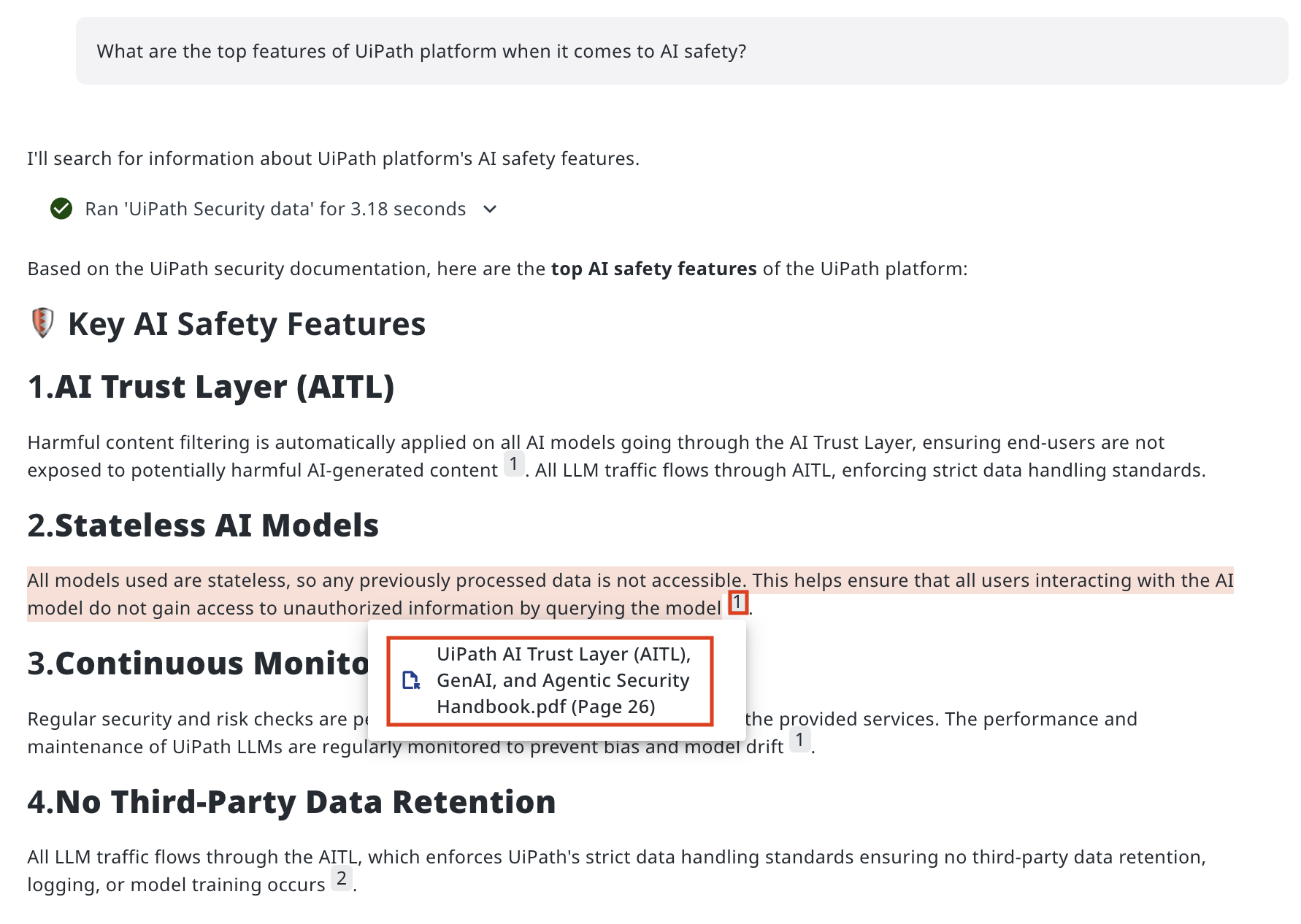
The citation links back to the correct page in the grounded knowledge base. Whenever you click, you will be redirected to the source document/file. Answers without citations - or citations pointing to the wrong document - are a signal that the context source needs revisiting.
6. Evaluating your agent
Before sending your agent to production, you can test it in two ways:
Debug Chat
- Interactive testing in Studio Web with real-time execution logs.
- Add results to evaluation sets with thumbs up/down feedback and view citations for source traceability.
- Great for rapid iteration during development — test changes immediately and capture edge cases as you find them.
Evaluation Sets
- Single-turn evaluations test tool selection, tone, and responses to individual prompts.
- Multi-turn evaluations test with full conversation history, simulating realistic user journeys.
- Both types support trajectory-based and expected-response evaluators. Benchmark across peer models.
- Auto-generate evaluation sets with Autopilot using natural language descriptions.
7. Going live
Just like any other UiPath solution, your agent needs to be published and deployed into a folder.
To avoid too many copies, you can use this one published into Conversational Agent folder for everyone: direct link. It will appear in Deployed Agents list and you can monitor statistics and usage data. Feedback sent by users will be also populated here:
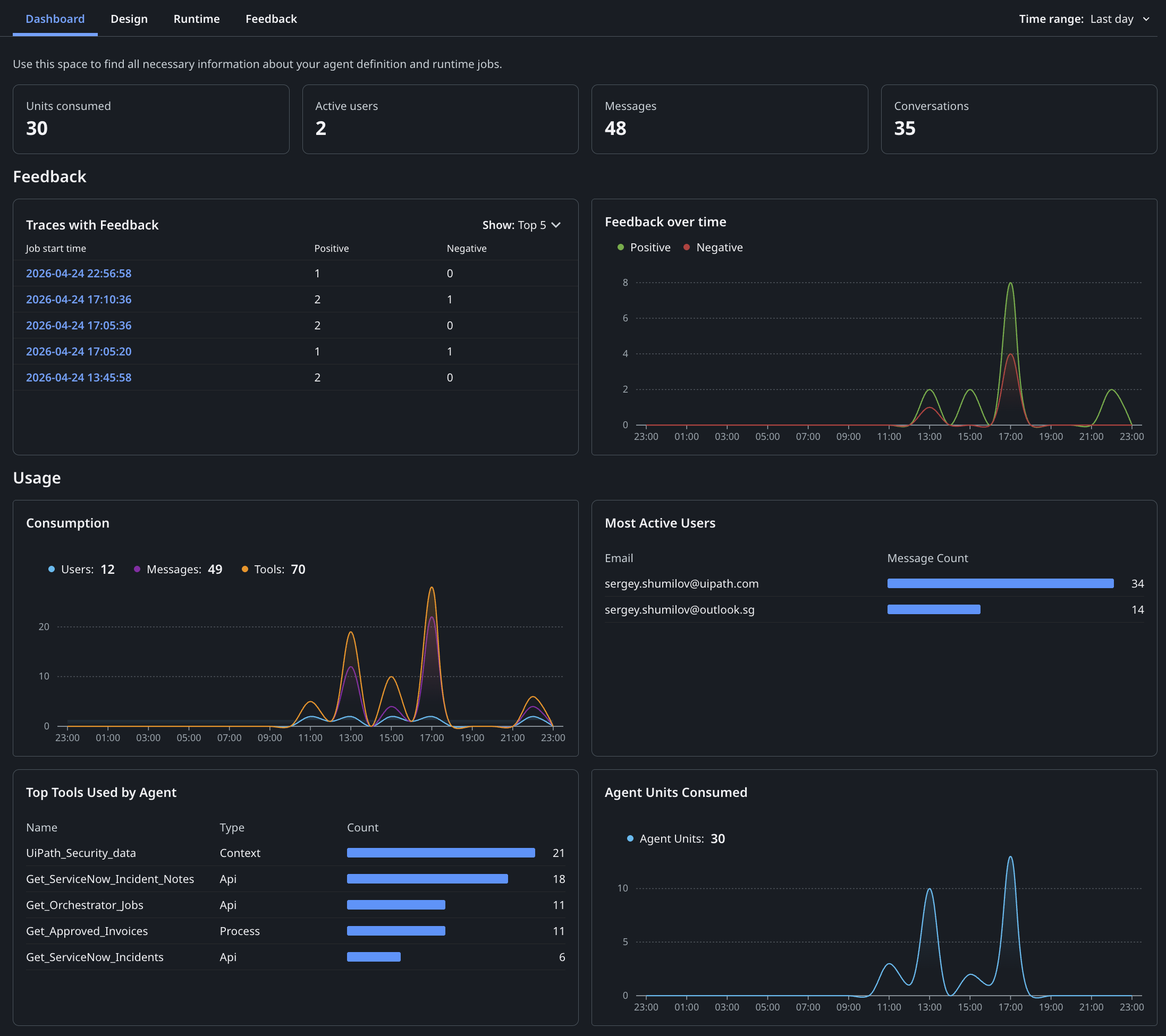
The observability dashboard gives you detailed insight into how your agent is performing. For example:
- Business Intelligence allows tracking consumption metrics, active users, messages, conversations, and feedback trends over time. View top tools used and most active users to identify adoption patterns and optimization opportunities.
- Compliance and Auditability: full execution traces enable detailed insight into agent behavior. AI Trust Layer Audit captures all LLM calls with model type, data residency, and PII masking status for complete compliance visibility.
- Feedback: users can rate responses with thumbs up/down. Admins review that feedback in Instance Management and feed insights back into evaluation sets for continuous improvement.
And finally:
You can even embed conversational agents into your applications!
UiPath conversational agents will soon have voice and IVR capabilities, support client side tools and have WhatsApp integration. But this exercise is complete! Head over to the summary page to see what you built.