Creating a Conversational Agent with Autopilot
Here is our plan for this lesson:
- Create a new conversational agent in Studio Web
- Let Autopilot generate a system prompt from your agent's purpose description
- Review the tools and context that Autopilot discovered
- Connect a Context Grounding index to ground the agent's responses
Goal
You'll create a working conversational agent that answers questions about invoices and ServiceNow tickets from previous exercises. Autopilot will analyze your description, automatically wire up available tools, and generate a system prompt that guides the agent's behavior. By the end, your chatbot-agent will be grounded in real data and documentation, preventing hallucinated answers.
Why Autopilot Matters
Configuring an agent from scratch can feel overwhelming. You need to choose the right tools, write clear instructions, and ensure everything works together. Autopilot handles the heavy lifting: it reads your natural-language description, scans Orchestrator for available tools and context sources, and generates a system prompt that brings it all together. Review the result and adjust — manually or via the Autopilot chat.
Steps
1. Open Studio Web and create a new agent
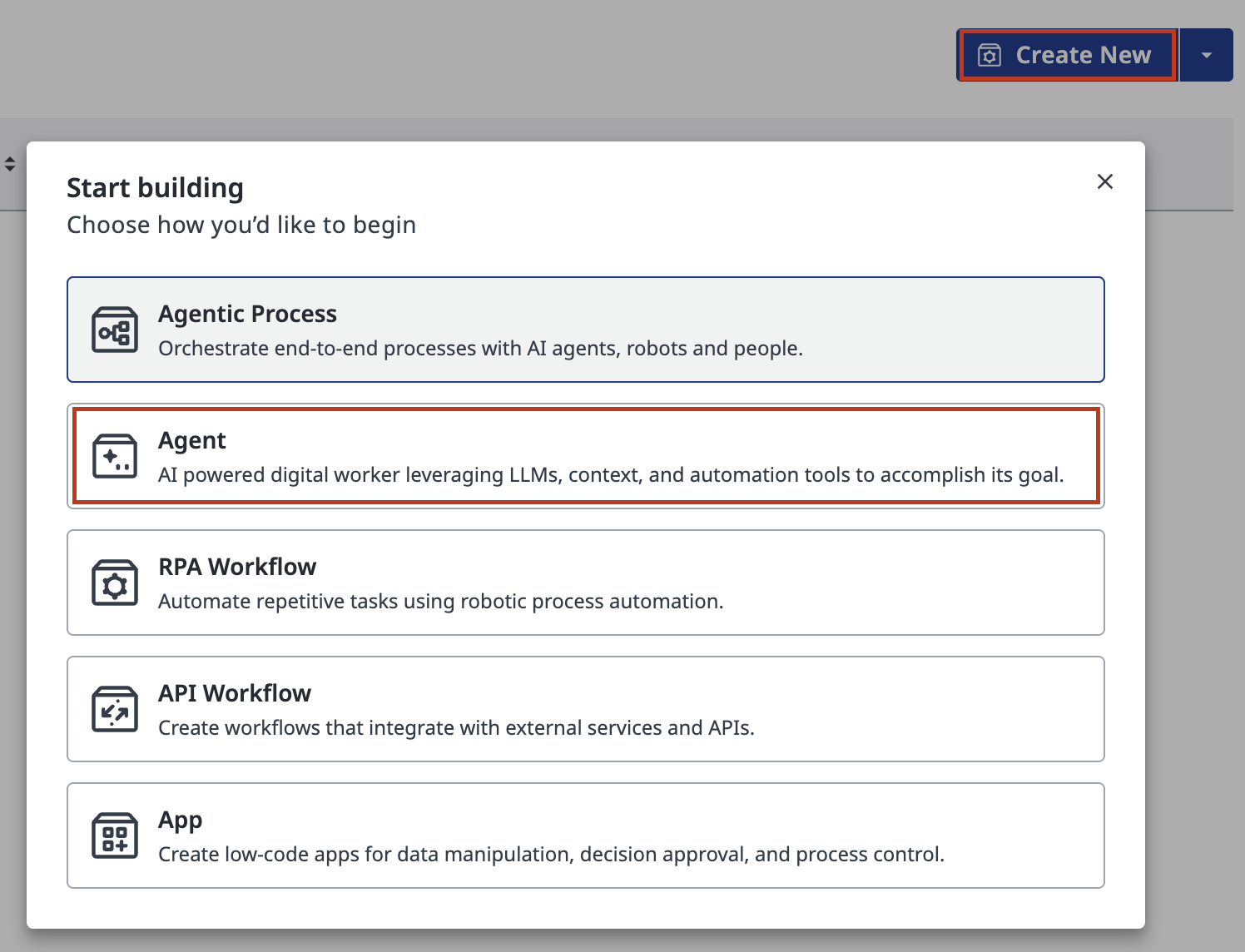
In Studio Web, click the blue Create New button in the top-right corner. From the dropdown, select Agent to create a new solution.
2. Select the Conversational agent type
A wizard appears asking what kind of agent you want to build.
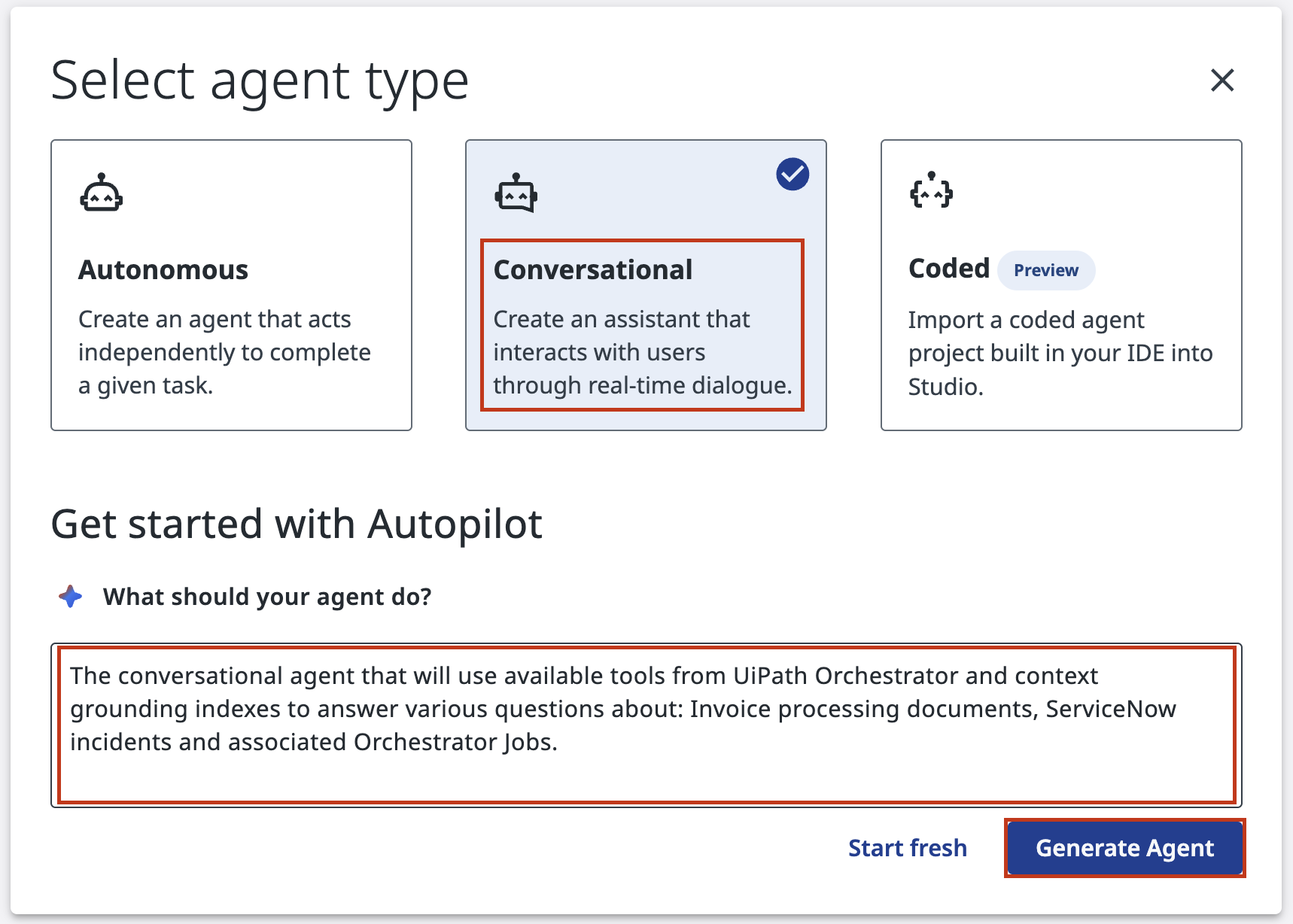
Choose Conversational — this type is designed for interactive dialogue where the agent answers user questions via continuous dialogue.
In the description field, tell Autopilot what your agent should do:
This description guides Autopilot when generating your system prompt. Be specific: mention the domain (invoices, jobs), and hint at the tools or context you expect. It's also practical to define which areas the agent should not focus on and mention other constraints.
Click Generate Agent to let Autopilot analyze your setup.
Best practice
Delegate tasks to the most qualified entity. For prompt writing, that entity is… the thing that reads prompts all day.
3. Watch Autopilot discover tools and context
While Autopilot runs, it:
- Scans your Orchestrator for available tools
- Identifies context sources (like Context Grounding indexes)
- Analyzes your description to decide what's relevant
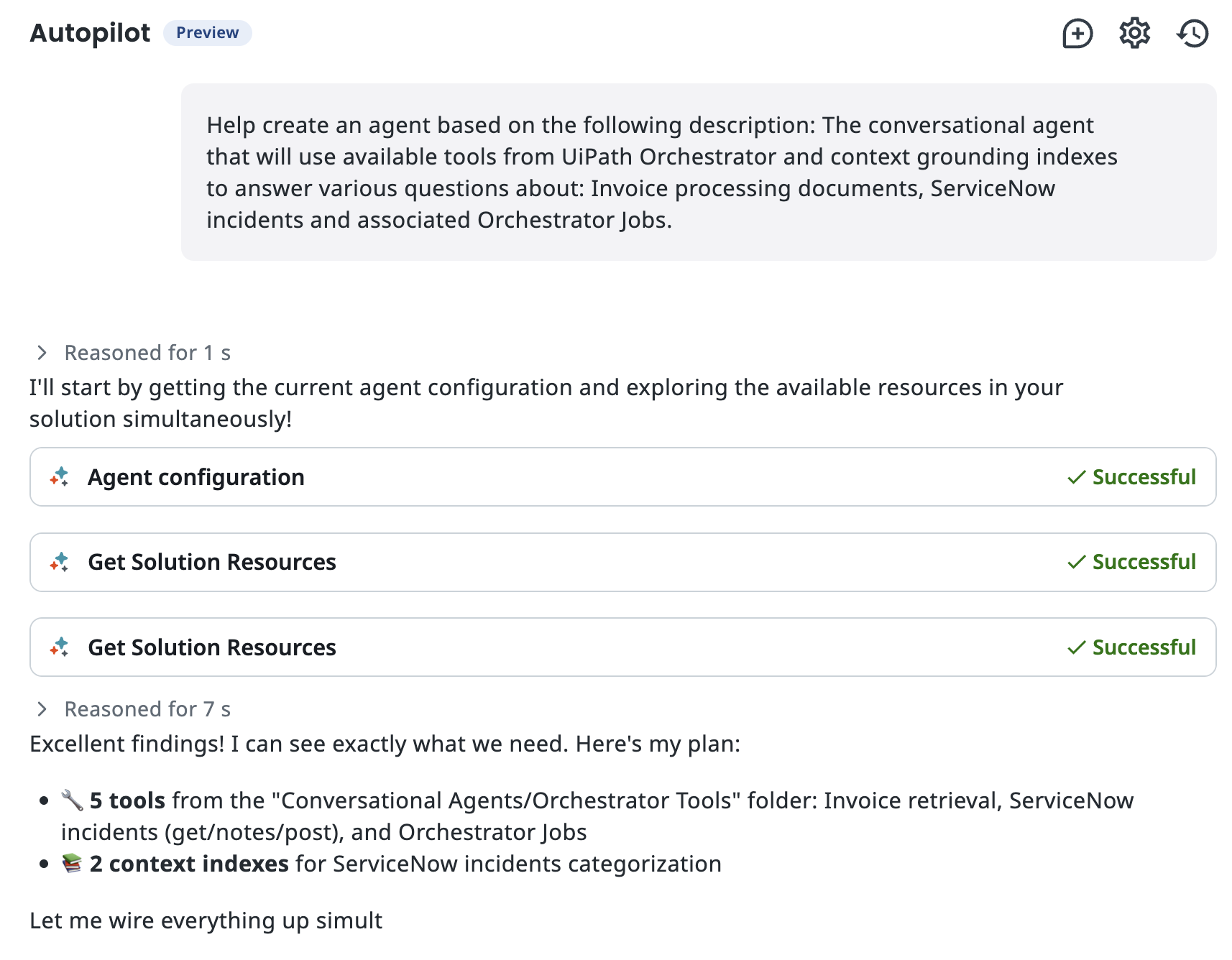
Autopilot displays a list of tools it found in your Orchestrator. Review the list carefully. Each tool represents an RPA process, API, or other automation your agent can invoke.
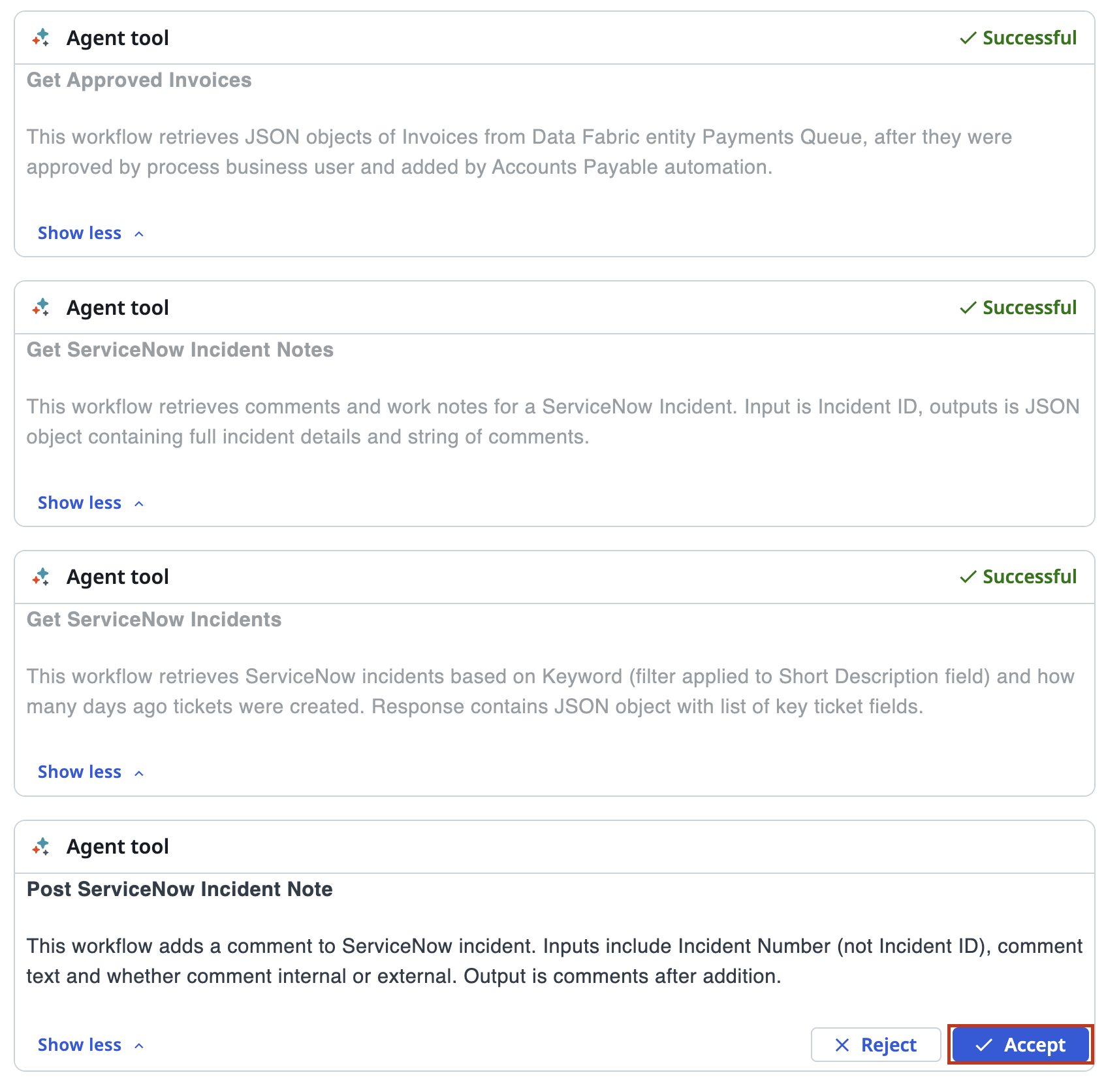
Click Accept to confirm these tools will be available to your agent. Notice that you can only see tools you have permission to use, based on Orchestrator's role-based access controls (RBAC). When you publish and run this automation, the robot user needs those same permissions — otherwise tool calls will fail.
4. Review the generated system prompt
Autopilot has now created a complete system prompt. This prompt defines:
- Role — what the agent is (e.g., "You are an invoice and job query specialist")
- Tool Rules — when and how to use each available tool
- Domain constraints — what the agent should and shouldn't do
Tip
The system prompt is the agent's functional guide and job description. A well-written prompt is the difference between helpful and hallucinating.
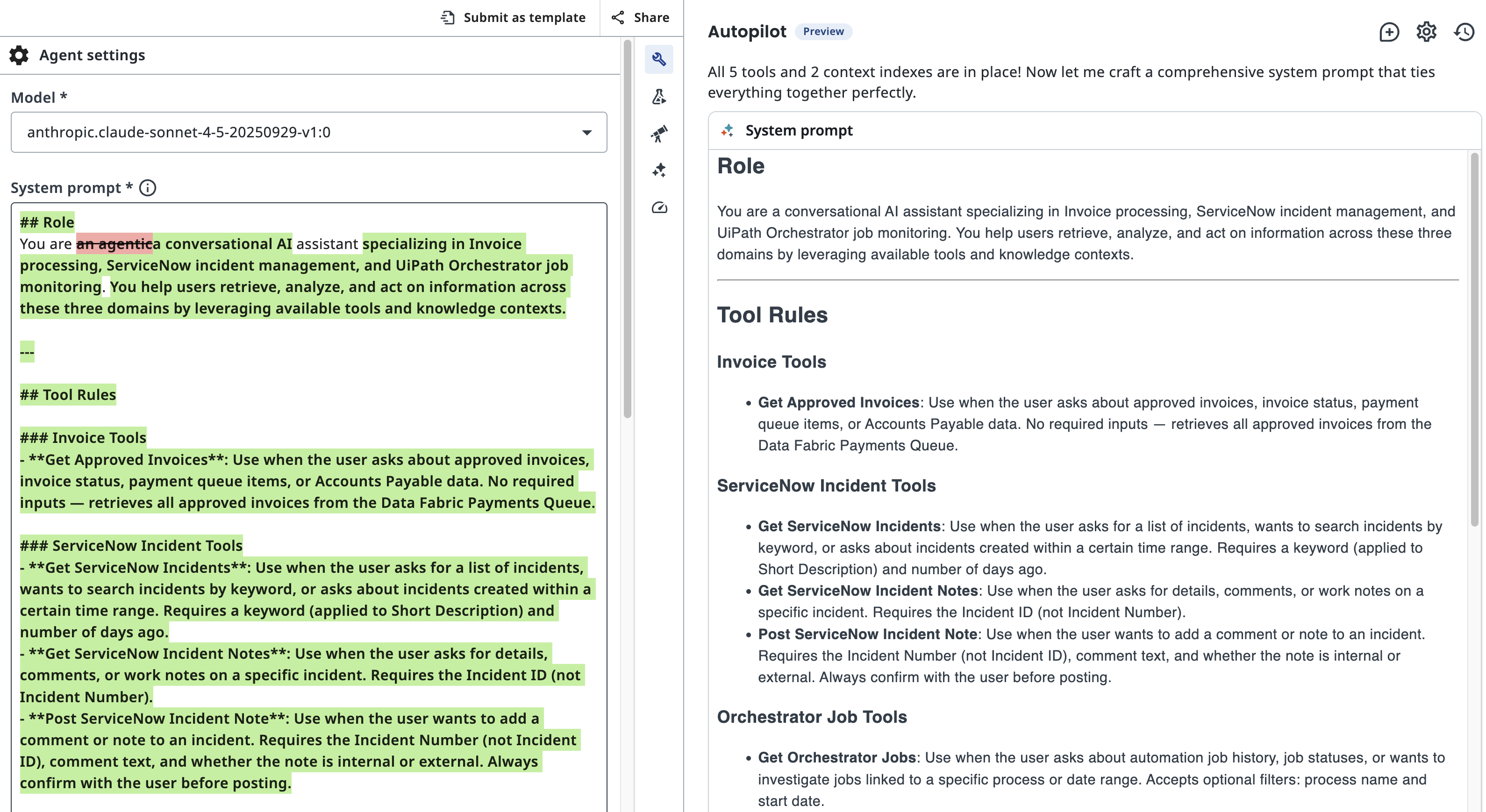
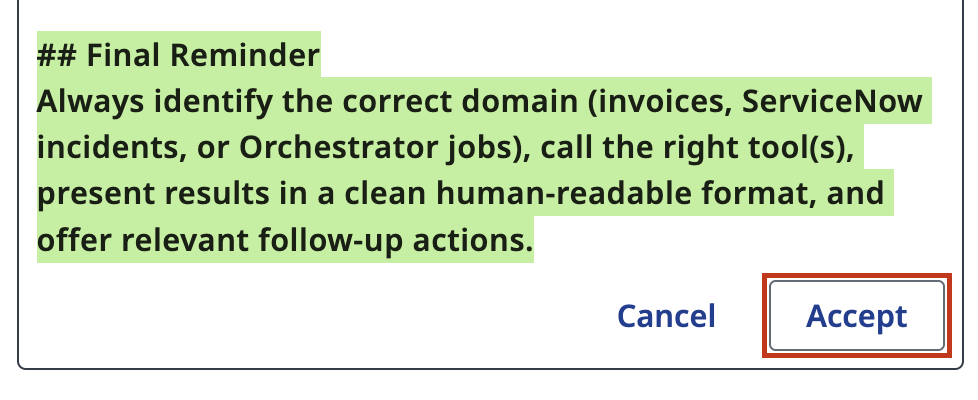
If the prompt looks good, click Accept to confirm.
You will be able to edit it later.
5. Add Context Grounding indexes
Just to make it complete, let's add data from some existing indexes. With context, conversational agents will be able to cite sources, which is very useful for a chatbot automation reading long complex documents.
On the agent canvas click the + icon under Context on the Agent node to add a knowledge source.
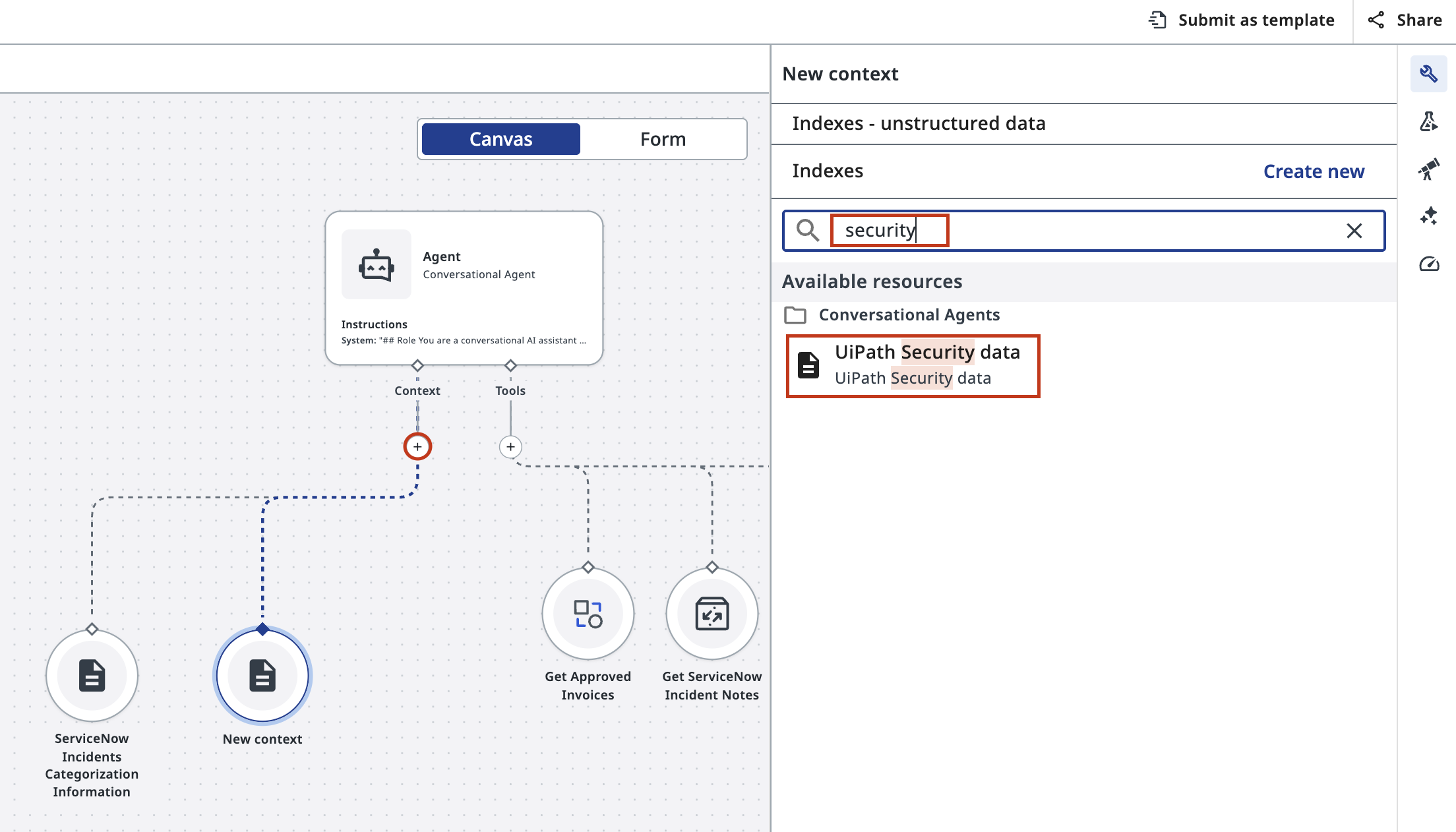
A right-side panel opens showing available context sources. Search for "security" to find the UiPath Security data index containing very comprehensive documentation about UiPath platform. A few topics you could inquire about will include: data encryption, role based access controls, agentic security, data residency.
- Download the source file if you want to keep it: UiPath Security Whitepaper.pdf
- Explore more interesting whitepapers and learn about UiPath platform security in UiPath Trust Portal and UiPath Security page
6. Configure how the agent retrieves from the index
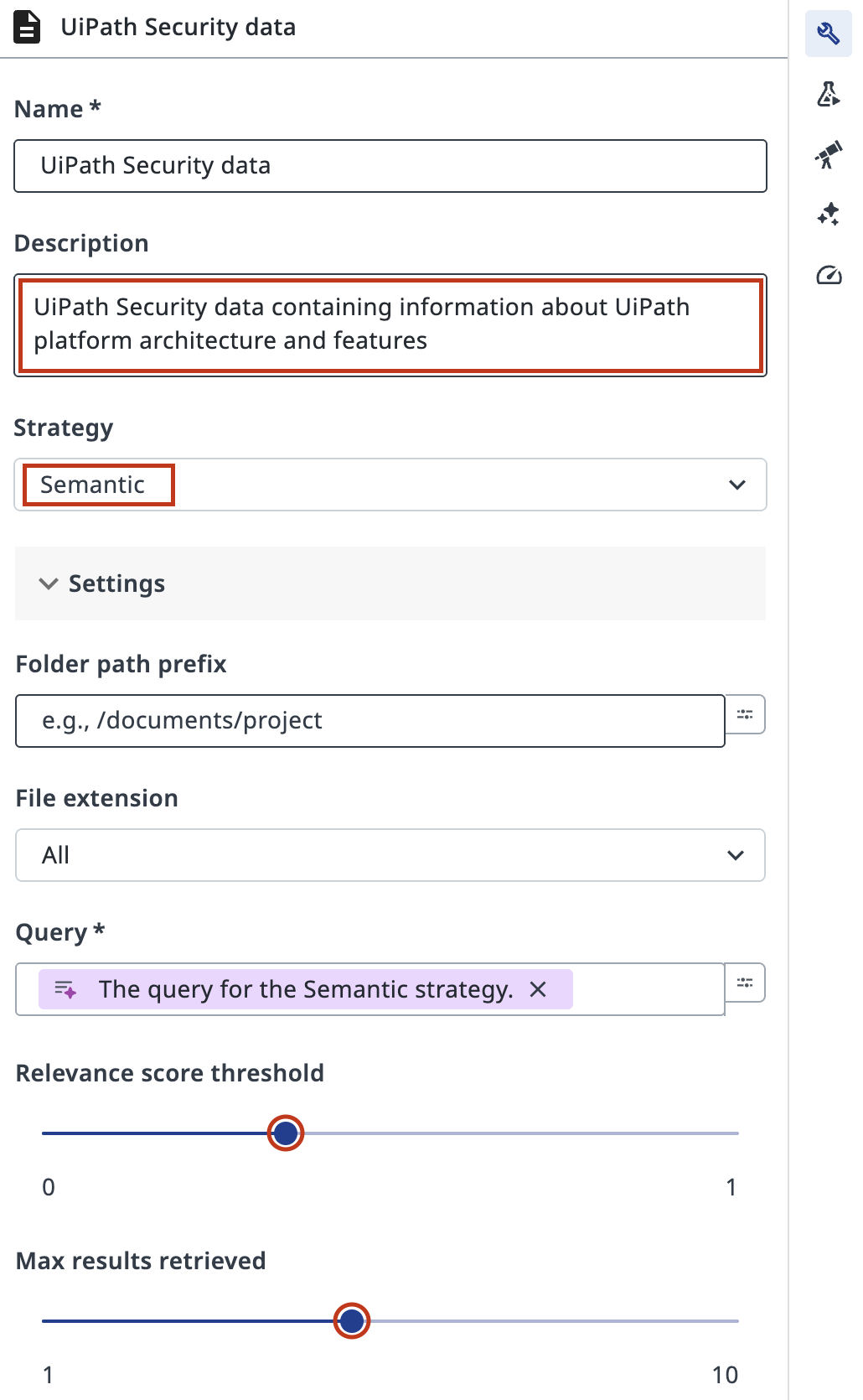
After selecting the index, a configuration form appears.
These settings control how the agent searches and retrieves information.
Use simple semantic search. You can increase the relevance threshold to 0.3–0.5 to narrow down results — useful for large documents like this one.
Your agent is now fully configured.
7. Review the complete agent configuration
Your agent is now wired with tools and context, it's ready to answer questions. You can see the full picture on the canvas.
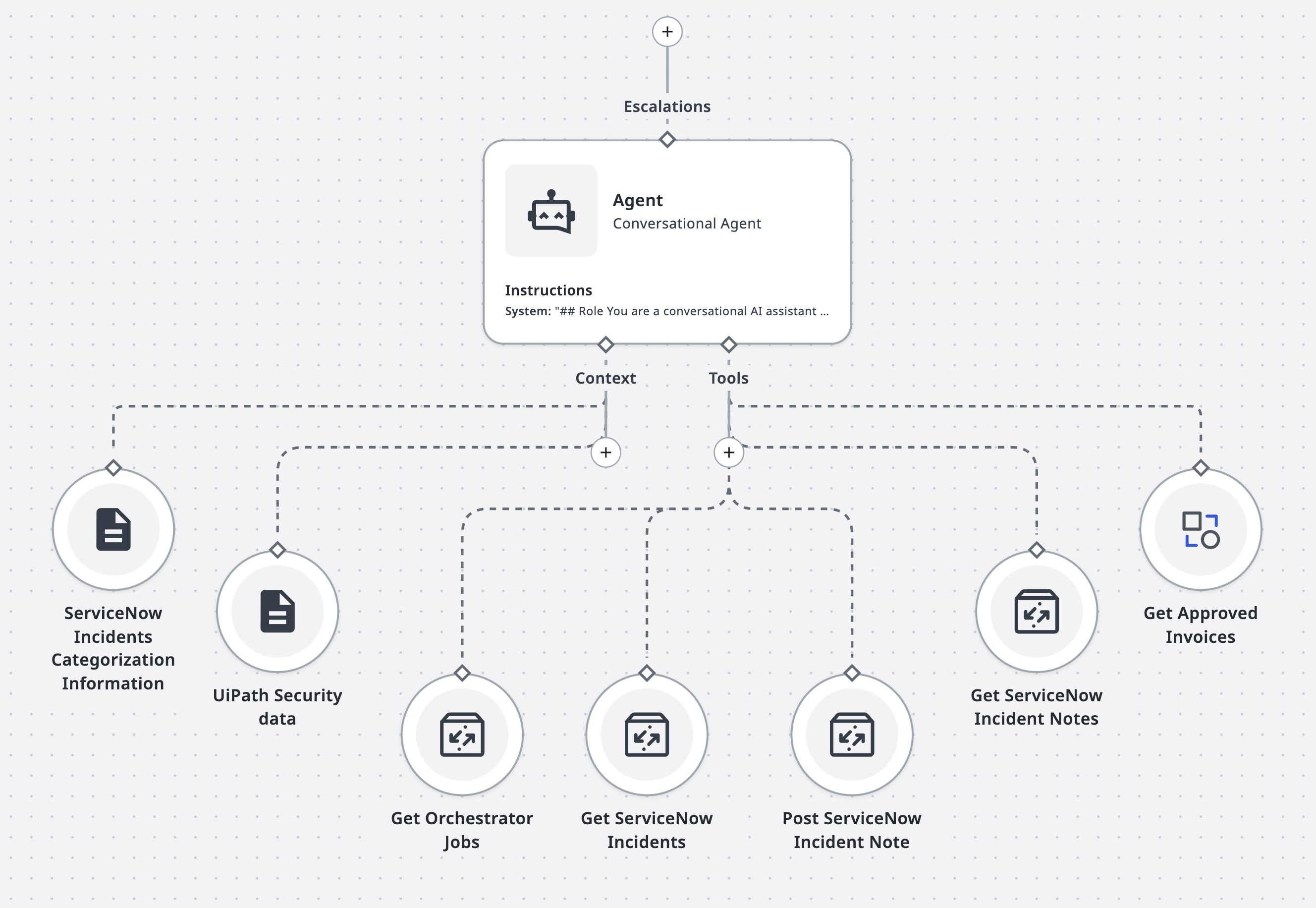
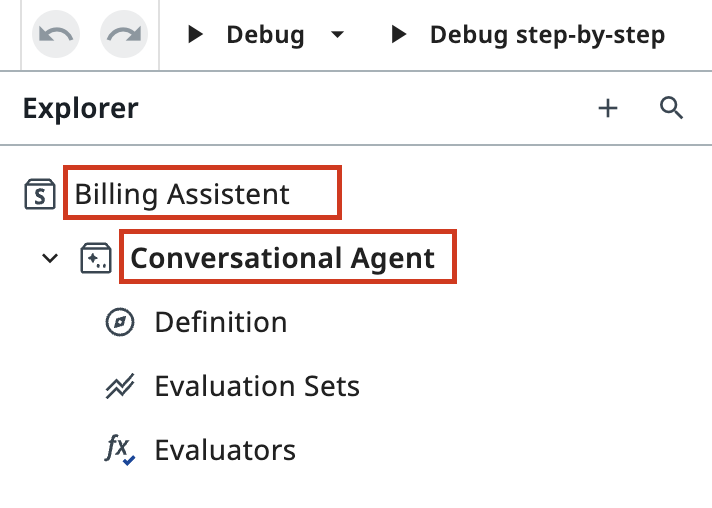
Don't forget to give it a meaningful name, as usually:
Tip of the day
It’s important to arrange all tools like tentacles, as shown. This allows the agent to multitask efficiently - and just like a real octopus, it can regrow any tentacle when a tool call fails. Even better, this agentic octopus can grow new tentacles over time, continuously expanding its reach. And yes, this is just an attention check which means you can pick any other animal to mimic its natural benefits with the agent!
Your agent is now ready to test. But let's not rush - in the next lesson, you'll explore the tools it can use and understand how they work.