Involving humans only when necessary
Here is our plan for this lesson:
-
Import validation Action App into our project.
-
Configure the process flow so that if the Agent fails to match Invoice and PO, an Action Center Task is created allowing a human to make a decision.
-
Based on the App Action (Approve or Reject), direct the flow further.
-
(Optional) Improve the Agent's prompt to handle some edge cases.
Goal
Add a human validation step on the Failed Match path. When the agent flags a mismatch, a reviewer in Action Center sees a summary with both documents and chooses to approve or reject the invoice. The workflow resumes based on their decision.
Humans in the Loop
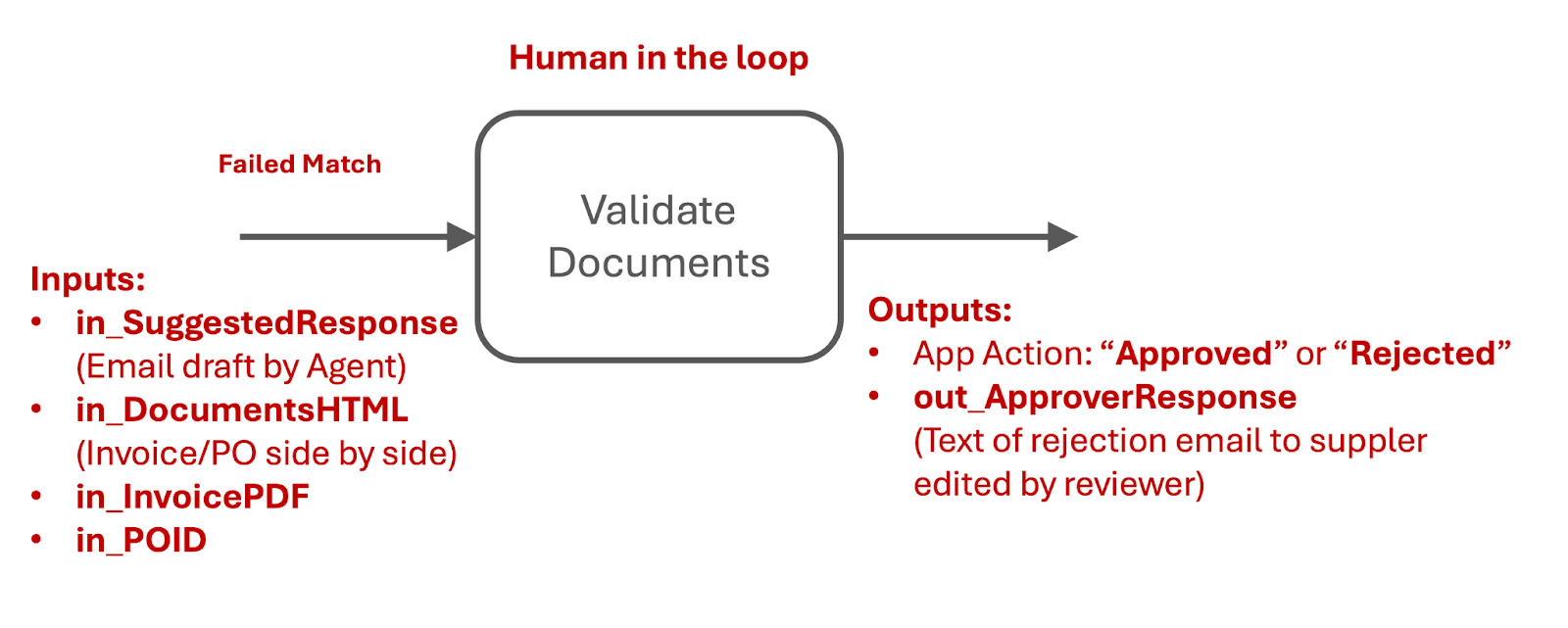
In many cases where the Agent cannot determine the exact course of action, human involvement is required. Humans process tasks in Action Center using conveniently summarized inputs from Robots and Agents:
- All inputs required to make a decision should be presented on one screen — ideally we don't want business users to open applications or go back and review the execution flow.
- The agent's job is to prepare all inputs in the right format, so that when the time comes to ask for user inputs, the data is ready.
- Once the decision is made, the process execution continues to the next steps.
Note on approvals
In real life, it is absolutely not ok to approve an invoice and send it for payment if the Purchase Order was for something different — in some countries it's a crime. But for this practice, assume that humans can do whatever they want when it comes to this decision, with no consequences.
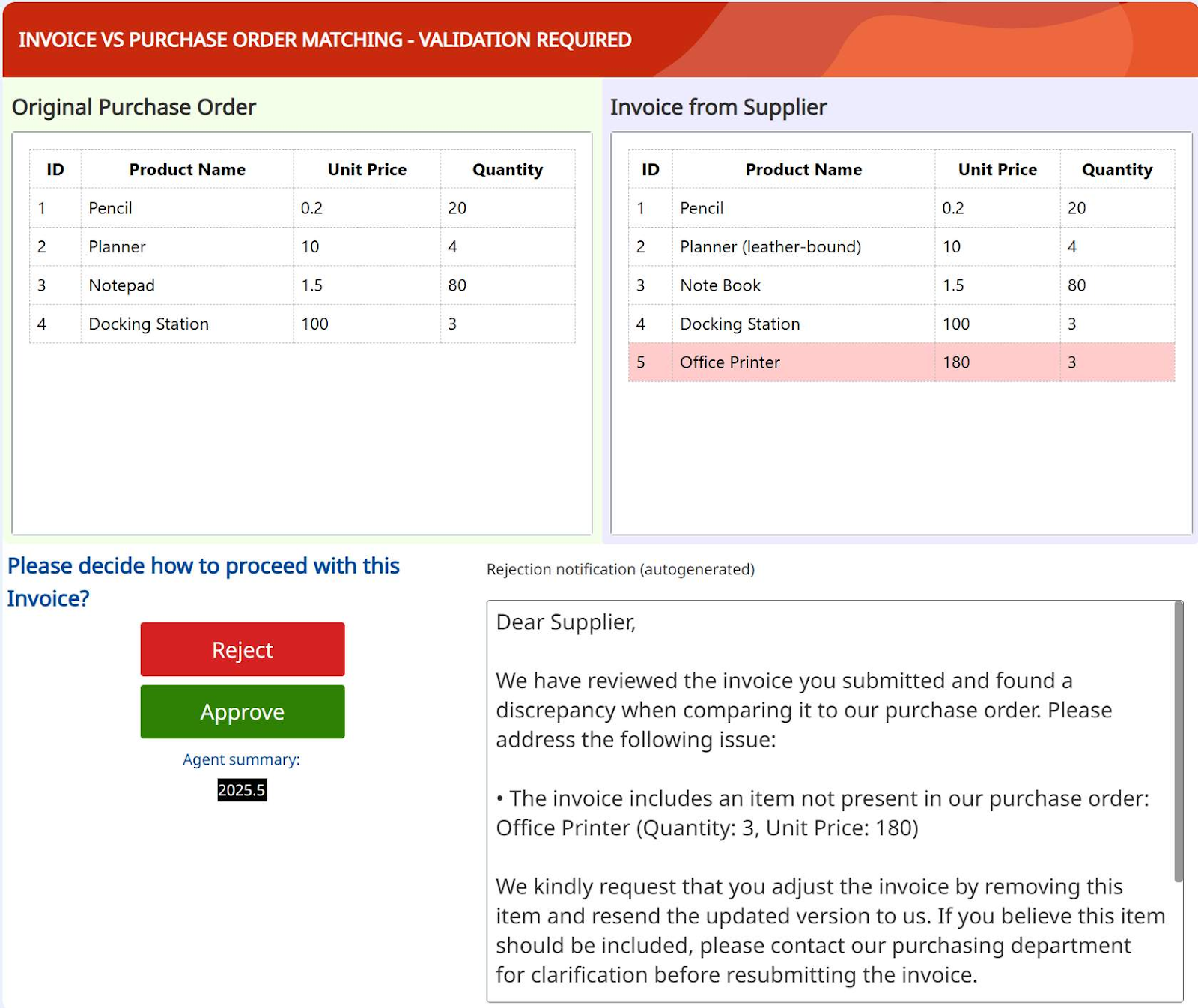
To build a nice validation interface, we need a frontend that presents the problem along with the necessary information to make a decision:
- The invoice and Purchase Order should be presented side by side — ideally with discrepancies highlighted in red.
- The problem should be described to the human in a couple of sentences.
- If the decision is to reject the Invoice and send an email to the Supplier, a draft email helps save time. We already have it generated by the Agent!
Instead of building this from scratch, we'll reuse an existing Action App template.
Steps
1. Import the validation app
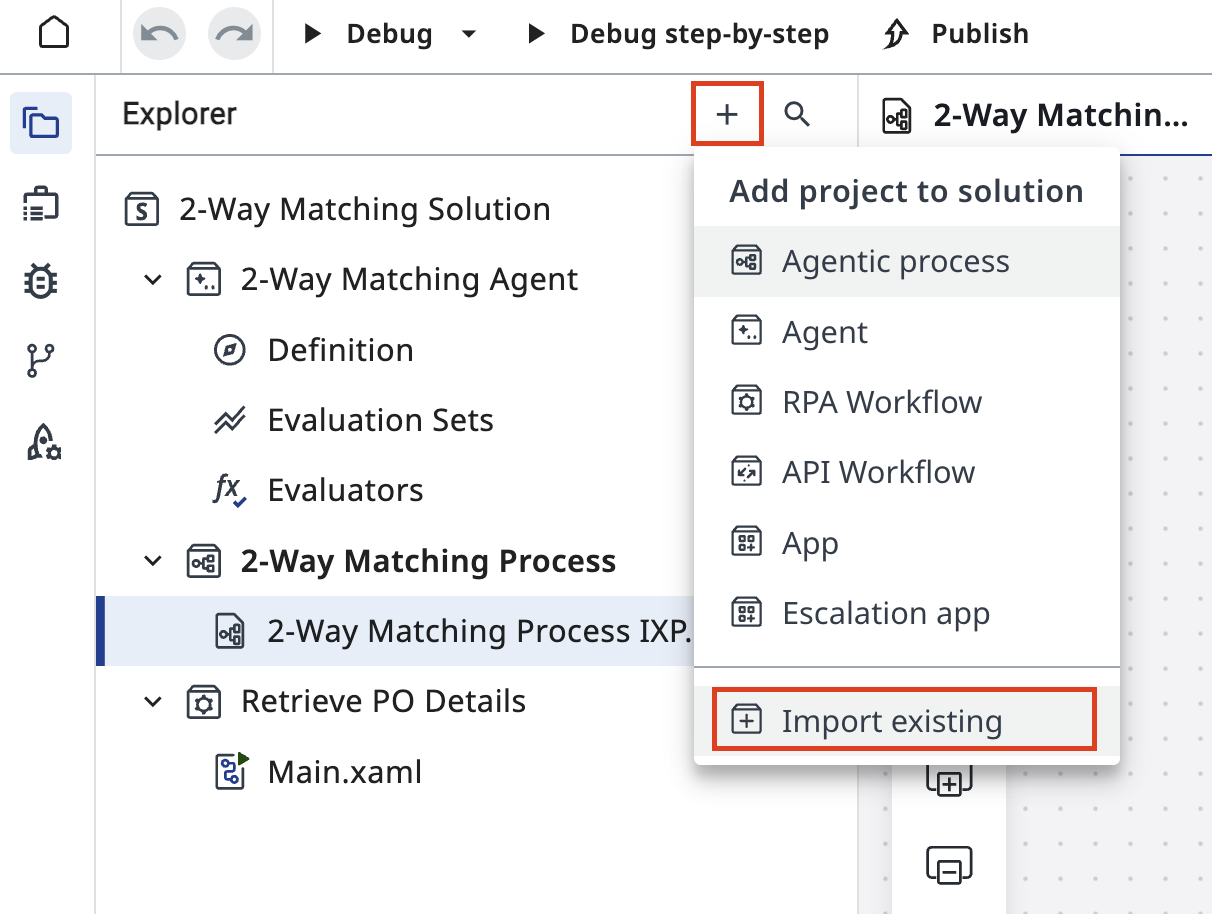
In your solution, click the + icon in the Explorer to add a project, then select Import existing to add a new project to the solution. Find and import the validation app template.
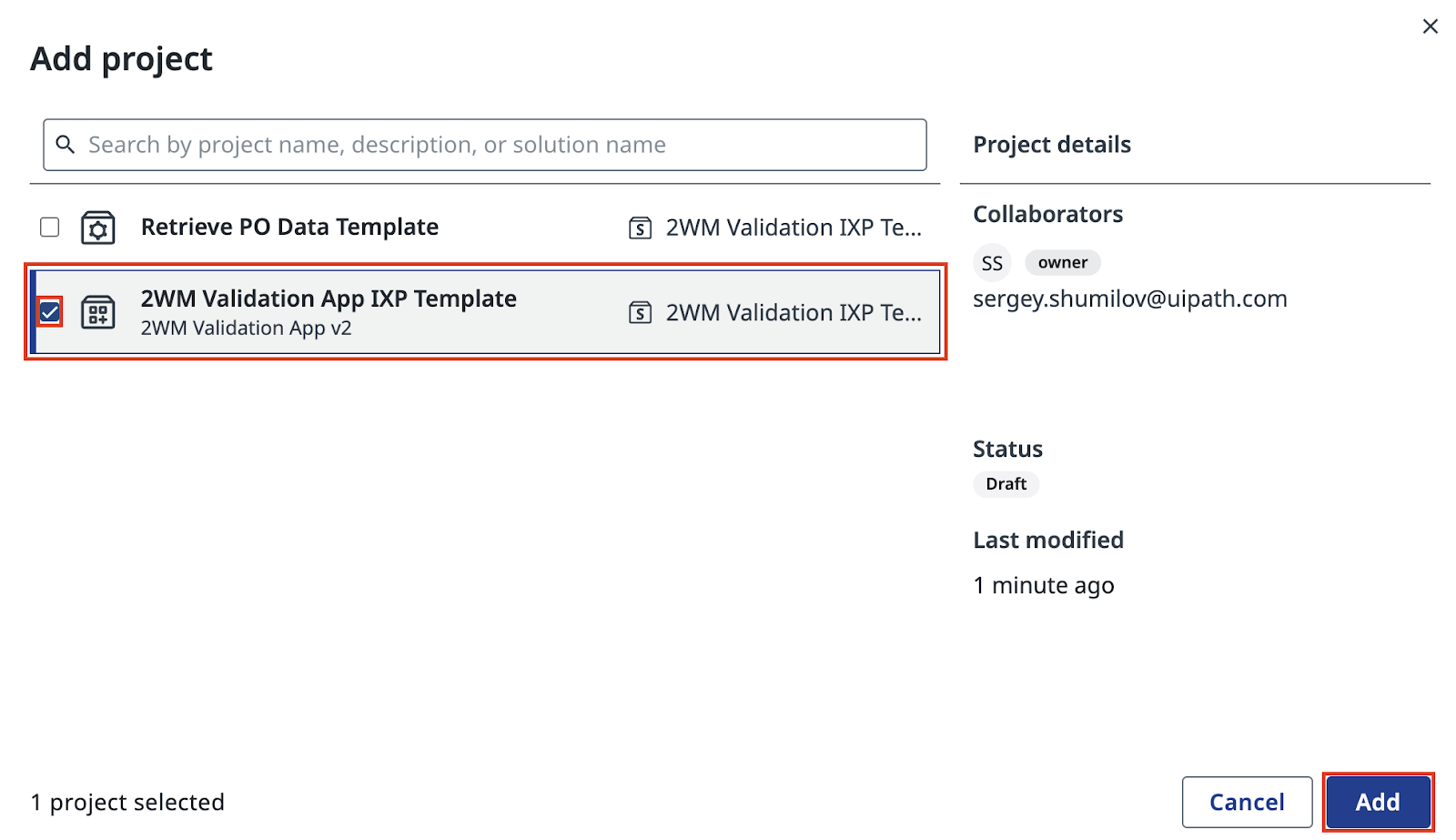
Find the 2WM Validation App IXP Template in the list, select it, and click Add.
After the app appears in your solution, review its structure to understand the design approach.
-
Structure of the App UI elements - this is how validation task appears in front of the user.
-
App Actions and Action Schema - this covers possible outcomes of the user decision or action.
-
App Inputs and Outputs: where data comes from, where it is used, what comes out.
Open the MainPage in the app designer:
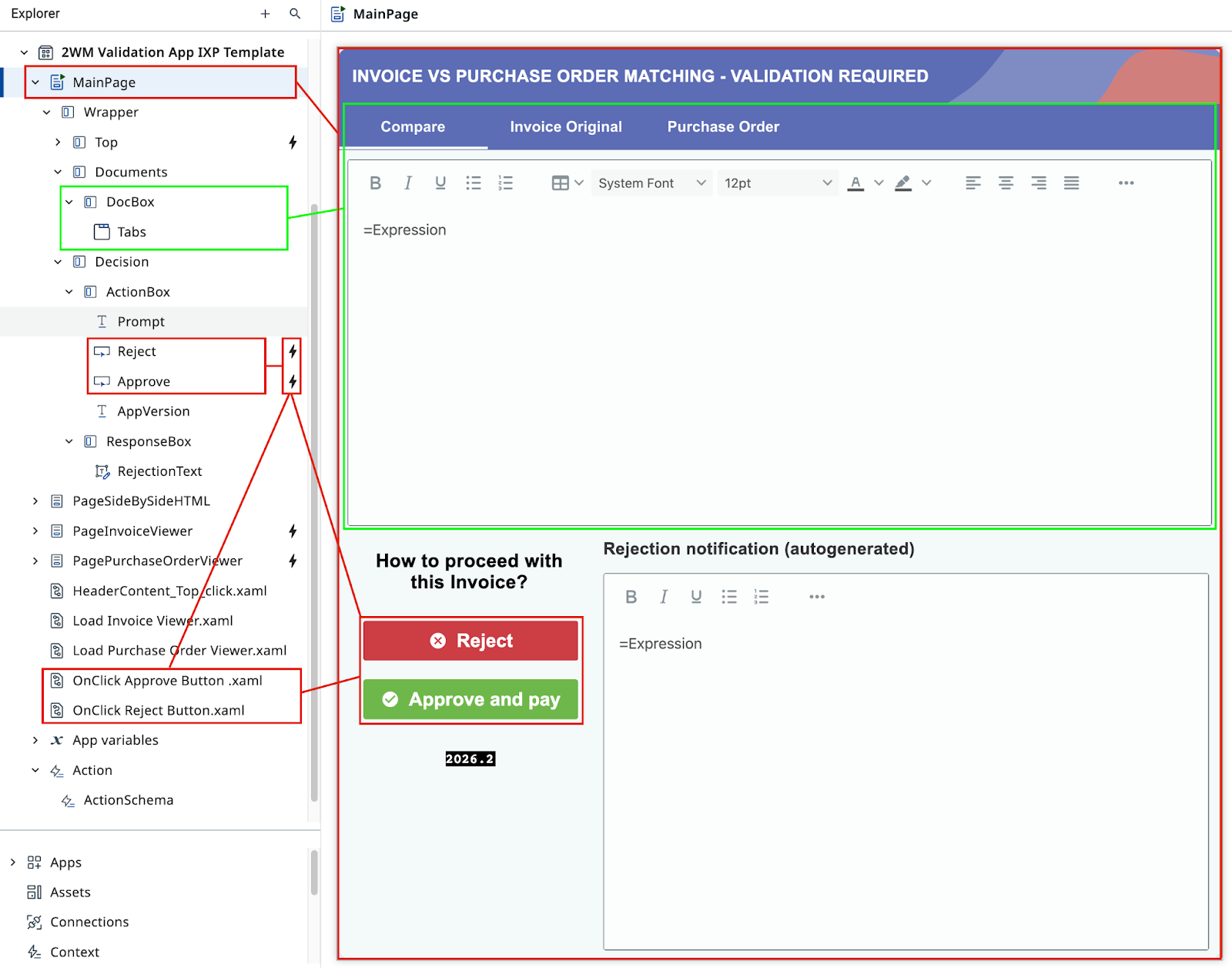
Review the app's input and output configuration. This shows what data the Agent will send in, and what the reviewer's decision will produce.
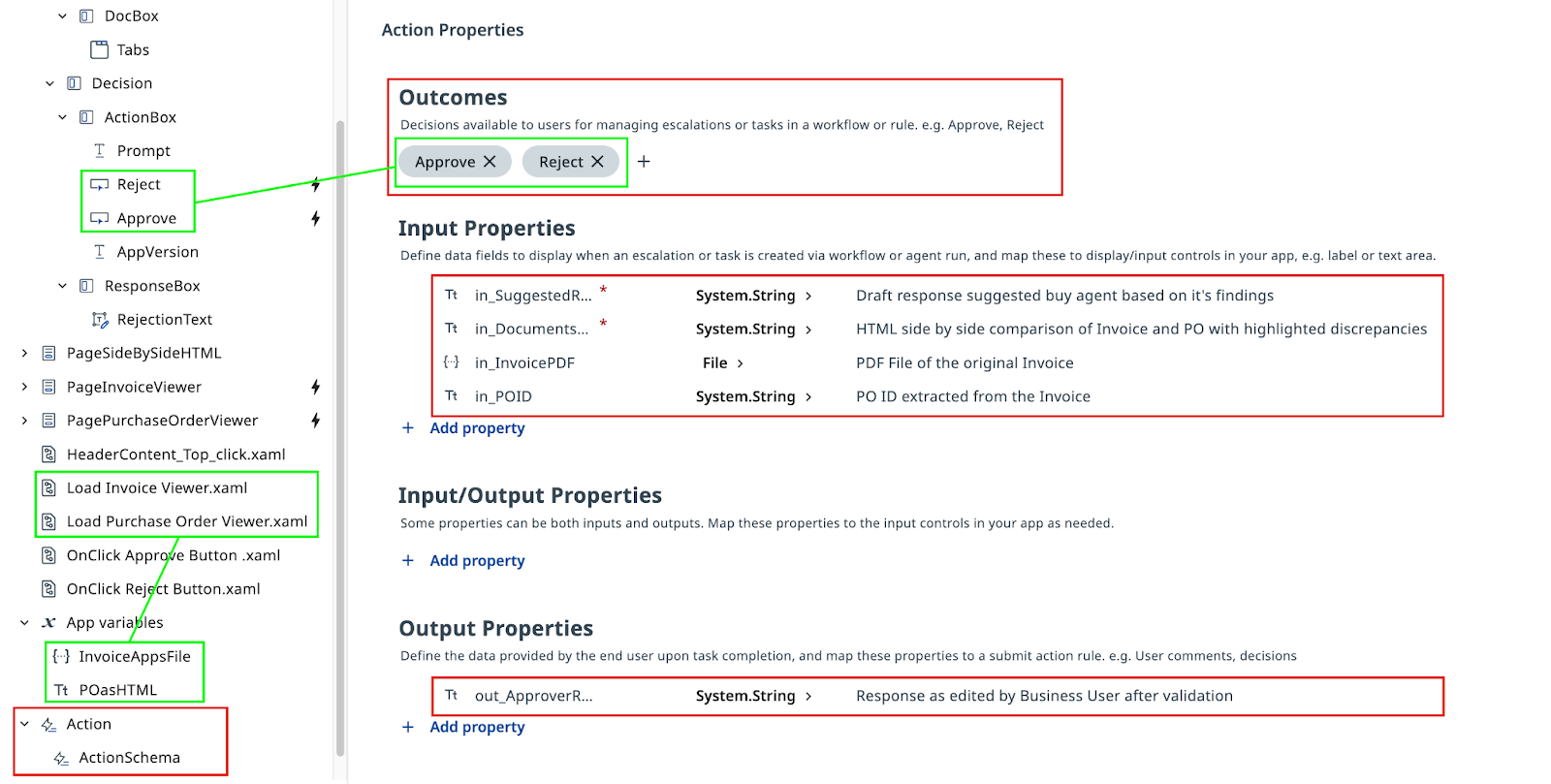
2. Configure the human task in Maestro
Go back to your Agentic Process in Maestro and configure the validation task on the Failed Match path as an Action App Task.
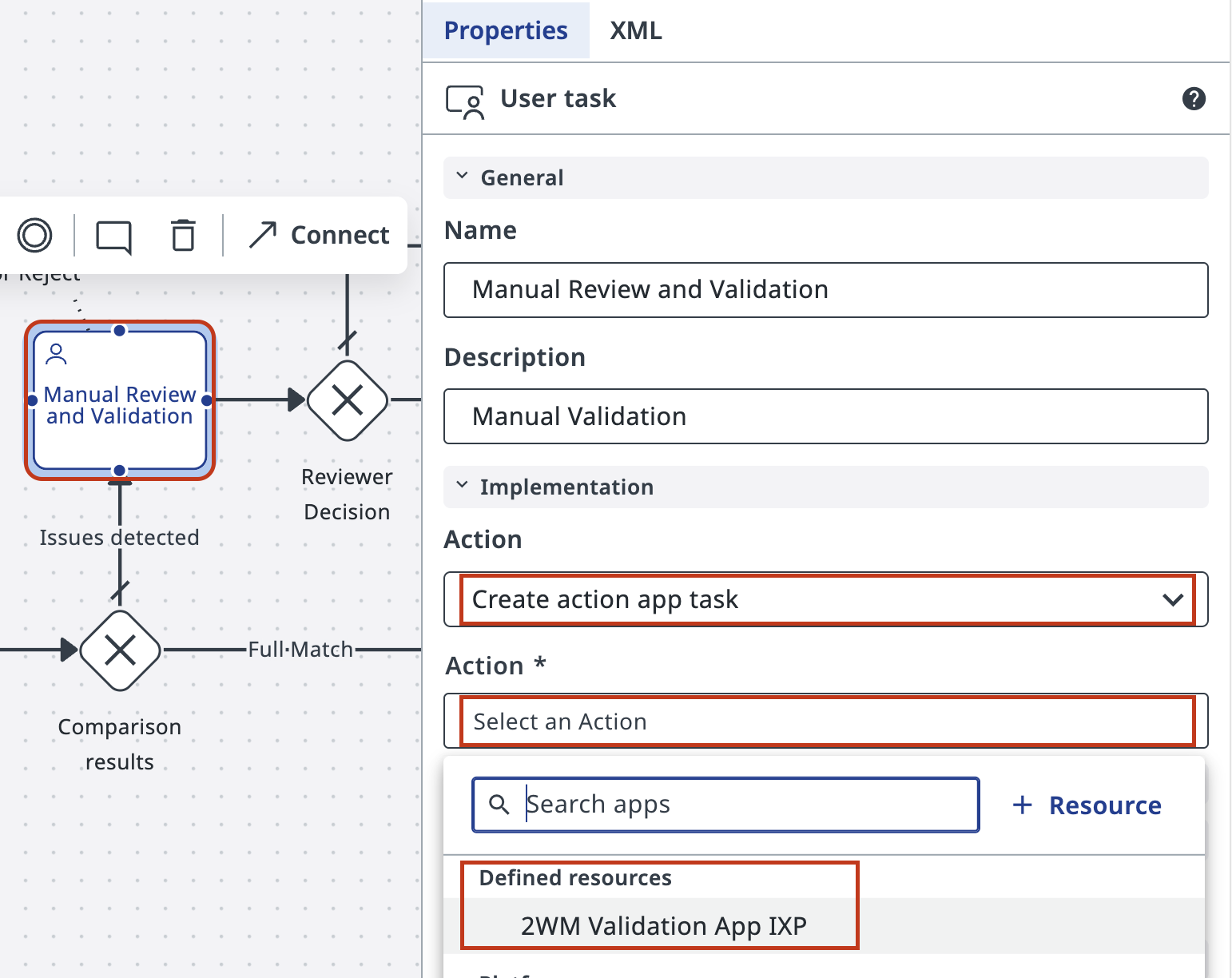
Select the human task node on the Failed Match path and set its action type to Create action app task.
Then select the 2WM Validation App IXP you just imported from the Defined resources list .
Customize the task title so it's easy to identify in Action Center later — for example: Invoice Validation (Your Name).
In Advanced Options, assign the task to yourself so you don't have to search for it among unassigned tasks.
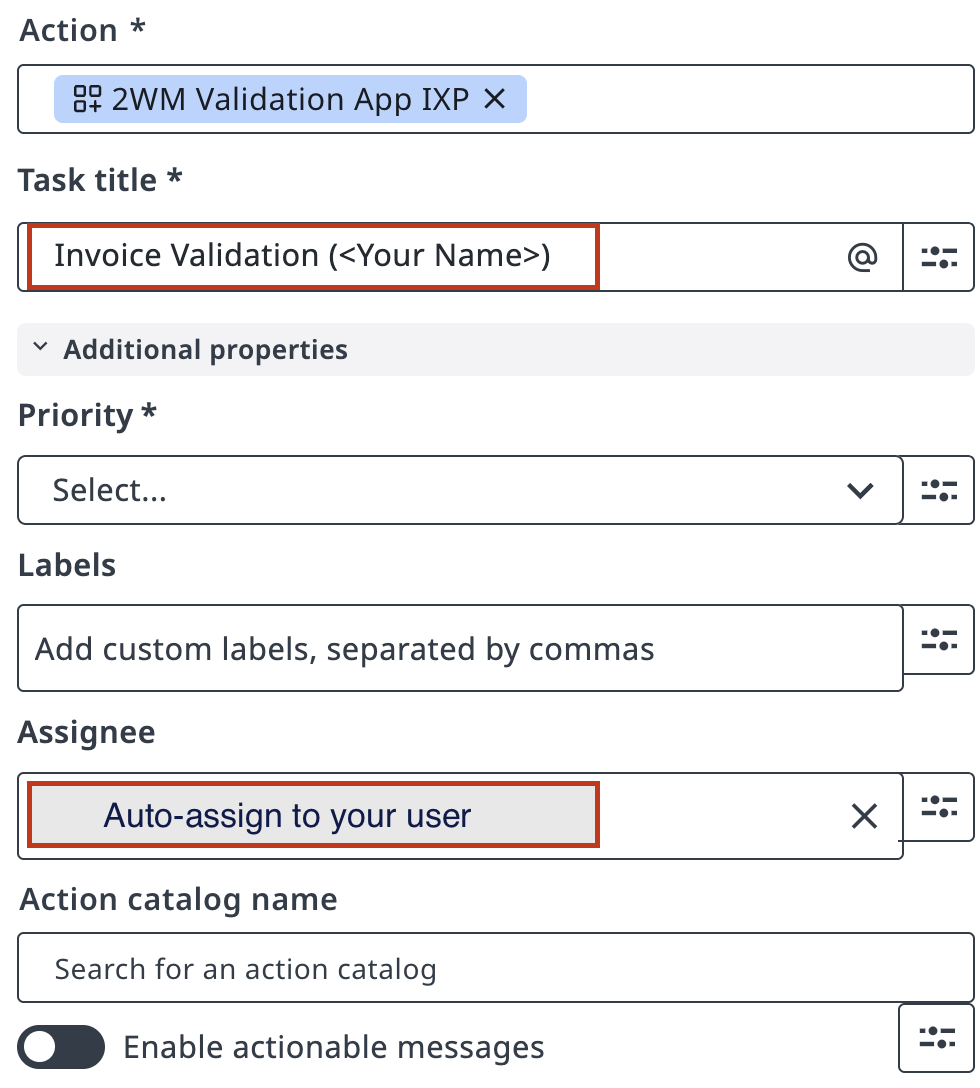
Map the Agent's outputs to the App's inputs, same way we did with agent.
In the Inputs section, connect out_DocumentsHTML and out_SuggestedResponse from your Agent to the corresponding app input fields.
Here you might again see the true value of following naming conventions!
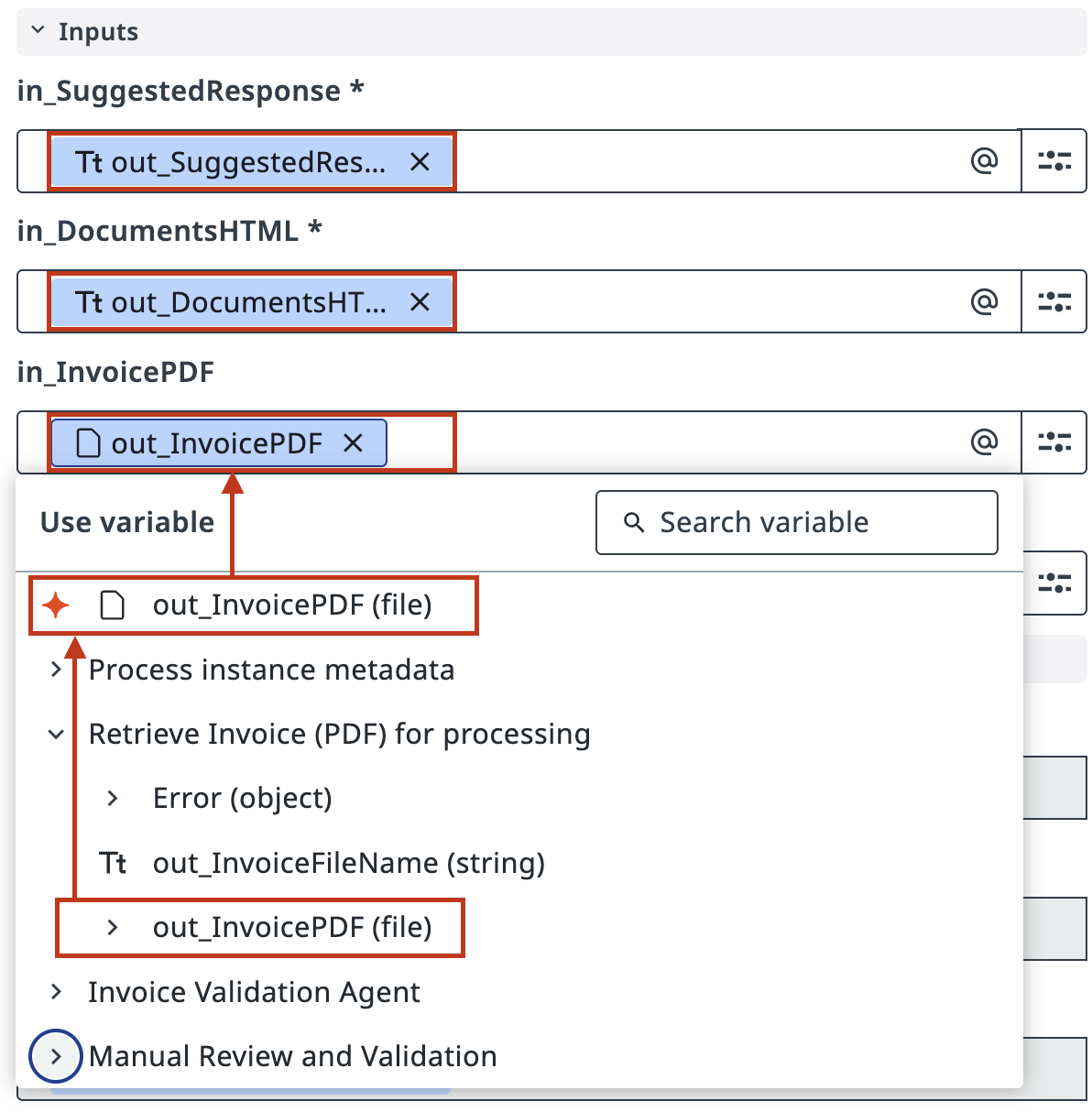
Save the task configuration.
3. Configure the gateway decision
Now configure the downstream flow based on the validation decision.
Select the Exclusive Gateway that routes the process after the human task.
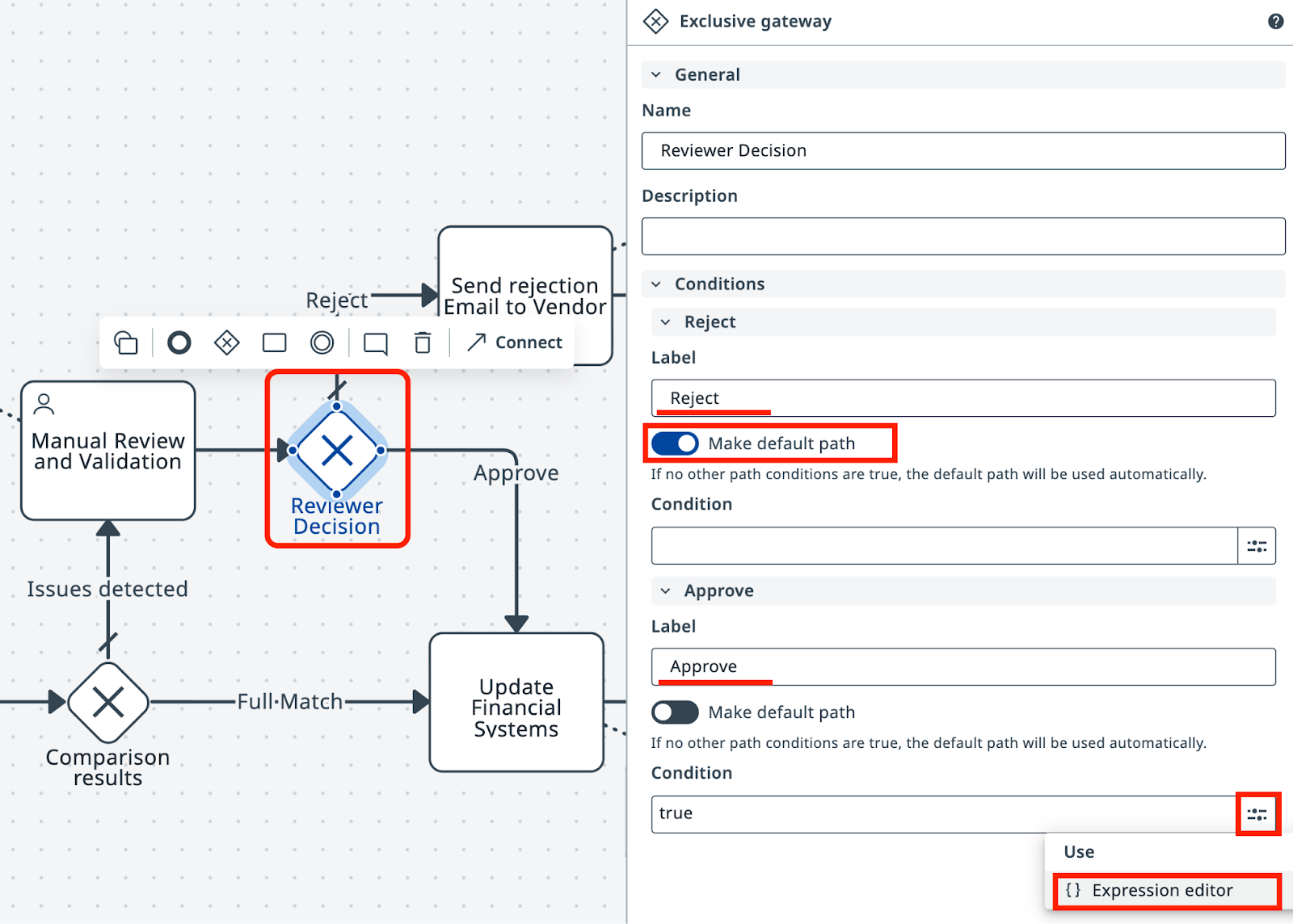
Set Reject as the default path, keeping in mind that a real business process might have a different approach.
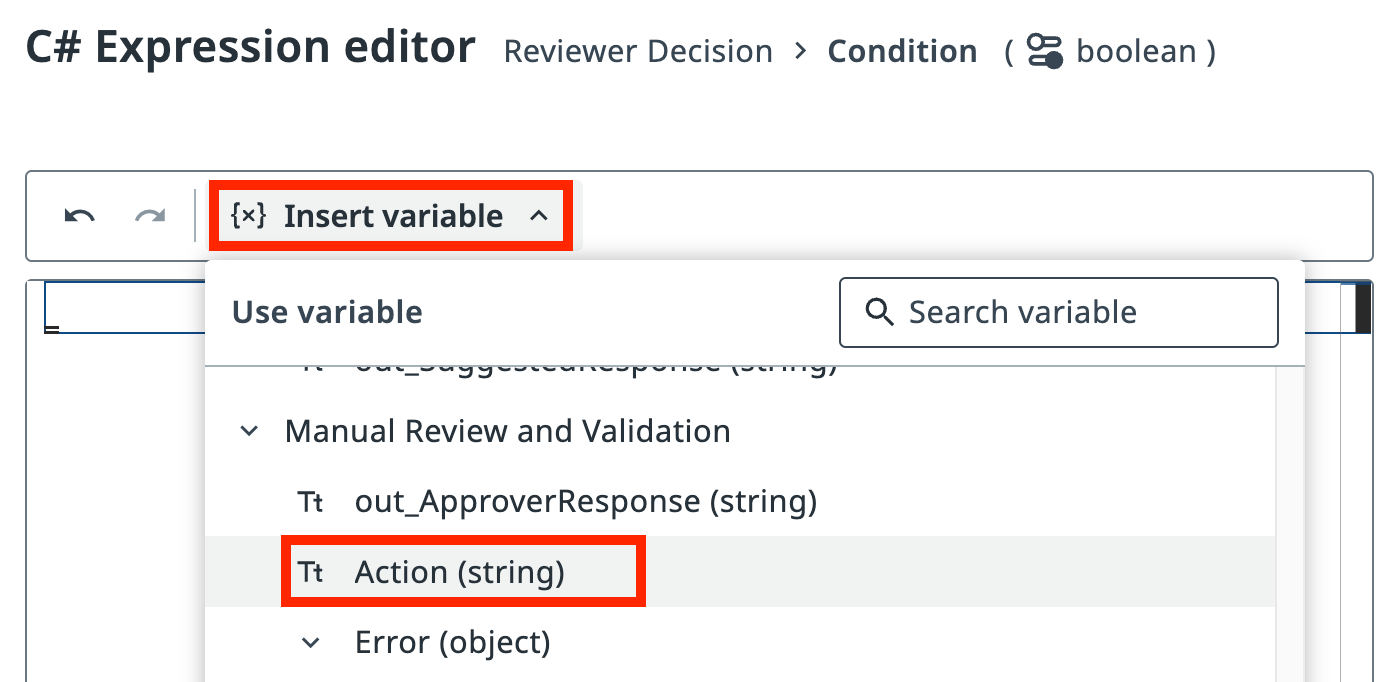
For the Approve path, click the Expression Editor button to configure the condition.
In the Expression editor, insert the Action output variable from the human task.
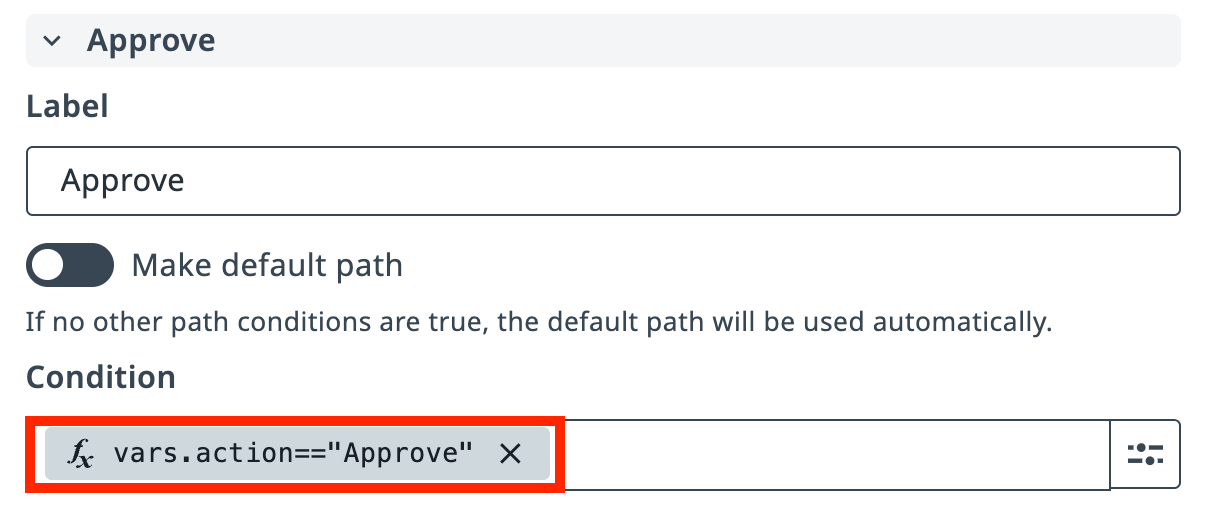
Enter the condition for the Approve path:
This routes the process to the Approve path when the reviewer approves the invoice.
4. Test the human validation flow
Now test the complete human validation flow. Click Debug and monitor the execution. With in_FailureProbability set to a high value (like 90), the invoice will frequently fail to match, triggering the human validation task.
Click Debug to start the process. The execution will pause at the Manual Review and Validation task when a mismatch is detected.
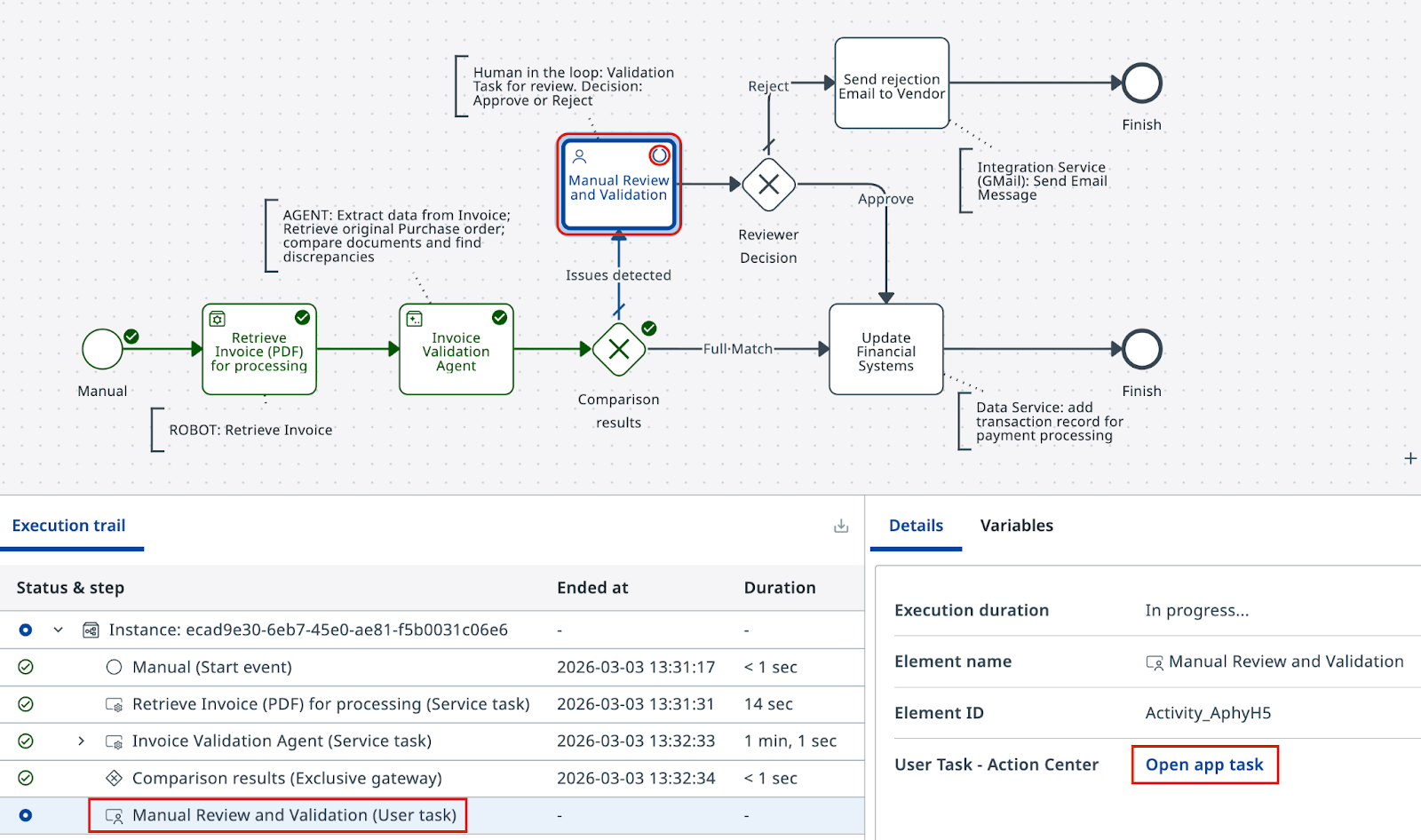
Open the action task by clicking Open app task in the Details panel. Review the side-by-side invoice and PO comparison, and make a decision.
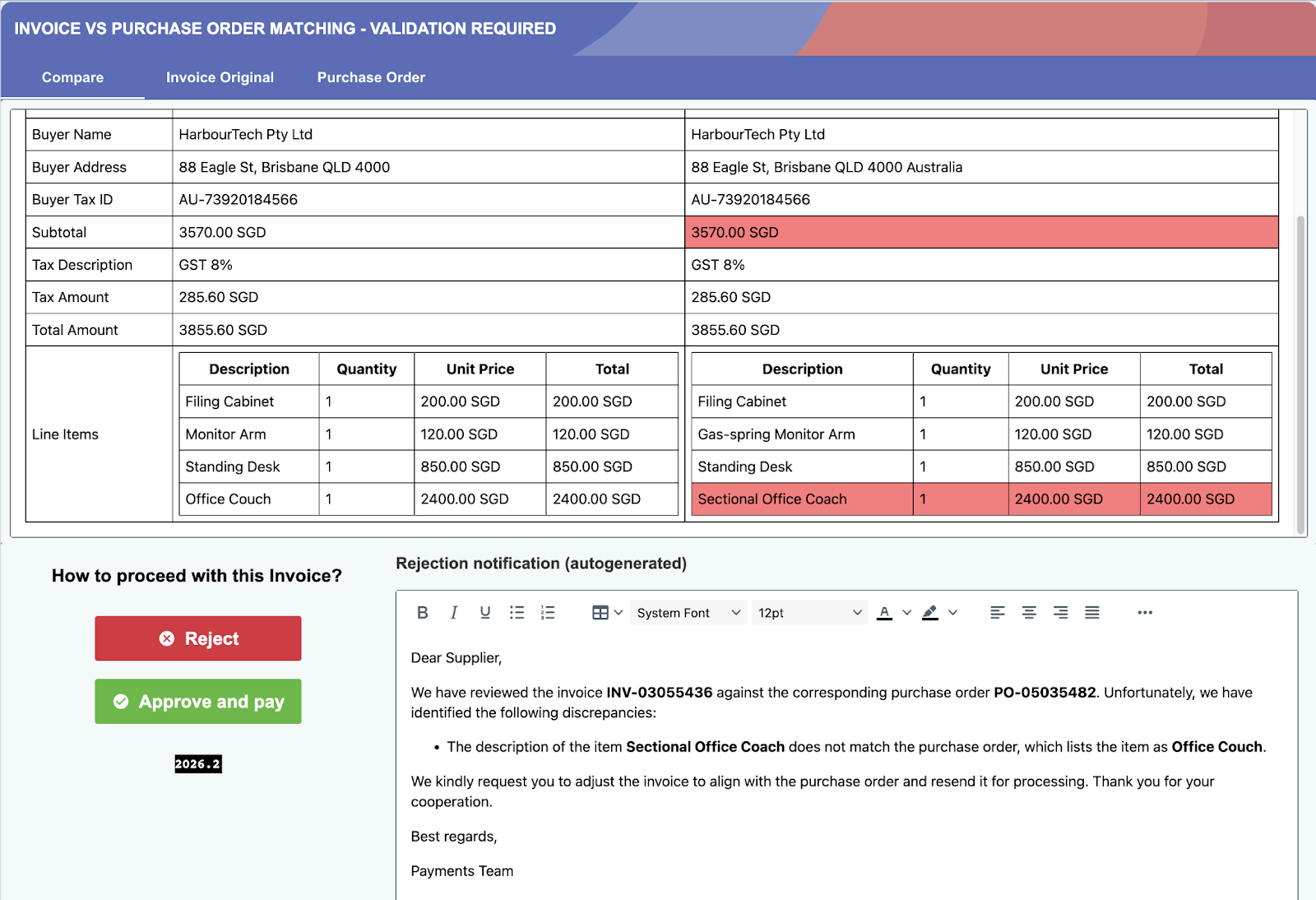
Looks like Agent did a fine job. But should this invoice be approved or rejected? Click Approve and pay or Reject. As soon as you submit your decision, Maestro continues the execution down the appropriate path.
Review the end-to-end process to confirm the human validation step is correctly integrated and routes based on your decision.
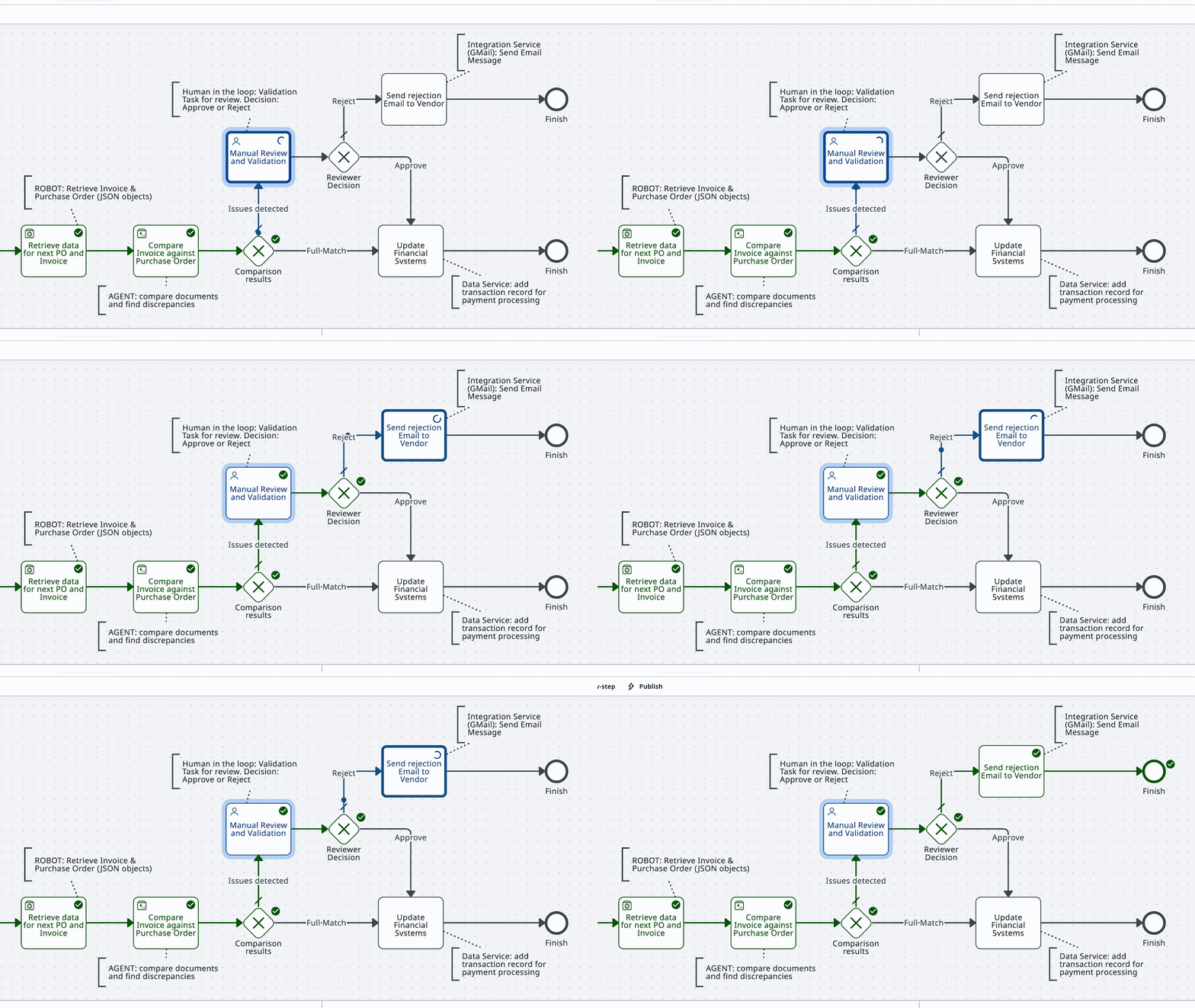
Run a few more tests — try both Approve and Reject — to confirm both paths route correctly.
Let's agree that the App could use a better design, but all in all — it does the job well enough.
Run a couple more tests and move on to the next lesson. We are almost done!