Part 1 : Generative Classifier and Extractor
🎯 Learning objectives
- Explain what generative AI means in the context of UiPath Document Understanding
- Configure and use the Generative Classifier for description-driven document classification
- Configure and use the Generative Extractor activity with prompt-based field extraction
- Apply good practices for writing clear, accurate extraction prompts
In UiPath Document Understanding, generative refers to the use of Large Language Models (LLMs) and Generative AI (like GPT-4) to process, classify, and extract data from documents. Instead of rigid templates or extensive training, it uses plain-language prompts to understand unstructured information — making it possible to handle a wide variety of document types with minimal setup.
🧠 Generative Classifier
The Generative Classifier is a classification tool that leverages generative AI to categorize documents using description-driven document type definitions. Instead of training on labeled examples, it classifies documents based on natural language descriptions you provide for each document type.
⚙️ How to Configure the Generative Classifier
- 📥 Insert a Classify Document Scope activity into your workflow
- 🔗 Place the Generative Classifier activity within that scope
- ✍️ Click Manage Prompts and enter clear natural language descriptions for each document type
🎯 When to Use the Generative Classifier
- 📄 Documents are unstructured with varied content
- 💬 You can describe the document types in natural language in a way that allows generative AI to distinguish between them
⚡ Generative Extractor
The Generative Extractor activity enables data extraction from documents using generative machine learning models through UiPath's Document Understanding platform. It uses a prompt-based wizard where you define field names and descriptions to guide the model.
✨ Key Capabilities
- 🔍 Extracts document data using generative models
- 📑 Supports multiple document types with customizable extractor types
- 🗂️ Three extractor types available:
- 📃 Long Document Simple Layout Extractor — for long documents with a straightforward layout
- 📰 Long Document Complex Layout Extractor (preview) — optimized for long-form documents with complex layouts
- 📄 Short Document Complex Layout Extractor (preview) — for short documents with complex layouts (maximum 10 pages)
- 🎛️ Field descriptions directly influence model extraction accuracy (max 1,000 characters per description)
- 🖥️ Compatible with Windows Legacy and Windows platforms
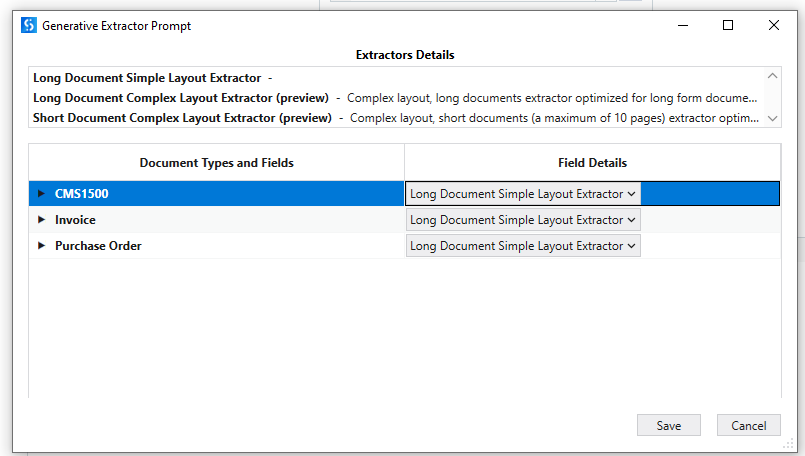
Generative Extractor Prompt — Extractor Details and Document Types configuration in UiPath Studio
🏆 Generative Extractor — Best Practices
⚠️ Key Limits to Keep in Mind
- 🔢 Maximum 50 prompts per extractor
- 📏 Extraction result (Completion) has a maximum word limit of 700 words
| Practice | Guidance |
|---|---|
| 🎯 Use Precise Language | Use clear, unambiguous phrasing. Imagine multiple people answering your question — if responses would differ significantly, refine the language. |
| 📋 Standardize Output Format | Specify the desired output structure explicitly — e.g. "return date in yyyy-mm-dd format" or "return numbers in ##,###.## format". |
| 📝 List Expected Options | When answers are limited to known choices, list them explicitly — e.g. "Possible answers: Married, Unmarried, Separated, Divorced, Widowed, Other." |
| 🔢 Use a Step-by-Step Approach | Break complex queries into sequential steps. Programming-style formatting (JSON or XML) improves accuracy by leveraging the model's code-interpretation capabilities. |
| 🚫 Avoid Arithmetic & Logic Operations | Do not ask the extractor to perform sums, multiplication, subtraction, or comparisons — handle these in your workflow with standard activities instead. |
| 🗃️ Avoid Complex Table Extraction | The Generative Extractor struggles with two-dimensional table data. Use the IXP capability for complex table extraction. |
| 🔎 Assess Confidence Carefully | Rather than relying solely on confidence scores, pose the same question multiple ways. Convergent answers indicate reliability; divergent responses suggest human review is needed. |
📝 Recap
- The Generative Classifier categorizes documents from natural-language descriptions of each document type — no labeled training examples needed.
- The Generative Extractor uses a prompt-based wizard with field names and descriptions; three extractor types are available (Long Document Simple/Complex Layout, Short Document Complex Layout), and it does not support table field extraction.
- Key limits: 50 prompts maximum per extractor and a 700-word completion limit per field.
- Prompting best practices: use precise language, standardize the output format, list expected options, break complex queries into steps, avoid arithmetic/logic operations, avoid complex tables, and assess confidence by rephrasing the question.
🧠 Knowledge check
1. What is the key difference between the Generative Classifier and a traditional (ML-model) classifier?
2. Best practice: if you're unsure whether a Generative Extractor field result is reliable, what should you do?