Practical exercise : Extracting data from invoices
🎯 What you will do
- Follow along with the step-by-step walkthrough video for end-to-end invoice extraction
- Set up a Modern Document Understanding project for semi-structured invoices
- Annotate, train, publish, and consume the model in a Studio workflow
🎓 Instructor-Led Training
To be done with the Instructor in ILT (Instructor-Led Training). Follow along during your live session.
📎 Exercise files
Download the invoice files needed for this practical exercise:
Walkthrough Video
Watch the full practical walkthrough below. Follow along in your own UiPath environment to build the invoice extraction project step by step.
📥 Prefer a written copy?
The video above covers every step below. If you'd rather follow along on paper (or reference it later without replaying the video), download the written step-by-step guide:
UiPath Document Understanding (Modern Projects) — Step-by-Step
1
Setup
Create a New Document Understanding Project
- Open UiPath Document Understanding service in Automation Cloud.
- Select Create Project.
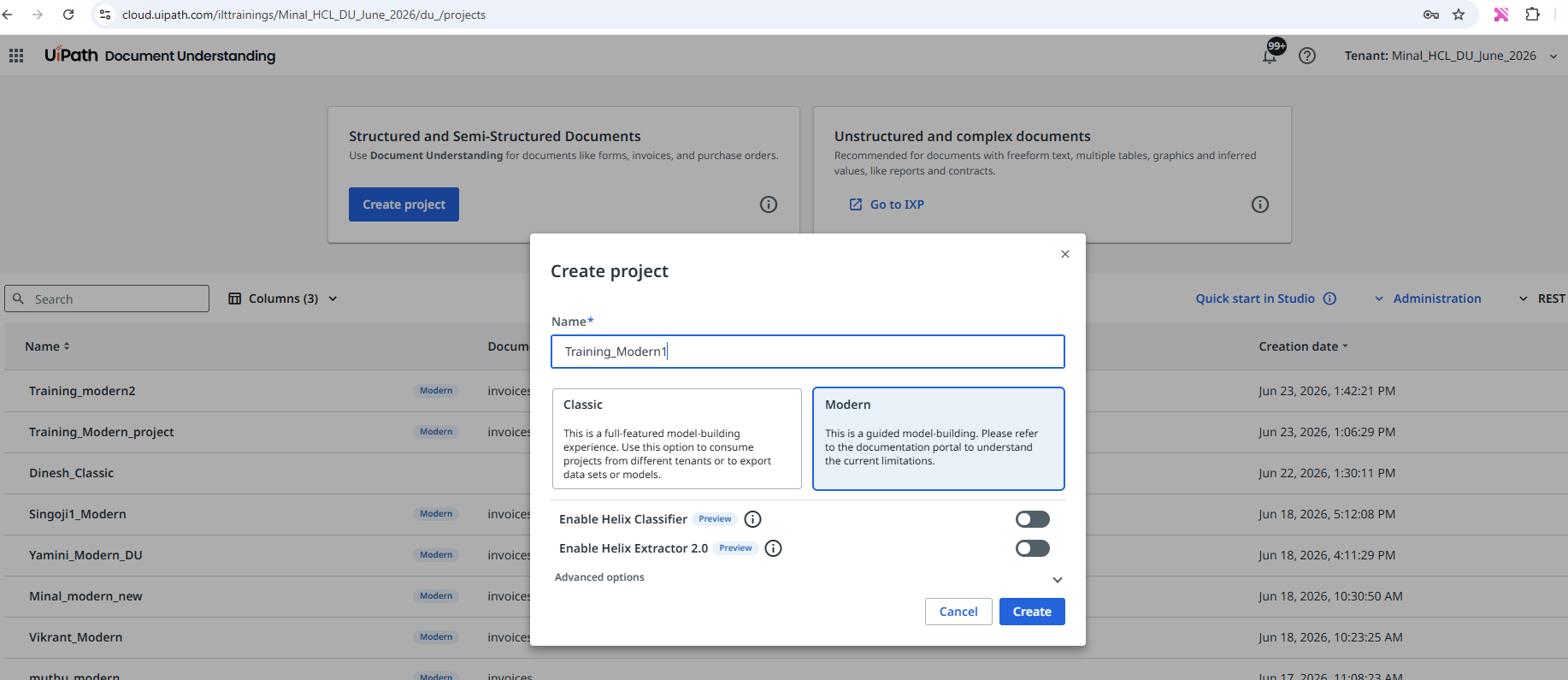
- Give the project the name
Training_Modernand click Save. - Add the document type — choose Invoices and click Add.
2
Configuration
Configure Extraction Fields
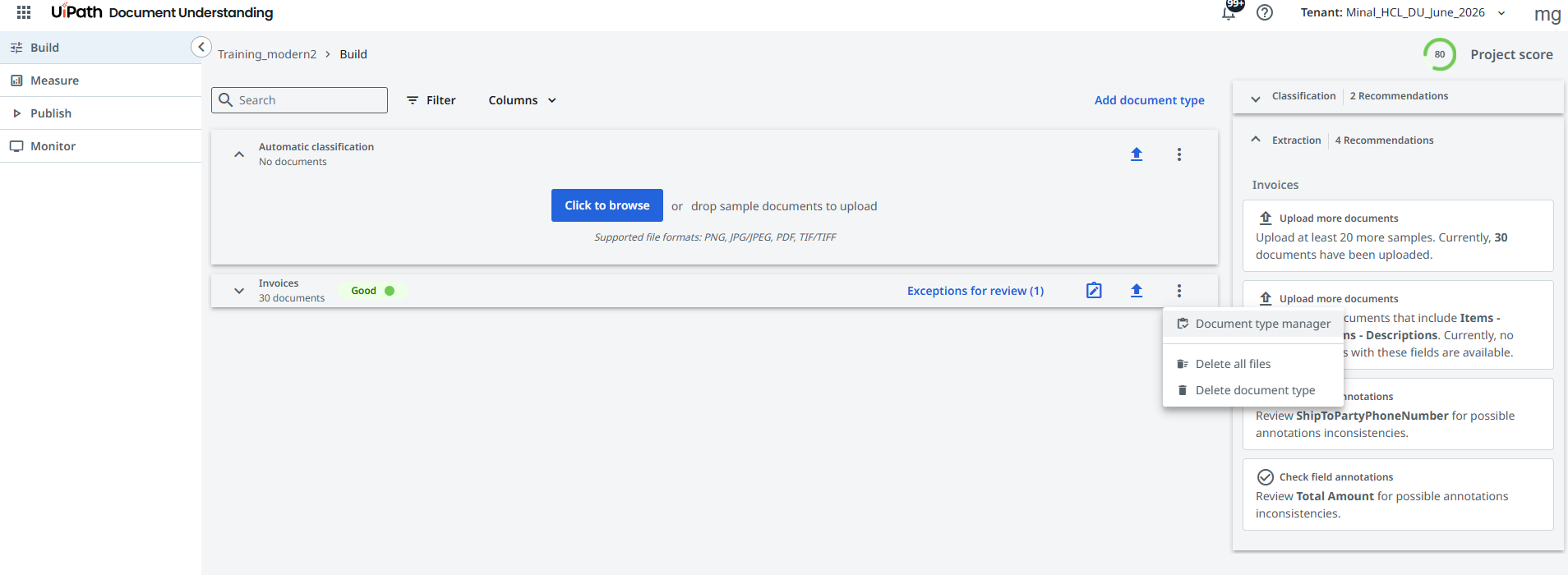
- Click the ⋮ (3 dots) menu and select Document Type Manager.
- Click on the Extraction Fields tab. Keep these fields and remove all others.
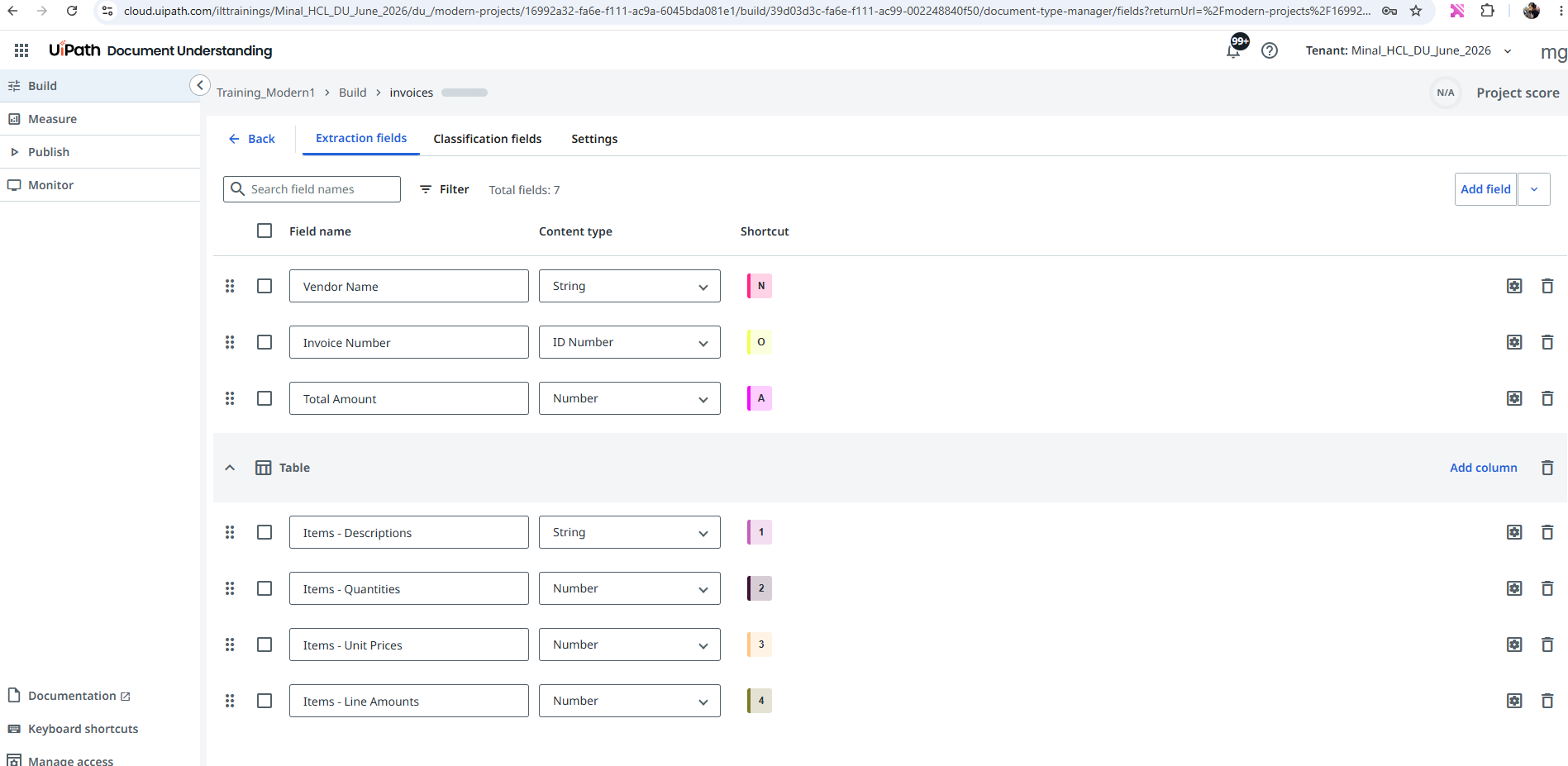
- Add a new extraction field named
ShipToPartyPhoneNumberof type String.
3
Data
Upload Sample Documents
- Navigate to the Build section.
- Upload your sample invoice documents.
- Wait for the documents to be processed.
- Verify all uploaded files appear and are ready for annotation.
4
Annotation
Annotate Documents
- Open a sample invoice.
- Select a field from the Extraction Fields panel on the right.
- Highlight the corresponding value on the document.
- Annotate these fields across all documents:
ShipToPartyPhoneNumberVendor NameInvoice NumberTotal Amount
- Annotate table columns for line-item extraction if applicable.
5
Review
Validate Annotations
- Review all highlighted fields across documents.
- Ensure each field is mapped to the correct region.
- Check confidence scores and extraction quality.
- Save the annotations.
6
Evaluation
Check the Measure Section
- Navigate to the Measure tab and open Metrics.
- Ensure you have a satisfactory accuracy percentage for each field.
💡 Tip
For high-stakes workflows aim for 90%+ F1. With human-in-the-loop validation in place, 75–80% is acceptable.
7
Publishing
Publish the Extraction Model
- Navigate to the Publish tab.
- Click Create Project Version, choose document type Invoices, give it a name, and click Create.
- Toggle the Deployed button to make the model live.
8
Automation
Create a Studio Automation
- Click on "Open Studio Web".
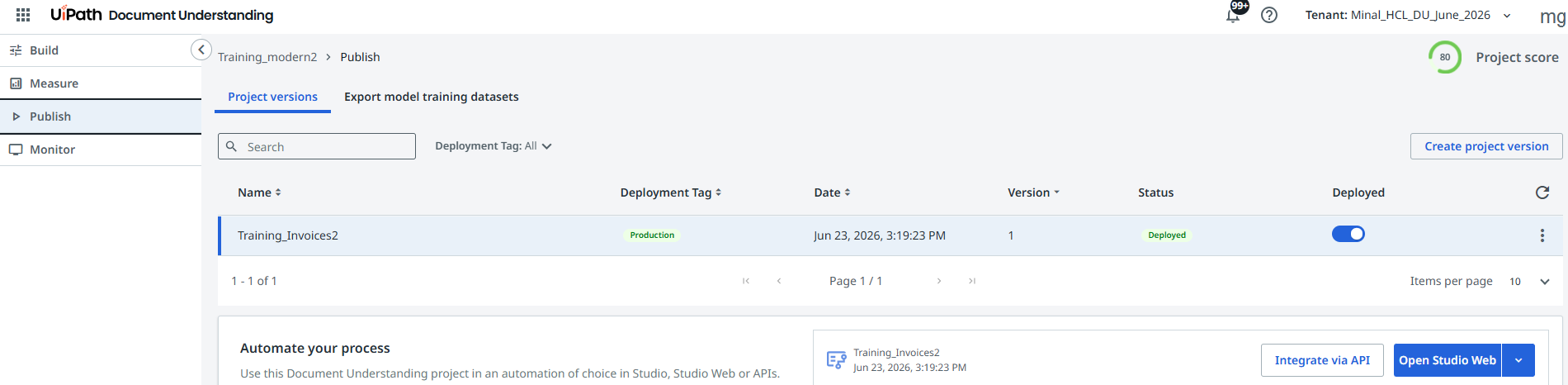
- This will open the automation in Studio Web in another tab.
- Run the Studio Web workflow and test it.
- Observe the execution logs.
- Verify extraction results.
- Confirm that invoice data is extracted successfully.