Monitoring in DU
🎯 Learning objectives
- Explain the Monitor section and how to track document processing performance
- Identify the key metrics available in Project Performance and what's required to enable it
- Use the Processed Documents tab to search and review extraction results
📊 Monitor
The Monitor section in Document Understanding gives you a centralised view of how your automations are performing — tracking document volumes, extraction accuracy, AI unit consumption, and human validation activity.
🗂️ Main Areas of Monitor
| Area | What it shows |
|---|---|
| Project Performance (Preview) | Processed document counts, time saved, and extraction duration. Requires Insights to be enabled in Tenant Profile settings. |
| Processed Documents | A searchable list of all documents processed via API or UiPath.DocumentUnderstanding.Activities. Documents are retained for 6 months. |
📈 Key Metrics Available
- Estimated time saved — calculated as: processed documents × manual processing time − validation time
- AI Unit consumption — overview and breakdown by consumer (API vs RPA)
- Straight-through processing rate — documents processed without human intervention vs. total
- Validation time per validator — tracks how long human reviewers spend per document
- Extraction & classification accuracy — field correction trends and classification confusion matrix
- Top exceptions — most frequently encountered processing errors
📊 Project Performance (Preview)
The Project performance tab shows key metrics including the number of processed documents, time saved processing documents, and time spent extracting data from documents.
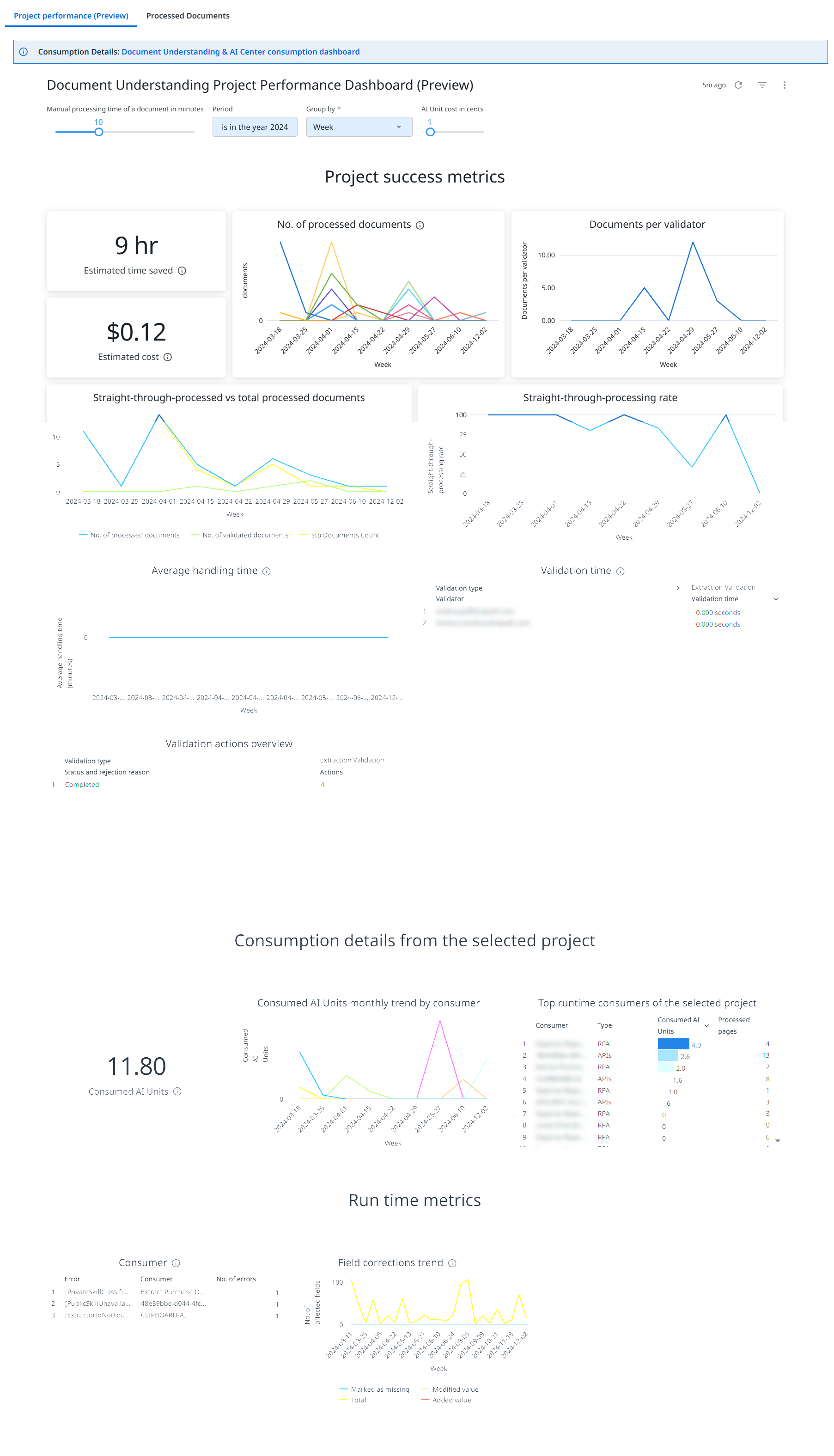
Project Performance dashboard
🔓 Enabling the Dashboard
To access the Project Performance dashboard, you must first enable Insights on your tenant:
- Click the three-dot menu in the top right corner and select Tenant Profile.
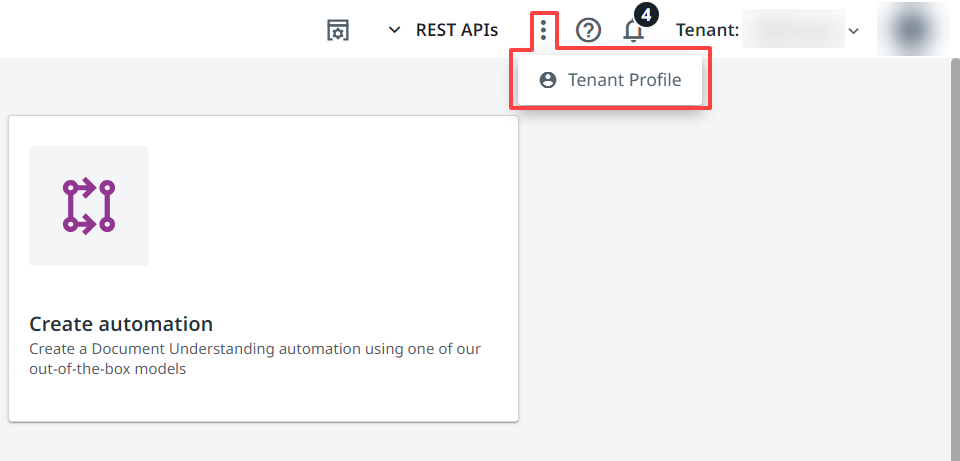
Tenant Profile button location
- Locate and enable the Insights Dashboard URL toggle button to activate the Insights feature.
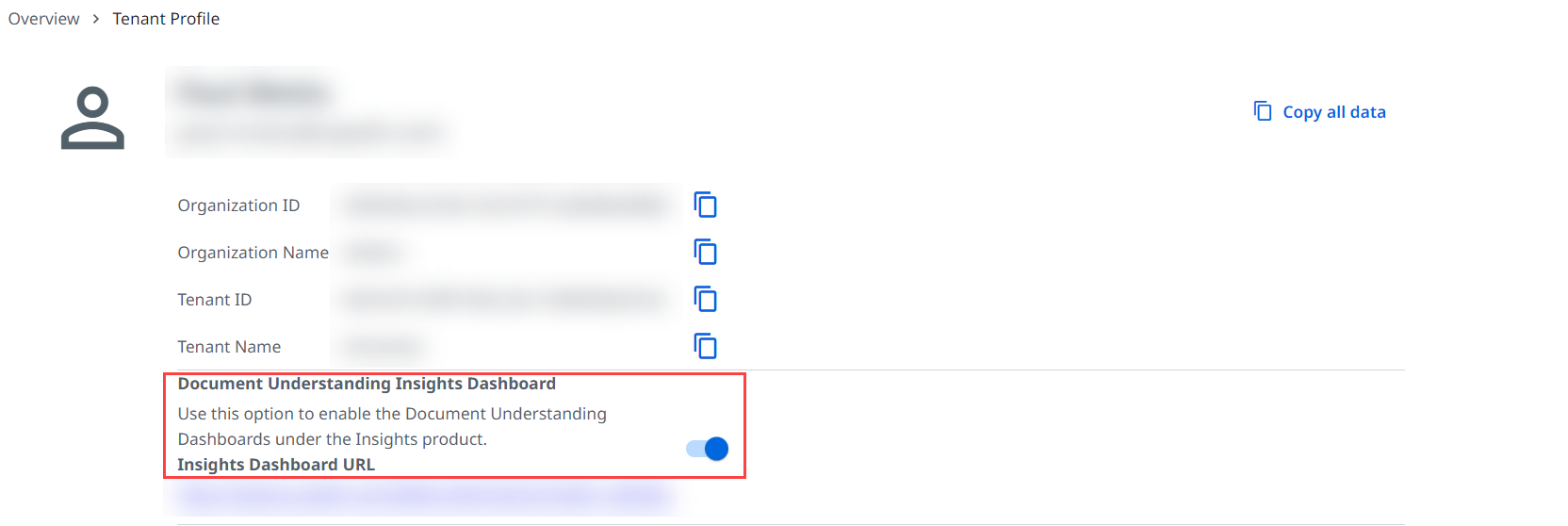
Insights Dashboard URL toggle
Once enabled, performance metrics become available after publishing a project.
⚙️ System Requirements
UiPath.DocumentUnderstanding.Activitiesv2.7.0 or newerUiPath.IntelligentOCR.Activitiesv6.20 or newer (for IntelligentOCR support)
📤 Schedule Delivery
You can automate dashboard exports on a recurring schedule. Configure:
- Schedule — name, recurrence, time, and destination
- Recipients — email addresses to receive the report
- Format — PDF, CSV, or PNG
📋 Processed Documents
The Processed Documents tab within Monitor lists every document that has been processed through Document Understanding — whether via API or the UiPath.DocumentUnderstanding.Activities package.
🔍 What You Can See
| Column | Description |
|---|---|
| File Name | Name of the processed document — click to open Document Details |
| Document Type | The document type it was classified as |
| Consumer | Whether it was processed via API or an RPA workflow |
| Modified Date | When the document was last processed or updated |
| Validator | The human reviewer who validated the extraction, if applicable |
| AI Units Consumed | Number of AI units used to process this document |
💡 Key Facts
- Documents are searchable by file name
- Records are retained for 6 months from the processing date
- Click any file name to open Document Details — a deeper view covering extraction results, validation actions, and accuracy per field
🧠 Knowledge check
1. Which Monitor area would you use to search for a specific document and review its extraction results?
🎉 Course summary
Congratulations on reaching the final module! Here's a quick recap of what you've learned:
- ✅ Module 01: IXP = Communications Mining + Complex Docs + Document Understanding
- ✅ Module 02: DU pipeline — Digitize → Classify → Extract → Validate → Export
- ✅ Module 03: Structured docs — Form Extractor & RegEx Extractor with Intelligent OCR
- ✅ Module 04: Semi-structured docs — Active Learning, OOTB models, Build/Measure/Publish
- ✅ Module 05: Unstructured/Complex — Generative AI extraction, IXP taxonomy, model lifecycle
- ✅ Module 06: DU framework — architecture, error handling, custom success logic
- ✅ Module 07: Monitoring in DU — Monitor dashboard and Processed Documents