Setting up the Solution
Here is our plan for this lesson:
- Create a Maestro Agentic Process Solution in Studio Web, starting from a template
- Connect the storage bucket that holds the applicants' files
Goal
Create the Benefit Claims Processing solution from a prepared template, then connect the Orchestrator storage bucket the agentic process needs later.
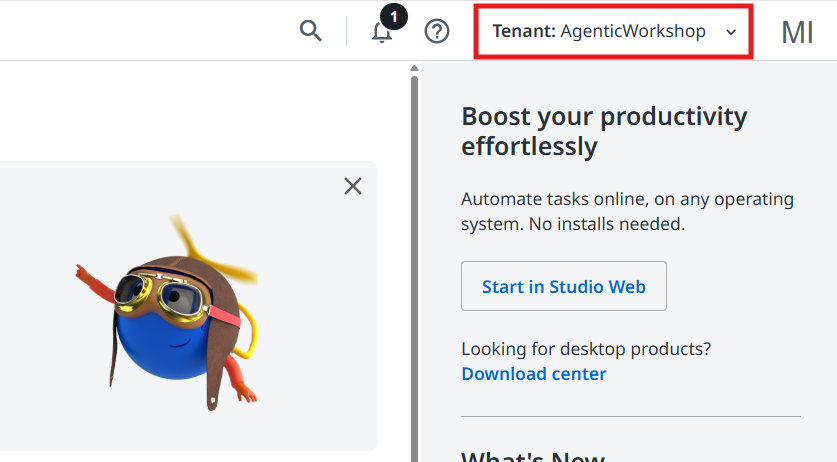
Check your tenant first
Make sure the AgenticWorkshop tenant is selected from the top right corner.
Steps
1. Create an Agentic Process solution
Let's start by creating a new Agentic Process from a previously created template.
In the Studio Web home page go to Templates and select the Benefit Claims Processing Template_Professional. This will create a new solution, based on a project that was previously submitted as a template.
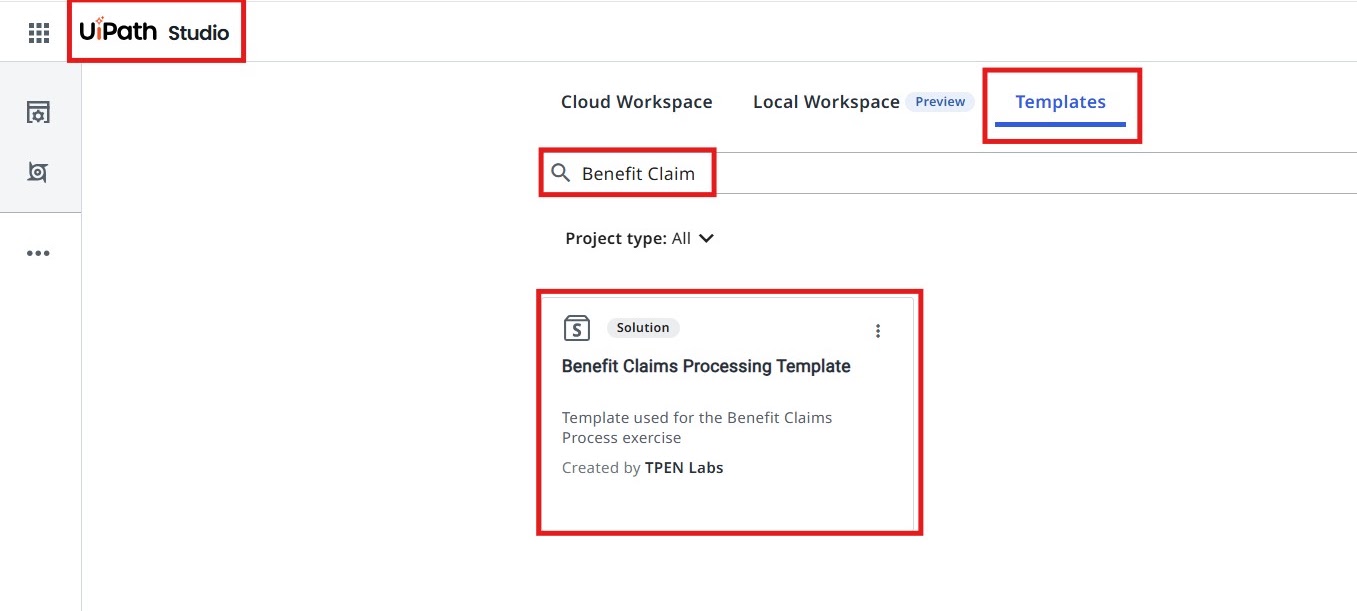
You will notice that this will create a new UiPath Solution.
A solution bundles together multiple components (processes, assets, queues, etc.) developed on the UiPath platform that work together to automate a business use case. In the UiPath context, a solution can be as simple as a Studio workflow/process, or as complex as a combination of multiple workflows or processes, agents, apps, assets, queues, storage buckets, Data service entities, etc.
Our Benefit Claims solution contains a few components:
- The Agentic Process (Benefit Claims Processing)
- Process Benefits Application — an RPA Workflow that uses UiPath IXP — Unstructured Documents to extract data from the Benefits Claim application.
- Addition Tool, Multiplication Tool, Subtraction Tool — a few API workflows which will be used as tools by AI Agents
- DownloadFileFromStorageBucket and UploadFileToStorageBucket — two RPA workflows which will help with handling files from Orchestrator Storage Buckets.
- Start Benefit Claim — an RPA workflow that starts the Benefit Claims Processing agentic process. It will be used as a tool by a conversational agent.
- A UiPath App, used to present claim details and decisions to Case Workers (Action App).
Learn more about the Unstructured and Complex Documents feature of IXP
The Unstructured and complex documents capability enhances the capability to handle complex unstructured documents, and uses generative AI to map fields and field groups as defined in the extraction schema and predict them with confidence and accuracy. This advanced feature is adept at extracting data from intricate elements like complex tables, charts, or graphs, and it structures the output effectively.
The process involves:
- Reviewing initial model predictions.
- Modifying prompt instructions iteratively based on review outcomes.
- Annotating documents to gather ground truth for validation and to inform refining the performance of data extraction.
Extracting data from unstructured documents, such as contracts, long invoices, or other similar documents, requires a systematic and intelligent approach due to the variations in format, language, and layout.
2. Rename your solution

The art of keeping your projects organized is rooted in habits — and habits are nurtured through consistent practice.
— Generated by a wise ancient LLM
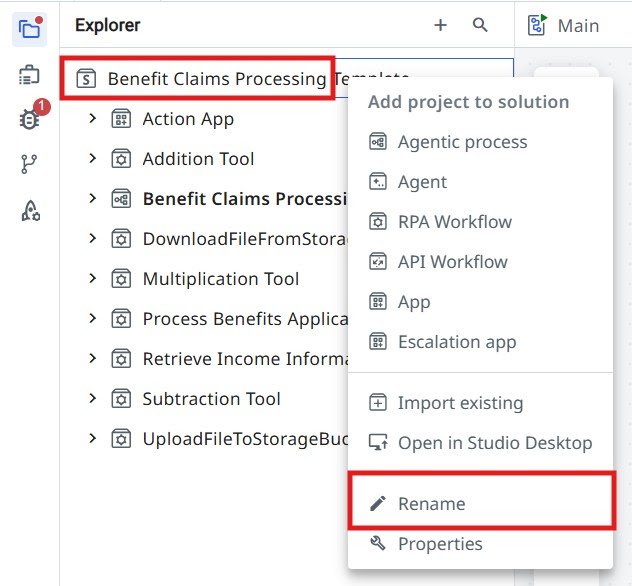
So, don't forget to reinforce your good habits and rename our solution:
- right-click on the solution and select Rename
- let's give a meaningful name to our solution. We can name it:
Adding resources to our solution
Next, let's link the storage bucket that our agentic process is going to use.
3. Connect the Storage Bucket
In our scenario, the process relies on files submitted by the applicants for benefit claims. We will store these files inside Orchestrator Storage Buckets.
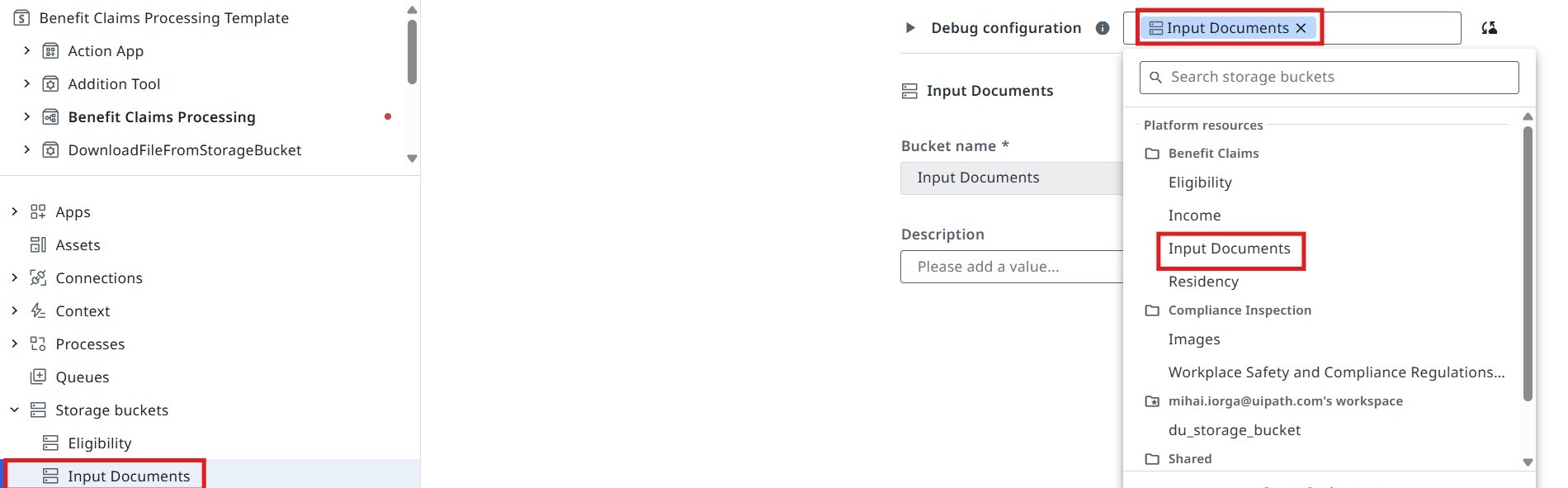
Let's connect the Input Documents Storage Bucket to our solution.
Configure the Input Documents storage bucket as in the picture below:
Time to move to the next one!